Adding Calendar Holidays
Overview
Calendar holidays can be entered in your Ankota environment well in advance. You can either enter them for the next several years, or simply enter them one at a time. These registered holidays in your system are how your holiday care codes determine what days to apply holiday billing or pay (usually for private pay), so if your company pays or bills holiday rates for private pay or other visit types, it is essential to add holidays to your Ankota calendar. This is normally done for your first year during implementation, but subsequent years do need to be manually added in each year.
Adding Holidays for the Next Calendar Year
To build the list of holidays,
-
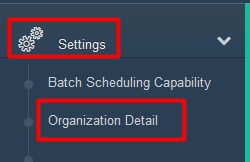
Click on Settings, then Organization Detail
-
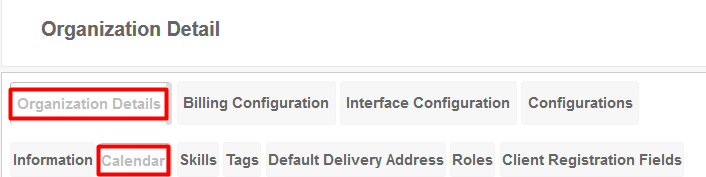
Under Organization Details, click the Calendar tab
- Scroll down to Days/Time Off
-
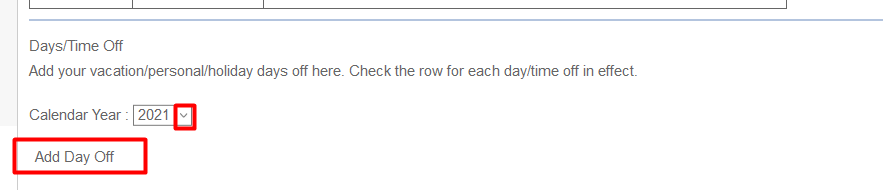
Select the appropriate Calendar Year through the drop-down box, then click Add Day Off
-
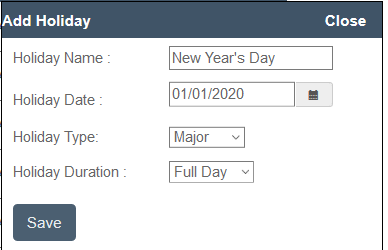
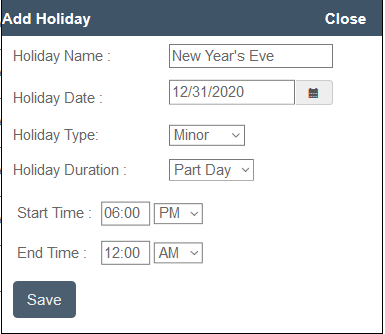
A pop-up window will appear. Enter the holiday name, date, type, and duration. For most all-day holidays, this will be holiday type Major, Full day.
-
For partial day holidays, such as New Year's Eve, you will set this holiday type as Minor, Part Day, with the starting time when billing and payroll are affected through midnight.
Don't forget to set your December reminder to add your calendar holidays to Ankota if you do this on an annual basis.
Was this article helpful?