Caregiver/Staff Management›Caregiver Ratings

Caregiver Ratings

Overview

The ability to set and use caregiver ratings in the Ankota system allows you to differentiate between your caregivers when making scheduling decisions. The directions below will teach you how to assign caregiver ratings and then use them with Ankota's Find Matching Caregivers functionality.

Creation

To assign a caregiver rating, first make sure the function is turned on in your system. If you do not see this option on your caregiver page, reach out to Ankota Support to have this configured.
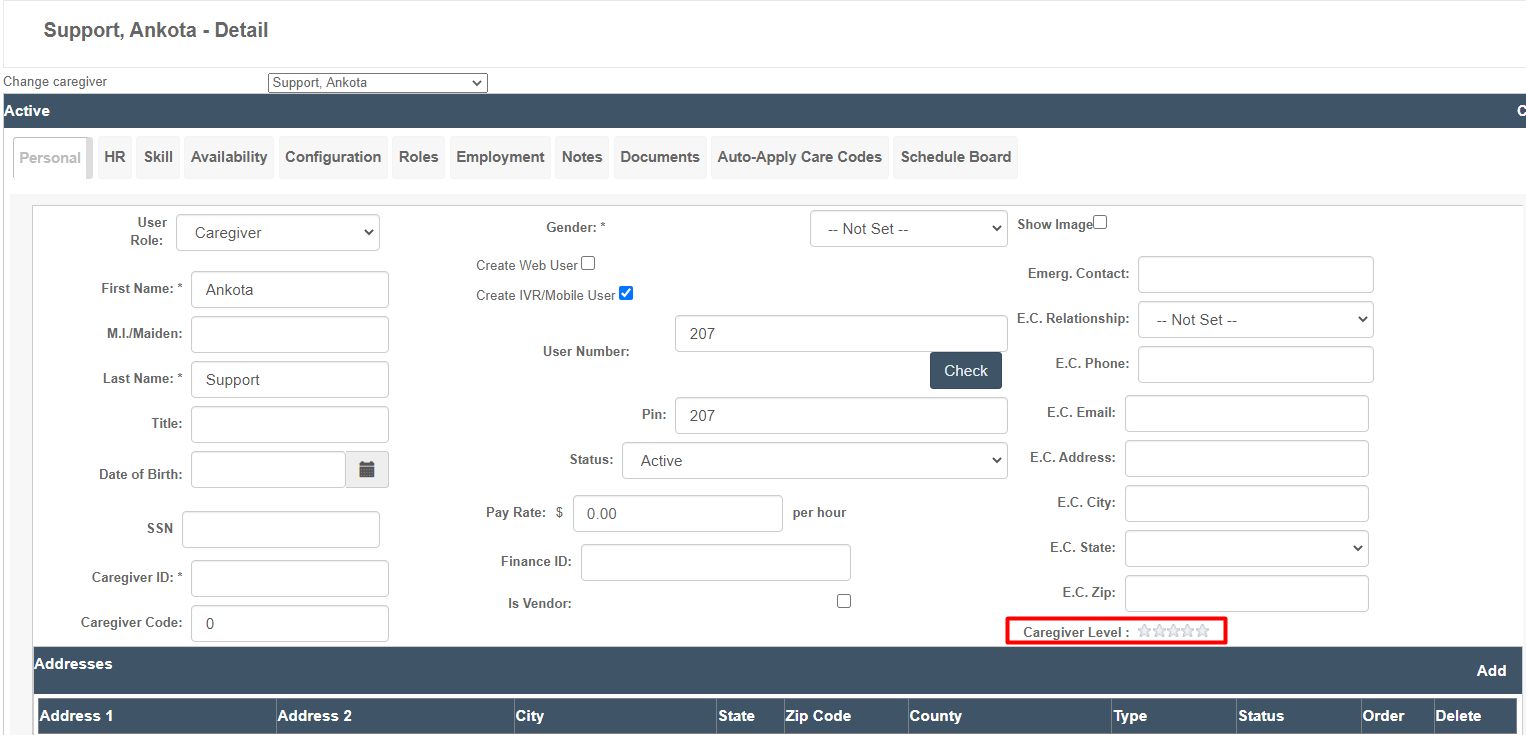
The "Support, Ankota - Detail" page shows the Personal tab with caregiver information fields for a caregiver named Ankota Support, including user role, name, contact details, and emergency contact information, with a "Caregiver Level" rating field highlighted in red at the bottom right. The page also displays multiple tabs (HR, Skill, Availability, Configuration, Roles, Employment, Notes, Documents, Auto-Apply Care Codes, Schedule Board) and an Addresses section below with columns for address details, city, state, zip code, county, type, status, order, and delete options.

If it is configured, go to each caregiver's profile, click the desired rating level, then click Save.
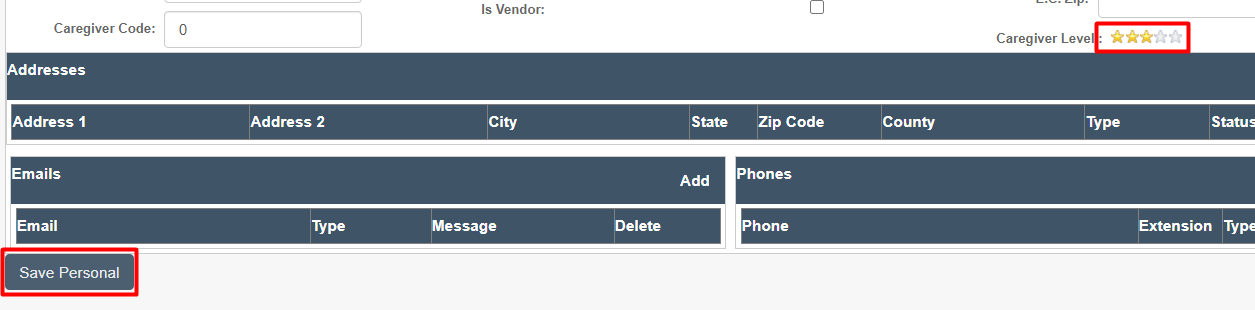
This screenshot shows a caregiver profile management form with sections for Caregiver Code (set to 0), an "Is Vendor" checkbox, and a Caregiver Level rating display showing 3.5 stars. Below are collapsible sections for Addresses (with columns for Address 1, Address 2, City, State, Zip Code, County, Type, and Status), Emails (with columns for Email, Type, Message, and Delete), and Phones (with columns for Phone, Extension, and Type), each with an "Add" button. A "Save Personal" button is located at the bottom left.

Usage

Once the caregiver rating is set, you can use this as a filter in the Find Matching Caregivers functionality. 
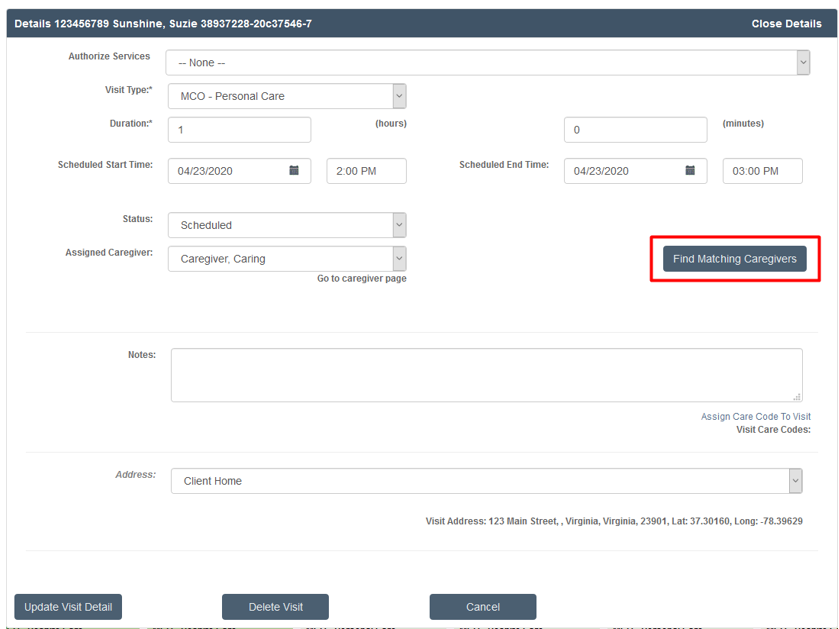
Visit Details page showing scheduled personal care visit information including service type, duration, scheduled date/time (04/23/2020, 2:00 PM to 3:00 PM), status, assigned caregiver, notes section, and visit address with coordinates. The "Find Matching Caregivers" button is highlighted in red at the top right of the form.

Once you've clicked the Find Matching Caregivers button and the new window opens, check the box next to "Use Caregiver Rating."
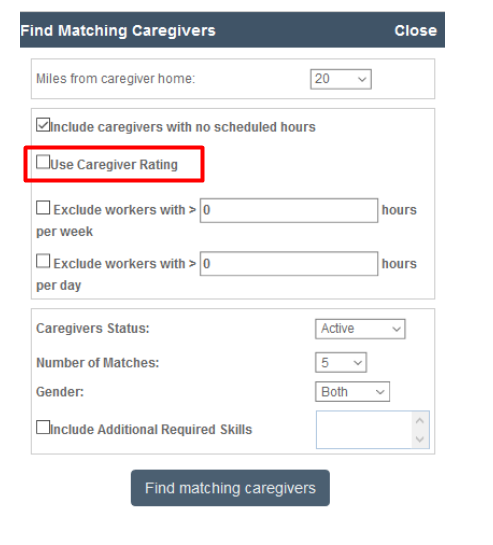
The "Find Matching Caregivers" dialog displays search filters for locating caregivers, including distance, scheduling preferences, and worker hour restrictions. The "Use Caregiver Rating" checkbox is highlighted in red, indicating it is a key filter option that can be enabled to restrict results to only caregivers with ratings.

This opens the Minimum Caregiver Rating option, with a drop-down selection referring to the number of stars. Select the number of stars, and only caregivers that meet all the criteria, including the designated star rating, will be listed.

One important note: if you wish to use this function, it is strongly recommended you assign every caregiver a star rating. Otherwise, if you turn on the caregiver filter in the Find Matching Caregivers search feature, only caregivers with a star rating will be listed. 
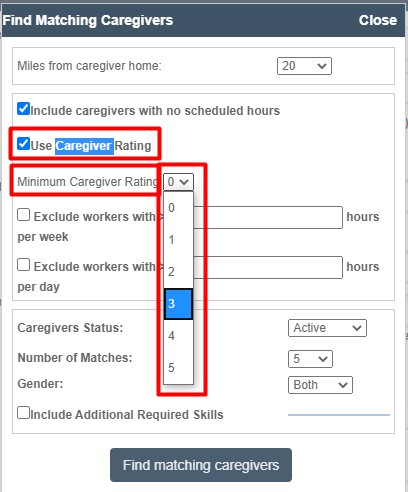
The "Find Matching Caregivers" dialog shows filter options for searching caregivers, including fields for miles from home, caregiver rating requirements, work hour exclusions, caregiver status, number of matches, and gender, with a dropdown menu for "Minimum Caregiver Rating" currently displaying rating options 0-5.

Was this article helpful?
On this page