Credit Card Processing in Ankota (Paragon)
Overview
For some private pay clients, paying invoices by credit card or ACH is ideal. By entering a client's payment information into Ankota, charges can be applied at the click of a button from the Billing Report page. This process is fully PCI-compliant; although the credit card is entered in Ankota, the information is not stored in Ankota, ensuring the security of client credit cards.
Ankota does not charge a fee for this integrated functionality, but Paragon (the provider of the secure billing functionality) charges a transaction fee and a monthly fee.
Getting Started
Reference the following PDFs for getting started:
- 2.0 Ankota_Integrated Processing Overview.pdf
- 9.0 Ankota_Why Paragon _ Integrated Payments.pdf
- 9.1 Ankota_Account Set-Up Process.pdf
This credit card billing functionality requires configuration by an Ankota specialist as well as a contract with Paragon. Speak to an Ankota specialist before attempting to use this process. See below for an overview.
Paragon Sign-up
The first step is to review the files above, sign up with Paragon, and then provide Ankota with the account information so Ankota can connect with Paragon.
Once this is complete, proceed to setting up clients' payment information.
Set-up & Use of Credit Card/ACH Invoicing
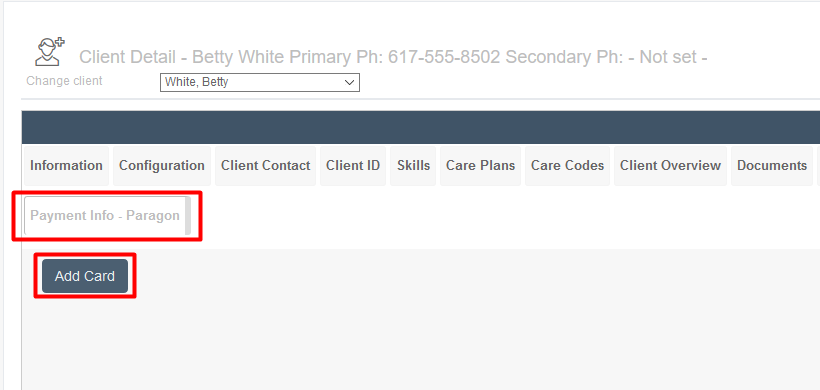
Place the payment information under the client's Payment tab. (Ankota will set up this access once the Paragon account is confirmed.)
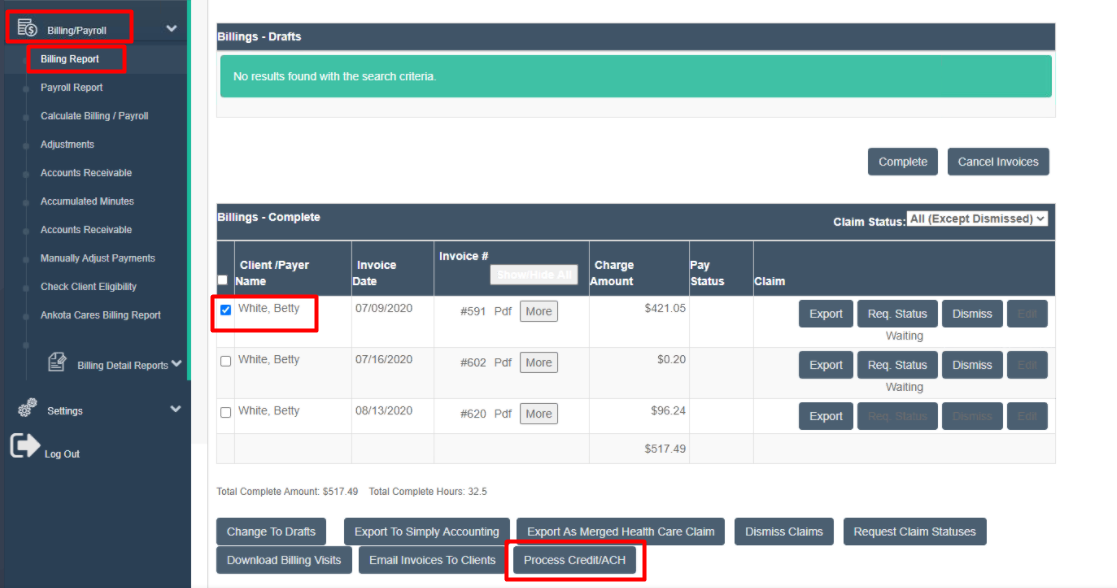
Next, calculate billing according to standard company processes. When the invoice is completed, check the box next to the invoice to be billed to the credit card, then click the Process Credit/ACH button.
Remittance Processing & Tracking
Immediately upon charging the card, the company's AR screen in Ankota is updated with the payment information. If the client's credit card is rejected, this is also immediately confirmed.