Custom Invoice Options
Overview
Invoices have many options which can be configured by the custom settings available on the Visit Plan Categories. These options are primarily intended for private payers (self-pay and long-term care insurance companies) and will only affect the PDF invoices which are generated by billing.
Once set, these custom settings will override all options for that category.
Custom Invoice Settings via Visit Plan Category
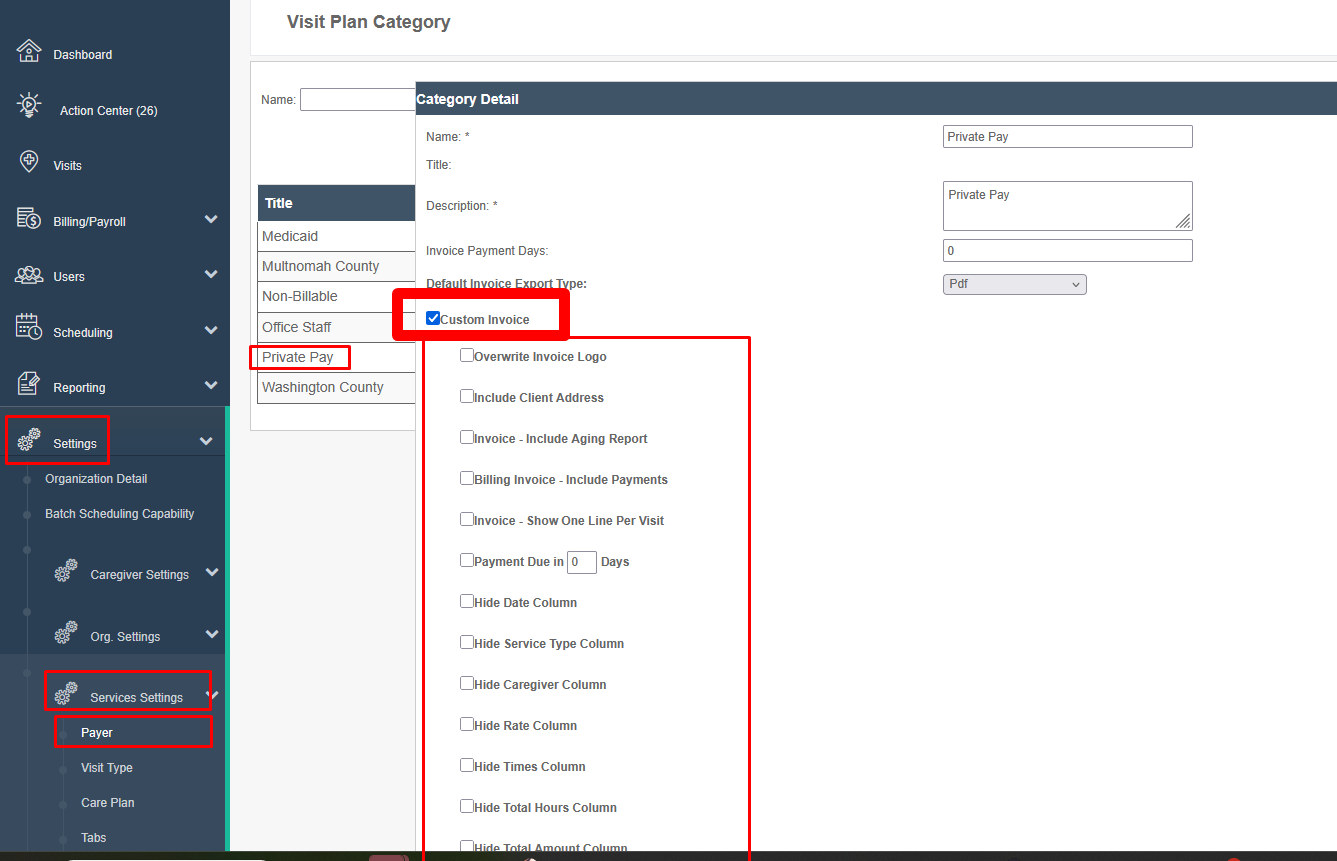
To access custom invoice settings:
- Log in
- Click Settings
- Click Services Settings
- Click Payer Program / Visit Plan Category
- Click on the desired category
- Check the Custom Invoice box
- A series of options will appear
- Check the desired options
These options will ONLY affect the PDF.
View Invoices
Once the custom settings are applied, the generated Billing Report PDFs will match the desired settings.
These settings do NOT affect exports, 837 files, etc. They are only intended for PDF printouts, usually for private payers (self-pay and long-term care insurance).
Was this article helpful?