Billing›Downloadable Billing Reports

Downloadable Billing Reports

Overview

In order to review created invoices, access Ankota reports. The most commonly used billing reports are outlined below.

This article includes:

  • Download Billing Invoices
  • Invoice Summary Report
  • Invoices Report
  • Visit Data Warehouse

Download Billing Invoices

The initial breakdown of billing invoices is available on the Billing Report page. Select completed invoices, then click the Download Billing Invoices button.
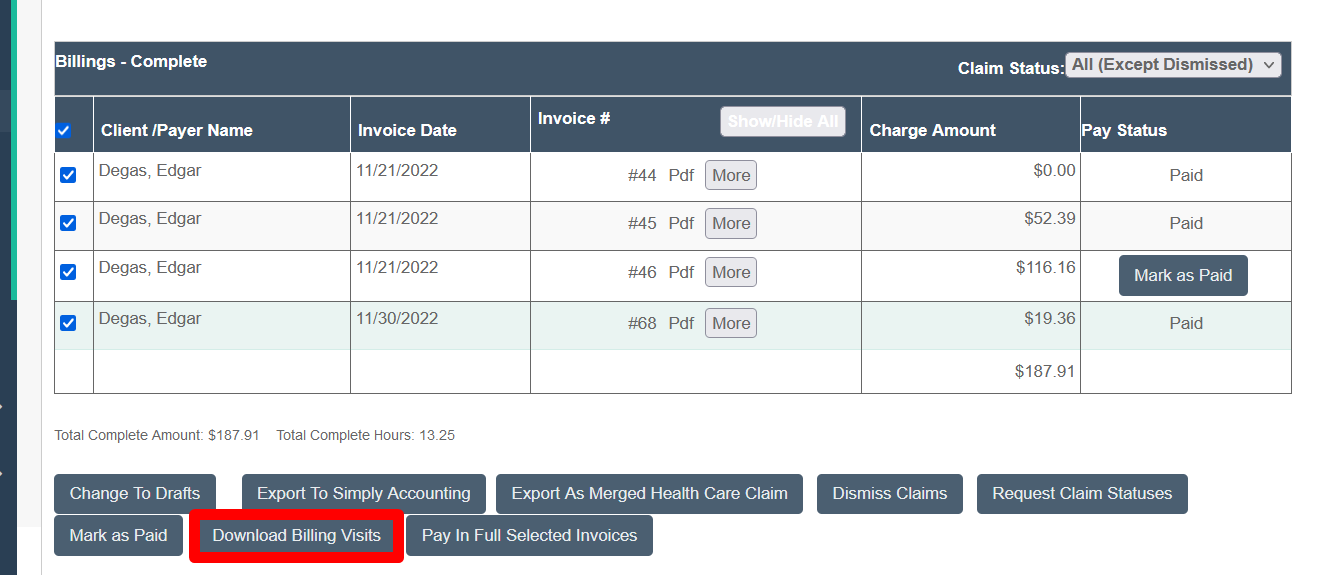
The Billings - Complete page displays a table of invoices for client Degas, Edgar with columns for Client/Payer Name, Invoice Date, Invoice #, Charge Amount, and Pay Status, showing four invoices dated 11/21/2022 and 11/30/2022 with a total complete amount of $187.91. Action buttons below the table include Change To Drafts, Export To Simply Accounting, Export As Merged Health Care Claim, Dismiss Claims, Request Claim Statuses, Mark as Paid, Download Billing Visits (highlighted in red), and Pay In Full Selected Invoices, with a Claim Status filter set to "All (Except Dismissed)" in the top right.

This report breaks down the visit data in detail.
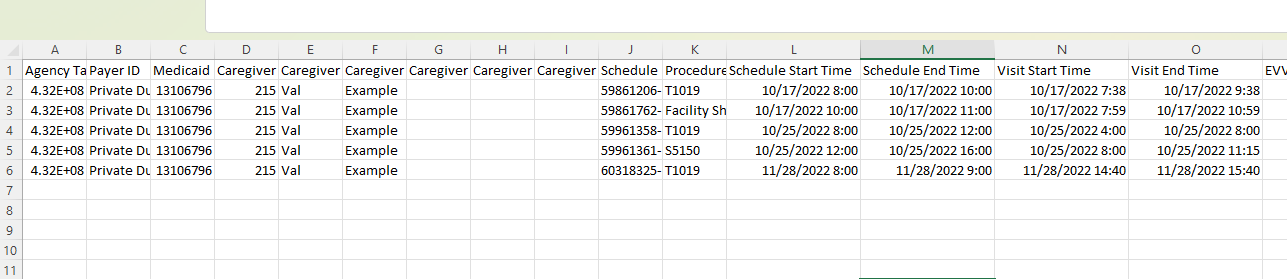
This is a spreadsheet showing caregiver visit scheduling data with columns for Agency ID, Payer ID, Medicaid number, Caregiver names, Schedule codes, Procedure Schedule IDs, Start Times, End Times, Visit Start Times, Visit End Times, and EVV information. The table contains five rows of example data for a patient (4.32E+08) with visits scheduled across multiple dates in October and November 2022.

Invoice Summary Report

To view a complete listing of recent billing invoices, pull the Invoice Summary Report. This report is available under Reporting > Financial Reports > Invoice Summary Report.
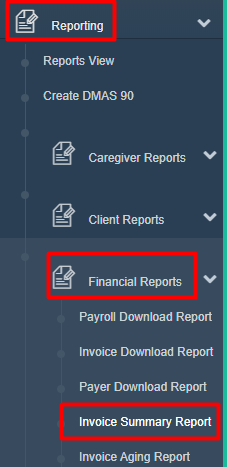
The Reporting menu is expanded showing various report options including Reports View, Create DMAS 90, Caregiver Reports, Client Reports, Financial Reports (highlighted in red), and sub-options like Payroll Download Report, Invoice Download Report, Payer Download Report, Invoice Summary Report (highlighted in red), and Invoice Aging Report.

This report includes:

  • Date
  • Agency/Payer Descriptor
  • Name
  • Invoice Total
  • Amount
  • Type
  • Check Number
  • Account Number
  • Notes
  • Total Paid

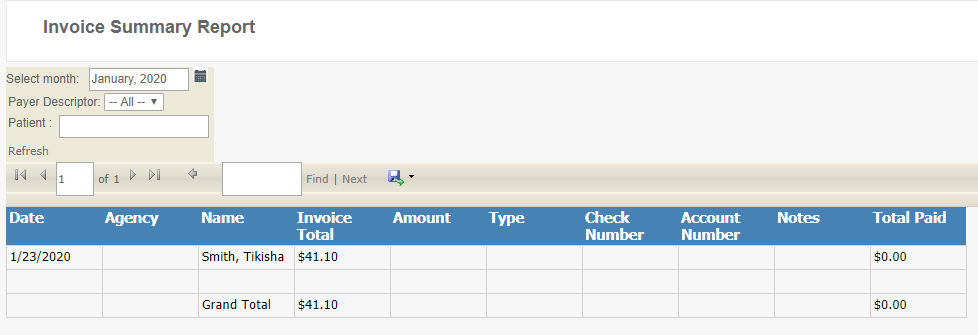
The Invoice Summary Report displays a filtered view for January 2020 with columns for Date, Agency, Name, Invoice Total, Amount, Type, Check Number, Account Number, Notes, and Total Paid. The report shows one invoice entry dated 1/23/2020 for Smith, Tikisha with an invoice total of $41.10 and a total paid amount of $0.00, followed by a Grand Total row.

Invoices Report

For an alternate version of an invoices report including the Payer/Visit Category, pull the Invoices Report. This is available under Reporting > Financial Reports > Invoices Report.
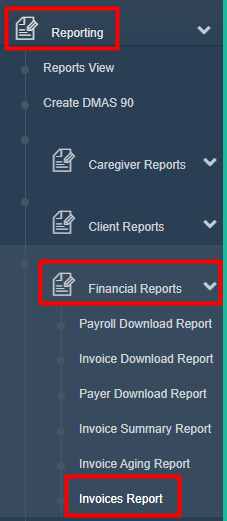
The Reporting menu is expanded showing various report categories including Caregiver Reports, Client Reports, and Financial Reports, with the Financial Reports section further expanded to display sub-options such as Payroll Download Report, Invoice Download Report, Payer Download Report, Invoice Summary Report, Invoice Aging Report, and Invoices Report.

This report includes:

  • Invoice Date
  • Invoice Number
  • Funding Source/Payer/Visit Category
  • Office
  • Client
  • Amount

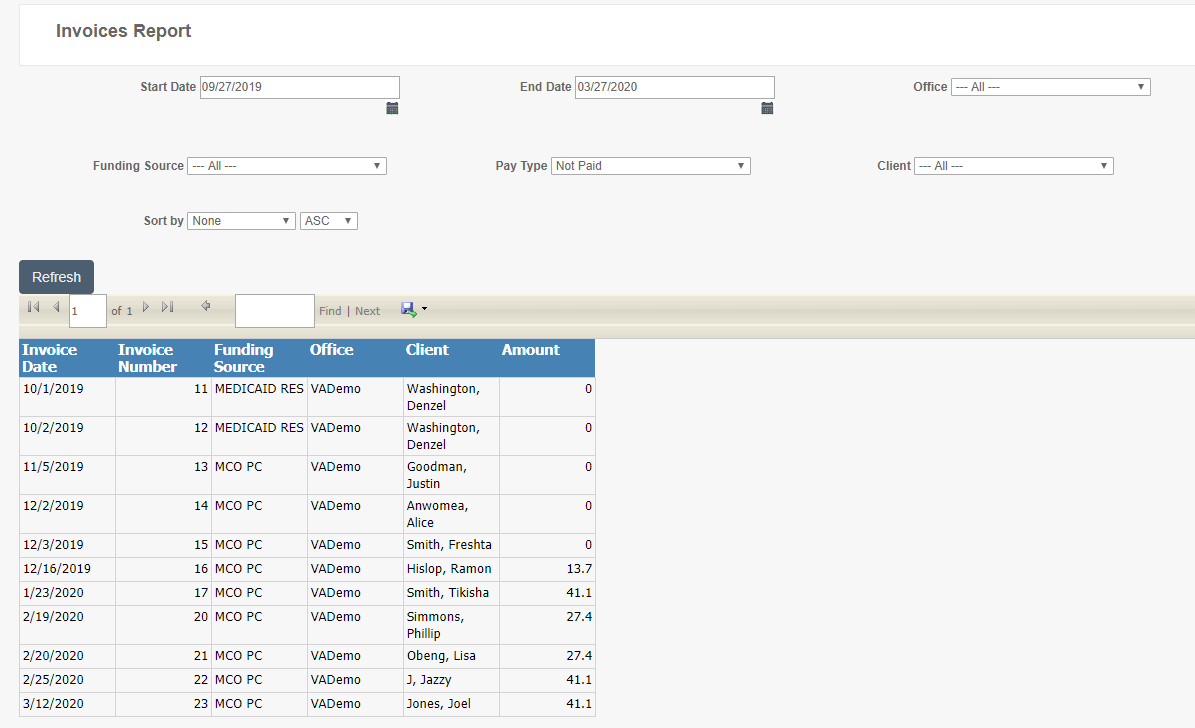
The Invoices Report page displays a filtered list of invoices with date range 09/27/2019 to 03/27/2020, filtered by Pay Type "Not Paid" and Office "All". The report table shows columns for Invoice Date, Invoice Number, Funding Source, Office, Client, and Amount, with 11 invoices listed showing various client names, funding sources (MEDICAID RES and MCO PC), and invoice amounts ranging from 0 to 41.1.

Visit Data Warehouse

In addition to the standard billing reports, more detailed visit information can be found in the Visit Data Warehouse. This report contains virtually every piece of data associated with a visit, and with the use of a pivot table, allows for detailed analysis of an organization's data.

To access the Visit Data Warehouse:

  1. Click Reporting
  2. Click Service Detail
  3. Click Visit Data Warehouse
  4. Filter as desired
  5. Click the Refresh button

For more on pivot table functionality, see Digging into Data Part 2: The Power of the Pivot Table.

Was this article helpful?
On this page