Billing›Ensuring All Visits Are Closed

Ensuring All Visits Are Closed

Overview

Before beginning the billing process, check the billing period for any unclosed visits and any unresolved red magnifying glasses, and resolve the issues. If there are unclosed visits (Scheduled, Arrived, or On Hold), they will not bill or pay and can be picked up in the next round.

The directions below cover manually closing visits, but in most cases it is preferable to use Ankota's features to send visits back to the caregiver. See: Rework, Missed Visit, and On Hold Functionality.

Visit Approval Dashboard

The first step in ensuring all visits are closed is checking the Visit Approval Dashboard. In this location, review and address any visits with rule violations or other issues that are preventing them from moving to billing and payroll. See the Visit Approval Dashboard article for a detailed walkthrough.

On Hold Visits

Visits that are On Hold appear in the Visit Approval Dashboard under the catch-all category Needs Action as well as under the specific On Hold category (either can be used to search for On Hold). These visits must be completed and closed. For a detailed walkthrough, see Closing On Hold Visits.

Scheduled Visits

Visits still in the Scheduled status can be identified by going to the Visits page and searching for all visits still in Scheduled status with a date range ending yesterday. These visits must be manually closed, canceled, or deleted as appropriate.

Cancel Visits

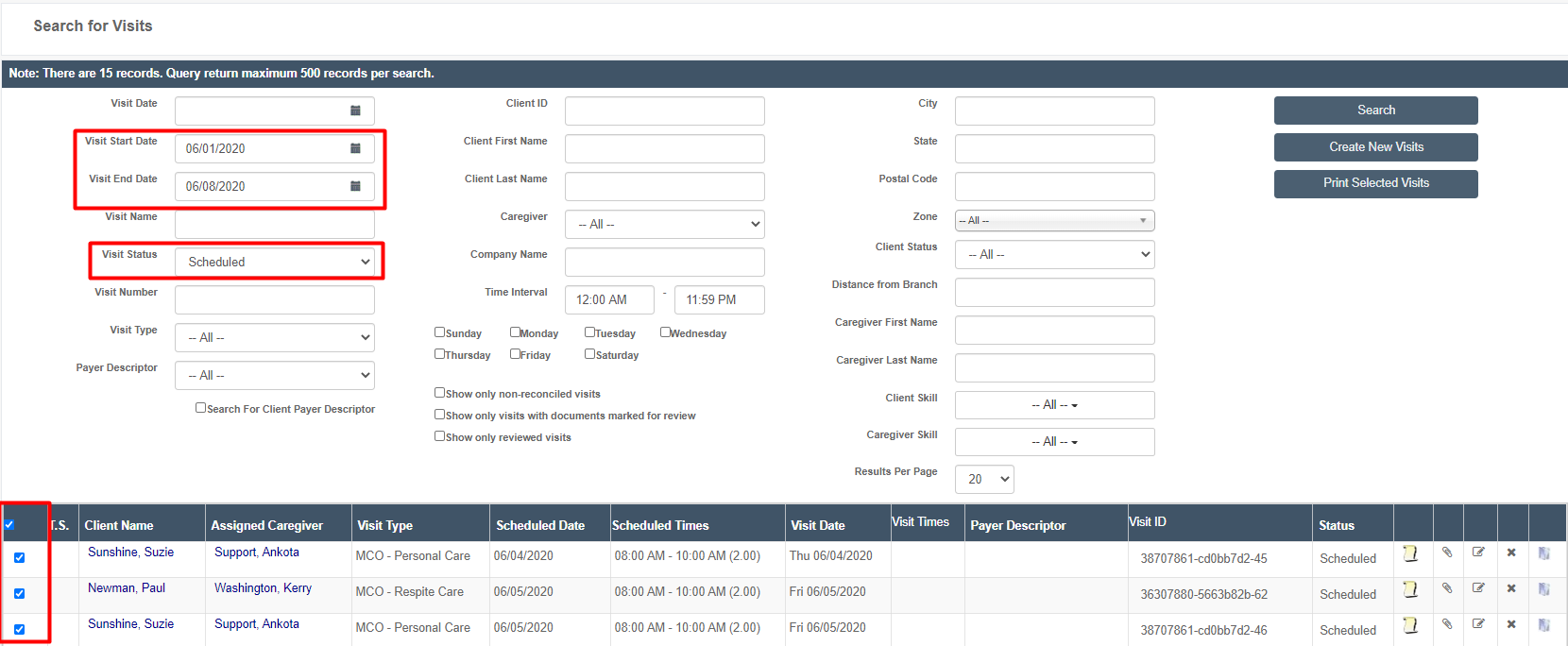
  1. Select the visits.
  2. Click the Cancel Visits button.

The "Search for Visits" page displays a search form with multiple filter fields including Visit Date (Start: 06/01/2020, End: 06/08/2020), Visit Status (set to "Scheduled"), Client ID, City, and other criteria, along with a results table below showing scheduled visits with columns for Client Name, Assigned Caregiver, Visit Type, Scheduled Date, Visit Date, and Status.

The screenshot shows a toolbar with multiple action buttons for managing visits and caregiver assignments. The "Cancel Visits" button is highlighted in red, with other available options including Delete Visits, Cancel Assignments, Report Visit Completion, Assign to another caregiver, Set Scheduled Date/Times, Find Matching Caregivers, Map Visits, Add Notes, Change Status, Set Address, and additional buttons below for Process Documents, Calculate Travel Time, Change Visit Payer Descriptor, and Visit Care Codes.

Delete Visits

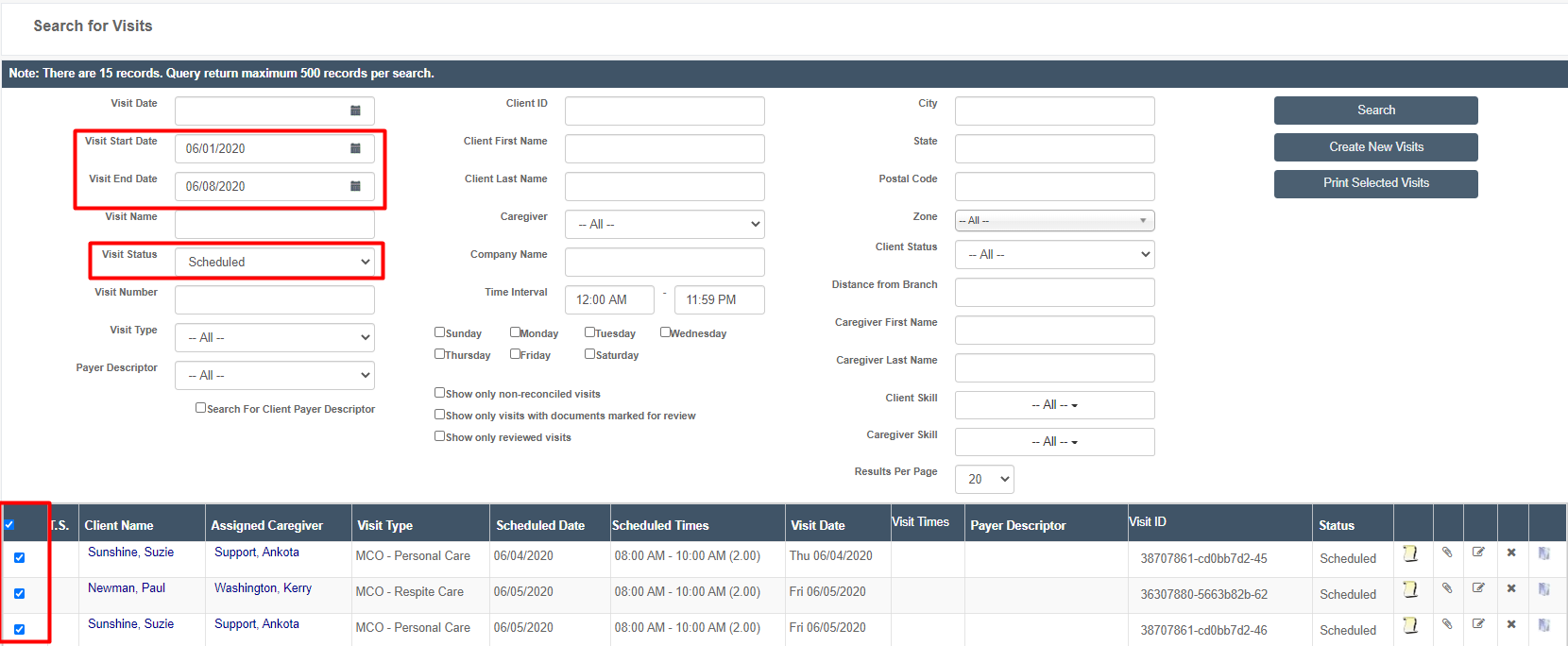
  1. Select the visits.
  2. Click the Delete Visits button.

The Search for Visits page displays search filters on the left (Visit Start Date: 06/01/2020, Visit End Date: 06/08/2020, Visit Status: Scheduled) and center panels for client and location details, with a results table below showing columns for Client Name, Assigned Caregiver, Visit Type, Scheduled Date, Visit Date, and Status; the page indicates 15 total records with a maximum of 500 records per search query.

The toolbar displays multiple action buttons for managing visits and appointments, with "Delete Visits" highlighted in red in the center. The available options include Change Type, Cancel Visits, Delete Visits, Cancel Assignments, Report Visit Completion, Assign to another caregiver, Set Scheduled Date/Times, Find Matching Caregivers, Map Visits, Add Notes, Change Status, Set Address, Process Documents, Calculate Travel Time, Change Visit Payer Descriptor, and Visit Care Codes.

Close Visits

Filter for the appropriate visits on the Visits page. Then close the visit either by clicking the edit (pencil and paper) icon and closing it individually, or by selecting all the visits to close and clicking the Report Visit Completion button. Be sure to enter the appropriate clock in/out times, whichever method is used.

Optionally, click the book icon to report care plan items as needed, and/or click the paperclip icon to upload supporting documentation (such as a scanned timesheet).
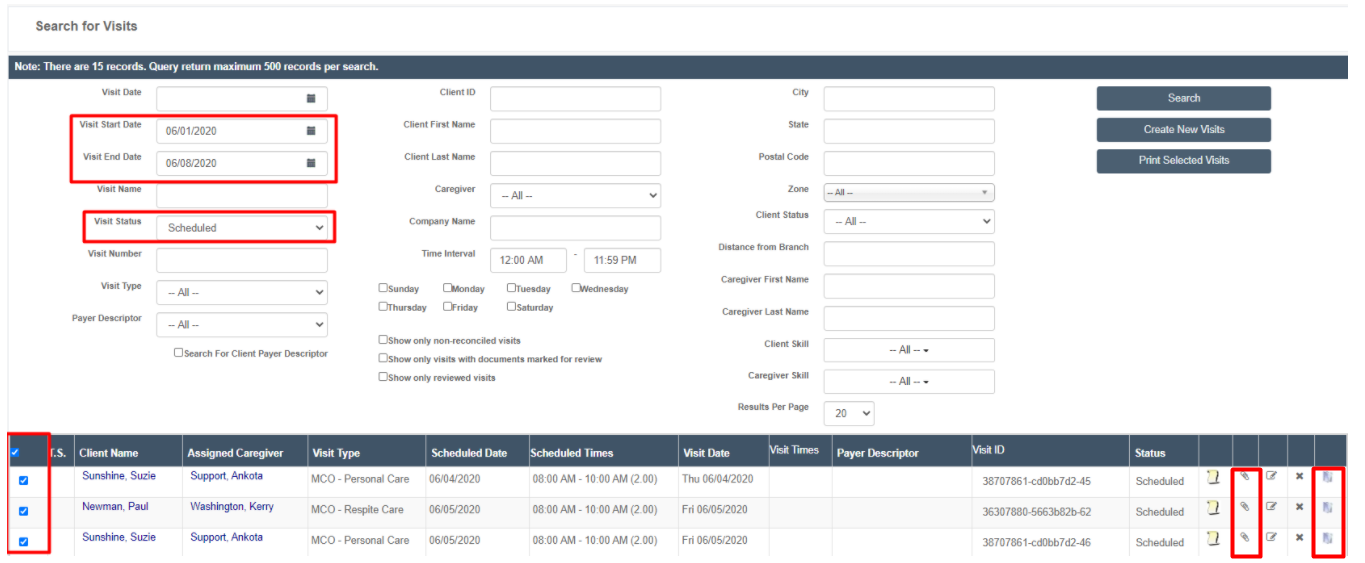

This is the "Search for Visits" page showing a search form with multiple filter fields on the left and center (Visit Start Date set to 06/01/2020, Visit End Date set to 06/08/2020, Visit Status set to "Scheduled", Client ID, Client Name, Caregiver, Company Name, Time Interval, and various checkboxes for days and visit types) and a results table at the bottom displaying visit records with columns for Client Name, Assigned Caregiver, Visit Type, Scheduled Date, Scheduled Times, Visit Date, Visit Times, Payer Descriptor, Visit ID, and Status. The page notes there are 15 records with a maximum of 500 records returned per search.

This screenshot shows a toolbar with multiple action buttons for managing visits and caregiver assignments. The "Report Visit Completion" button is highlighted in red, indicating it is the focused or primary action, and is surrounded by other options such as Change Type, Cancel Visits, Delete Visits, Assign to another caregiver, Set Scheduled Date/Times, and Find Matching Caregivers.

For an alternate approach, see Closing On Hold Visits using the Visit Approval Dashboard.

Was this article helpful?
On this page