Missouri Workflow
Overview
(As always, private pay is generally self-regulating within the confines of state law and regulatory processes. This article focuses on Medicaid billing in the state of Missouri.)
In the state of Missouri, Medicaid billing is fairly straightforward. Billing currently is through the EMOMED portal, either performed manually or via EDI file. Select Medicaid visits are also required to be sent to the state's default aggregator, Sandata. For Ankota users, that means in addition to regular EVV services, Ankota will also deliver visit data to Sandata to ensure state requirements are met.
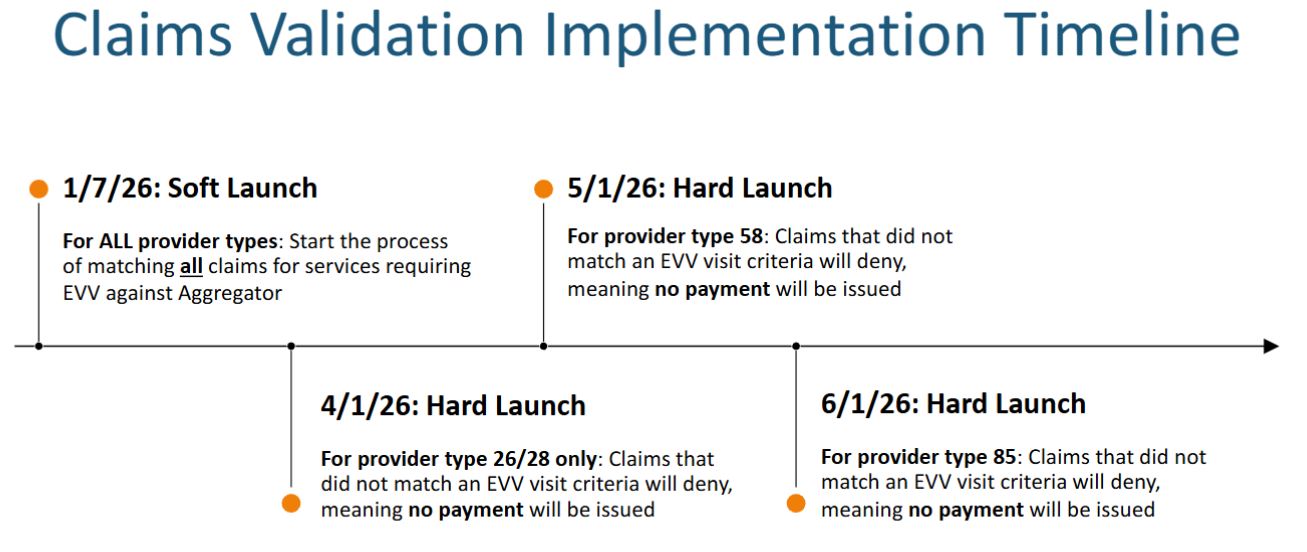
For customers looking for information on the new Missouri EVV requirements, see the linked EVV requirements article, the November 2025 presentation slides, and the most recent follow-up.
This article covers:
- Critical Pathway
- Set-up
- Sandata
- EMOMED
- Availity
- Testing
- Pre-Billing
- Billing/Payroll Overview
- Imported Response Files
- Corrected Visits
- Further Details
Critical Pathway
For a simple overview of key admin system maintenance, see the linked overview: Missouri Critical Pathway.pdf
Set-up: Sandata
Ankota users in Missouri must register with Sandata and with the state. This registration ensures Sandata will accept their data and gives providers access to the Sandata log-in. Internally, Ankota users are automatically set up for delivery of EVV visit data to the state as part of implementation.
To set up alt EVV registration, use the Sandata alt EVV registration form.
Alternately, email support@sandata.zendesk.com (this option will soon no longer be accepted).
- Subject: Request for EVV Vendor Certification (Ankota)
- Body:
- Provider name: YOUR COMPANY NAME
- Provider contact name and email address: NAME, EMAIL
- Vendor name: Ankota LLC
- Vendor address: 1 Franklin Street, Suite 360B, Boston, MA 02110
- Vendor contact name & contact information: Sharon Dodge, Director of Implementation, sharon.dodge@ankota.com, 844-4-Ankota, extension 703.
Providers must also complete EAS training. Sandata will provide credentials in return. Send Ankota the following information:
- Any Sandata communications
- Provider Medicaid ID and the categories and/or subdepartments they apply to
Medicaid provider numbers are assigned at the time of registering with Provider Enrollment to become a Missouri Medicaid provider. The first 2 digits of the provider number indicates provider type:
- (26*******) Personal Care
- (28*******) Aged & Disabled Waiver Homemaker/Chore and Respite
- (85*******) Community Based Developmental Disabilities
For help with the Medicaid Provider ID, contact Missouri Medicaid Audit and Compliance (MMAC) at mmac.evv@dss.mo.gov. Include provider NPI when contacting MMAC.
Required data in Ankota
In addition to standard set-up (clients, caregivers, authorizations, care plans, scheduling), ensure the following:
- Caregiver FCSR ID (must be 8 digits)
- Caregiver ID
- Caregiver Code
- Copy the caregiver ID into the caregiver code for all active caregivers
- This enables delivery of caregivers to Sandata
- Do not assign a caregiver code to "fake" caregivers, such as Ankota Support
- Caregiver SSN
- If not using SSN, enter a unique ID in the SSN field (a unique second ID is required by the state), such as FCSR ID + 0
- Client ID
- Client Medicaid ID in the client's Medicaid ID field (even if it is already in the client ID field)
- Client date of birth (DOB)
- Client phone: if a phone is entered, it must be labeled Home, Mobile, Business, or Other
- Medicaid Provider ID (provide to Ankota if not already)
- Be aware of all Medicaid Provider IDs
- Complete EAS training; this triggers the release of credentials to Ankota (data cannot be sent without credentials)
- Company email at the Org. Details level
- An email for each administrator
- (Primary diagnosis codes are not required by Sandata, but are required for EMOMED billing)
Services requiring EVV
Per the state, the following services require the use of EVV:
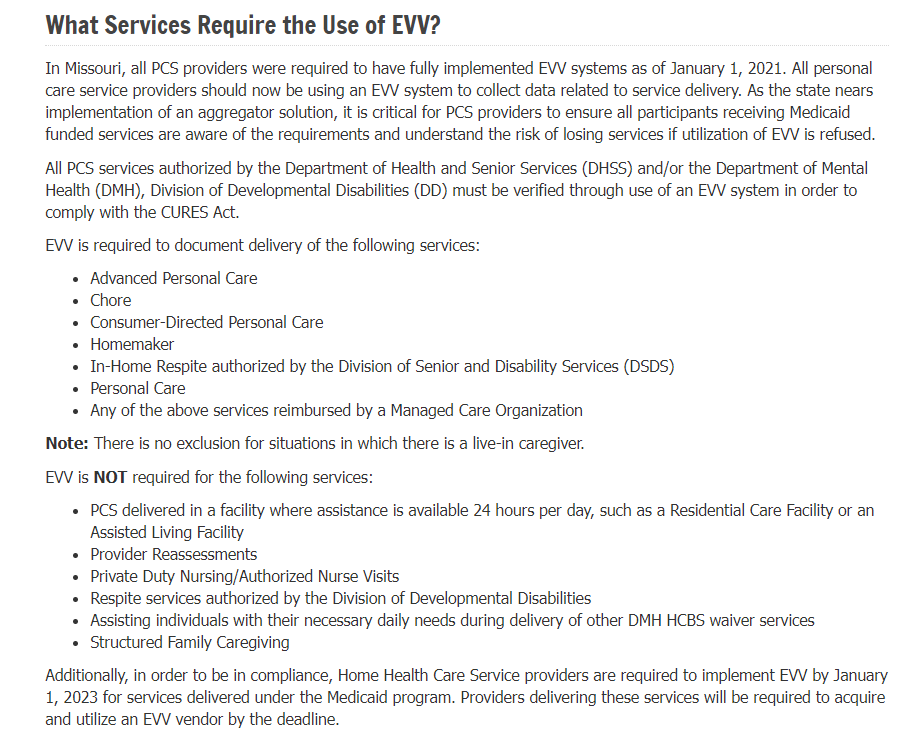
Ankota only exports T1019 (all variations), S5120, S5125 U5, S5130, S5150 and S5150 TF to Sandata. Care plan item information is exported on S5120, S5130, T1019, T1019 TF, and T1019 U2. This data is exported when the visit passes screening OR when the visit is approved. (On hold and Needs Action visits are not sent over.)
GPS / location guidance
Per Missouri's EVV FAQ (2022): "The regulation does not define what an acceptable distance is for GPS. Reports will be run from EVV Aggregator Solution (EAS) to determine the actual location of the service delivery and identify instances of visits being reported from locations more than .25 miles from the home of the participant. If care is provided for a participant and verified in the EVV system based off a landline phone, a phone number is required. There are other methods beyond a landline telephone that can be used to capture services, some may not require a phone number. GPS locations are desired with call data from the EVV vendors system and are required for mobile EVV visit collection."
Using a cell phone for telephony is only allowed with a FOB: "Unless the phone is a landline, the location must be documented by using a FOB or by using the GPS function of a mobile device."
Ongoing Sandata workflow
After data is flowing through to Sandata, Missouri customers will:
- Review rejected visit responses in the VAD as they come in
- Make corrections as needed
- Re-export data as needed
For a complete walkthrough, see the data management video.
Set-up: EMOMED
See the complete EMOMED walkthrough.
Set-up: Availity
See the complete Availity walkthrough. Complete the full set-up to enable automated file transfer, including providing Ankota with the Availity FTP user name and password.
Testing
For Sandata, no state testing processes are required other than the initial Ankota testing process.
For EMOMED, see the complete EMOMED walkthrough. NOTE: If Medicaid IDs differ from the main client ID, request use of the Admission ID field in the authorization to ensure the client's Medicaid ID is sent to the customer.
Pre-Billing
Successful billing starts at the beginning of the client's creation. See the Quick Launch video and the Sandata Data Delivery & Visit Management walkthrough for an overview.
Client Management
- Setting Authorized Service for Clients (entering authorizations)
- In Missouri, variable monthly authorizations are the default; monthly variable authorization options are recommended for the best, easiest scheduling
- Schedule Visits — Calendar-Based Scheduling (or the classic Creating Visits from Patterns)
- Adding primary diagnosis codes (if billing through EMOMED)
Visit Management
- Caregivers complete visits
- Missouri does not accept time sheets. Timesheets are used only for office record-keeping and are optional
- Visits are approved automatically or by the office
- Ensure visits are closed, then review and clear the Visit Approval Dashboard
- Sandata visits require Reason Codes to be applied as needed in the Visit Approval Dashboard
Error Prevention
- Watch warnings on the Action Center (missing auths, primary diagnosis codes, IDs, etc.) and address as needed
- Watch warnings on the Visit Approval Dashboard and address as needed
- Ensure name spellings, FCSR IDs, First Name and Last Name, Medicaid IDs, and DOBs are entered correctly
- Set reason codes as needed during VAD approval
- Ensure clock-in and clock-out times in the aggregator reflect the exact time the caregiver was providing services
Missouri notes
- Use all regular CDS first, then ILW after CDS is exhausted
- Manage rejections
The Landing Dashboard highlights necessary actions, including managing visits.
"If the clock in and out times in the aggregator is not the exact time the caregiver was providing services, it is considered fraud and is subject to adverse action." — Terri Woodward
Billing/Payroll Overview
Billing
Perform usual visit review and billing processes in Ankota.
- Ensure Visits are Closed on the Visits page
- Cancel or Close visits still Scheduled in the past
- Visits Passing Screening or Approved are automatically Exported to Sandata
- Review Visit Approval Dashboard
- Resolve Needs Action
- Approval Assistant is strongly recommended to ensure accurate coding
- Resolve all Rejections
- Check for No Response visits (rare)
- NEW as of 4/1/2026: Confirm Visits in Sandata are Verified or Processed (No Incomplete/Accepted with Exceptions)
- Contact Support if unsure how to resolve Exceptions
- Calculate Billing (when all visits are confirmed as billable or cancelled)
- Complete Draft Invoices (or set to Complete during Calculate Billing)
- Bill via EDI file to EMOMED
Billing Resubmissions
Claims submitted on EMOMED are entered on the Claims management screen.
REMINDER: Visit data is exported when the visit passes screening OR when the visit is approved. (On hold and Needs Action visits are not sent over.)
CLARIFICATION — Verified vs. Processed Sandata visit status: When a visit moves to processed status, this means a claim has been matched to the visit and the claim has been adjudicated. If a visit stays in verified status after a claim submission and decision, this means the visit was not matched successfully and there might be a mismatch between the EVV visit and the claim.
Remittance Advice Management (835s)
Remittance advice files (835s) are provided in response to filing Medicaid claims — state receipts of payments. These files can be uploaded to Ankota for automatic application of payments in A/R records. EMOMED can make this available. ERAs are sent less often now, typically 11 days after the end of the billing cycle.
- EMOMED walkthrough
- Process Remittance Advice (Upload 835 "receipts" received from MMIS into Ankota)
- Post Manual Payments
- Review Billing Reports
- See also: Collections Report, Exceptions Report
Imported Response Files
Although Missouri's billing is not yet based on data delivered to Sandata, typically imported response files will not arrive until after billing. The state requires successful data to be sent to Sandata.
- Sandata Response Files (Overview)
- Accessing Sandata Response Files
- Reviewing Sandata Response Files
For a complete walkthrough, see the data management video. Terri Woodward has stated 85% compliance is her goal.
Corrected Visits (Sandata)
When correcting visits, errors generally fall into one of a few categories, each managed differently. In general, fundamental errors require backing out billing to correct the visit, then re-invoicing, whereas reason code or demographic information can typically be updated and the visit re-exported immediately.
Use the Approval Assistant to simplify visit corrections. Only use the Duration adjustments section if there are known, strict limitations on the allowed work duration for the selected visit type.
For more information, see Managing Data Corrections.
Further Details
Additional resources for Missouri clients:
- Ankota Training Overview, including videos
- Daily Adjustments
- Manual Visit Entry
- Tags
- For Survey CDS Counts, consider using Tags
- Contact Support to create Live-in Caregiver and Family Caregiver tags for tracking
- Ask to turn on the Skill/Tag filter on the Clients and Caregivers page to make Tag searches instant and easy