Caregiver Training›Mobile Chat (Caregiver Mobile App)

Mobile Chat (Caregiver Mobile App)

Overview

Mobile chat is a feature in the Ankota Caregiver mobile app. Using mobile chat, caregivers can instant message, call, or video call an available admin. Admins can also message caregivers in the app, or call them if they are online in the app.

Using Chat

Caregivers can access mobile chat from the mobile app.

To open chat, open the mobile app and tap the Chat section. If any messages are awaiting review, this is indicated with a number next to that chat.
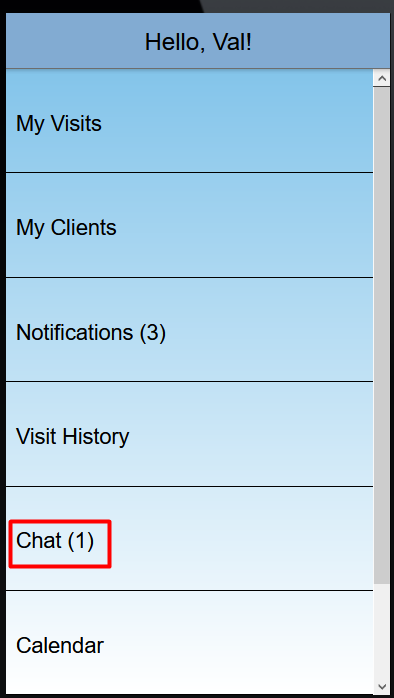
This is the Ankota Caregiver home dashboard for user "Val," displaying a navigation menu with sections including My Visits, My Clients, Notifications (3), Visit History, Chat (1 - highlighted in red), and Calendar.

Tapping the Chat section opens a chat to admin. After tapping an admin, a chat window opens. Any messages awaiting review are indicated numerically.
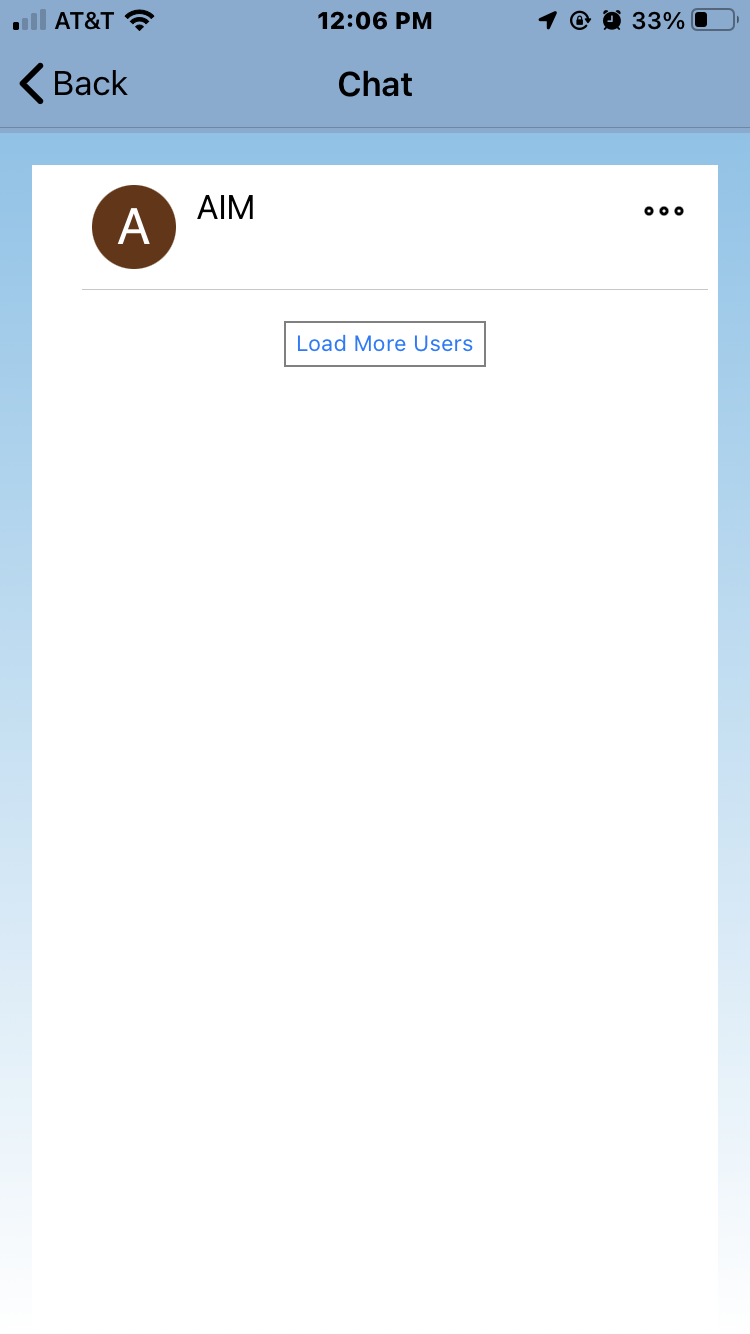
The Chat screen displays a conversation with a user named "AIM" (indicated by a brown avatar with the letter "A"), with a "Load More Users" button in the center and a three-dot menu icon in the top right corner. A "Back" button is available in the top left to return to the previous screen.

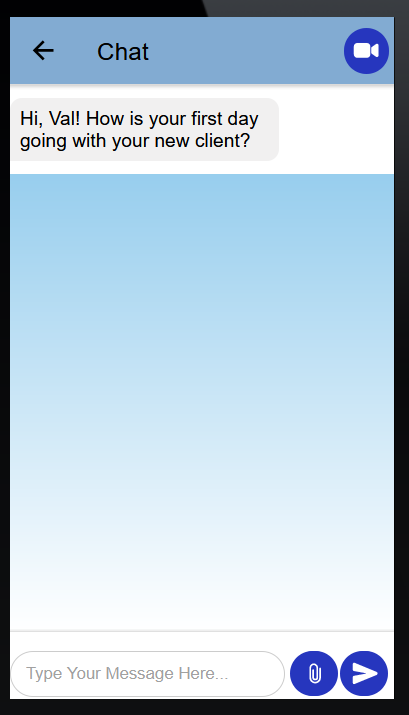
When an admin is selected, the chat history is shown. In this window, caregivers can:

  • Instant message the admin
  • Send a document to the admin
  • Call the admin
  • Video call the admin

Chat screen showing a message from a contact asking "Hi, Val! How is your first day going with your new client?" with a message input field at the bottom and a video call button in the top right corner.

Instant messages and documents can be reviewed later by the admin; the admin does not have to be online for the instant message to be logged and saved in the system.

Chat Calls

A working microphone and/or camera is required to use the call or video call options. The admin must also be online in the app, or be on the Schedule Board with the caregiver's chat window open, in order to receive the chat call.
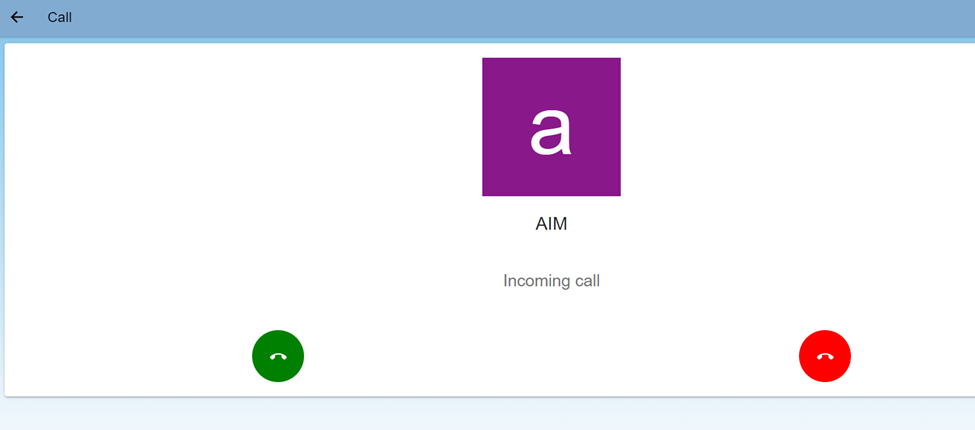
An incoming call screen from AIM is displayed with a purple icon labeled "a" at the top, the caller name "AIM" beneath it, and "Incoming call" text in the center. Two action buttons appear at the bottom: a green answer button on the left and a red decline/end button on the right.

The chat box shows when a Chat Call was initiated. If the admin does not answer, the chat box displays "Call unanswered."
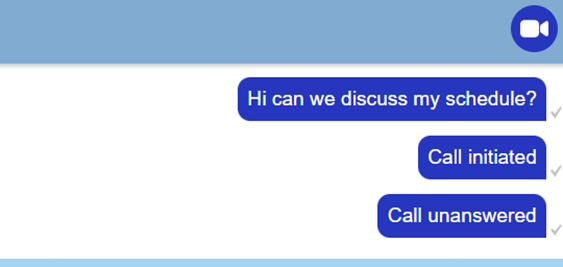
This screenshot shows a messaging or call log interface with three blue message bubbles displaying: "Hi can we discuss my schedule?" (sent message), "Call initiated" (status message), and "Call unanswered" (status message), each with a checkmark indicator on the right side.

Was this article helpful?
On this page