Caregiver Training›No Show Reporting (After Clock-In)

No Show Reporting (After Clock-In)

No Show Reporting

A no show by a client can be reported in the mobile app. First, clock in to the visit. Only then will the No Show button appear. Click the No Show button, provide an explanation in the comments box, and save.
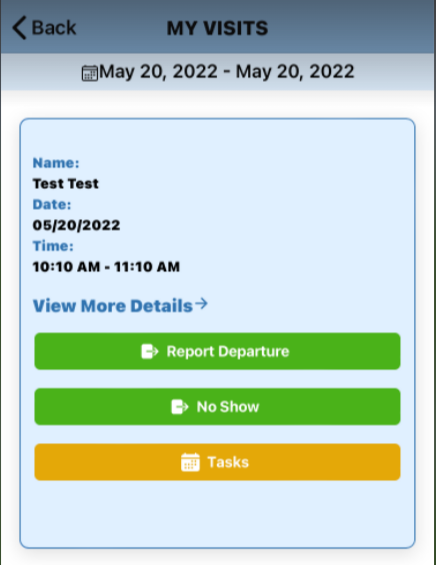
The MY VISITS screen displays a scheduled appointment for "Test Test" on 05/20/2022 from 10:10 AM - 11:10 AM, with action buttons for "Report Departure," "No Show," and "Tasks," plus a "View More Details" link.

The visit will automatically end and move to Visit History, where the visit status will show No Show.
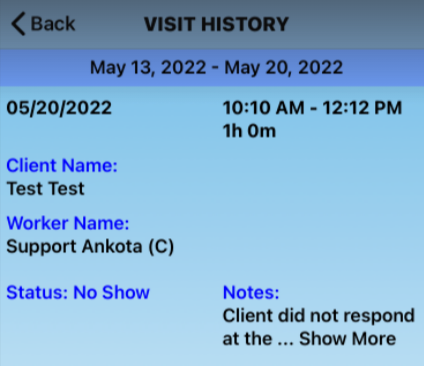
Visit History screen displaying appointment details for the date range May 13-20, 2022, including a specific visit on 05/20/2022 from 10:10 AM to 12:12 PM (1 hour duration) with client name "Test Test," worker name "Support Ankota (C)," status marked as "No Show," and notes indicating "Client did not respond" with a "Show More" option.

If there are back-to-back visits and the first visit is reported as a No Show, the system will automatically report No Show for both visits.

Was this article helpful?
On this page