North Carolina Workflow
Overview
(As always, private pay is generally self-regulating within the confines of state law and regulatory processes. This article focuses on Medicaid billing in the state of North Carolina.)
In the state of North Carolina, there are some unique billing processes. This is because select Medicaid visits must be completed using electronic visit verification (EVV), and these verified visits are required to be sent to Sandata. Certain MCO users will instead be required to be sent to CareBridge or HHAx as applicable. For Ankota users, that means in addition to regular EVV services, Ankota also delivers appropriate visit data to the appropriate location to ensure the state's requirements are met.
This article covers:
- Set-up (Sandata, CareBridge, HHAX)
- Testing (Sandata, CareBridge, HHAX)
- Pre-Billing
- Billing Management for Medicaid Visits (Sandata, CareBridge, HHAX)
- Imported Response Files
- Remittance Advice Management (835s)
- Corrected Claims
- Further Details
Set-up
Sandata Set-up
Ankota users in North Carolina providing any of the services listed below must register for Sandata. Internally, Ankota users are automatically set up for delivery of EVV visit data to the state as part of implementation, but registration ensures Sandata will accept the data and give providers access to credentials and the Sandata log-in.
To register with Sandata, providers must email NCAltEVV@Sandata.com the following information:
- Subject: Request for EVV Vendor Certification (Ankota)
- Body:
- Provider name: YOUR COMPANY NAME
- Provider contact name and email address: NAME, EMAIL
- Vendor name: Ankota LLC
- Vendor address: 1 Franklin Street, Suite 360B, Boston, MA 02110
- Vendor contact name & contact information: Sharon Dodge, Director of Implementation, sharon.dodge@ankota.com, 844-4-Ankota, extension 703.
Sandata will provide credentials in return. Please send Ankota the following information:
- Your credentials
- Any Sandata communications
- Your provider Medicaid ID and taxonomy IDs
In addition to the standard set-up of adding clients, caregivers, authorizations, care plans, and scheduling visits, providers will want to ensure the following is available in their system:
- Medicaid Provider ID (provide this to Ankota if you have not already and confirm it is in your system)
- Client Medicaid ID in the client's Medicaid ID field (even if it is already in the client ID field)
- Company email at the Org. Details level
- A SSN for each caregiver
CareBridge Set-up
TBD.
HHAX Set-up
To register with HHAeXchange, providers must fill out the Provider Portal questionnaire AND the Third Party Attestation. The following information is required:
- Provider name: YOUR COMPANY NAME
- Provider contact name and email address: NAME, EMAIL
- Provider Medicaid ID:
- Provider Tax ID:
- Vendor name: Ankota LLC
- Vendor address: 1 Franklin Street, Suite 360B, Boston, MA 02110
- Vendor contact name & contact information: Sharon Dodge, COO, sharon.dodge@ankota.com, 844-4-Ankota, extension 703
HHAeXchange will provide credentials in return. Please send Ankota the following information:
- Your HHAeXchange credentials
- Any additional HHAeXchange communications
NOTE: If switching to Ankota from HHAx EVV, all visits must be closed out and billed in HHAx (or HHAx notified that billing is not desired) before they will provide Ankota with the necessary connection information. This means there cannot be any scheduled current/future visits remaining in the HHAX system or the integration with Ankota will be blocked.
Testing
Sandata Testing
No state testing processes are required for individual vendors. (Ankota has completed required alt EVV testing.)
CareBridge Testing
TBD.
HHAX Testing
TBD.
Pre-Billing
Successful billing starts at the beginning of the client's creation. The processes below will lead to successful billing.
Client Management
- Client/Caregiver Entry
- Setting Authorized Service for Clients (entering authorizations)
- Schedule Visits - Calendar-Based Scheduling (or Creating Visits from Patterns)
Visit Management
- Caregivers complete visits or timesheets are entered manually through the office
- Visits are approved automatically or approved by office
- Ensure visits are closed, then review and clear the Visit Approval Dashboard
- For Sandata:
- Apply Exception Codes as needed (automatically applied if missing EVV clock-in or clock-out)
- Apply Reason Codes as needed (REQUIRED to manually add if there is an exception, updates to records, or manual entries)
Prevention of Errors/Rejected Claims
- Watch warnings on the Action Center (for missing auths, primary diagnosis codes, IDs, etc.) and address as needed
- Watch warnings on the Visit Approval Dashboard and address as needed
- Ensure that name spellings, First Name/Last Name separation, Medicaid ID, and DOBs are entered correctly
- Ensure caregiver SSNs are entered correctly
- Manage rejections
The Landing Dashboard will highlight necessary actions, including managing visits as needed.
Billing Management for Medicaid Visits
Sandata Billing
Currently, the following PCS, CAPC, CAPDA, and CAPCD services are sent to Sandata.
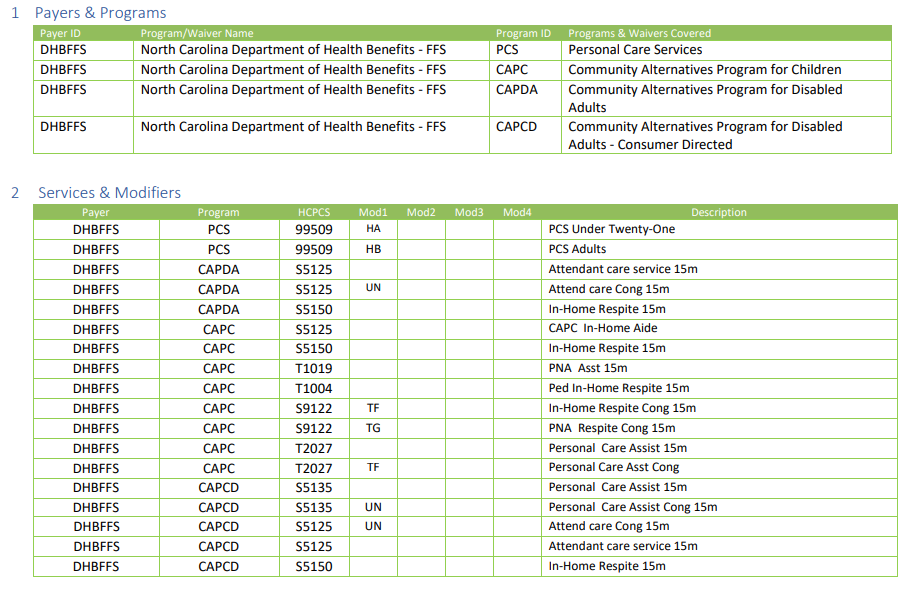
This process works as follows:
- Schedule visits as usual; caregivers clock in and out as usual
- Ensure visits are closed
- Review the Visit Approval Dashboard (and select a Reason Code if critical EVV data is missing and an Exception Code if the clock-in or clock-out is missing)
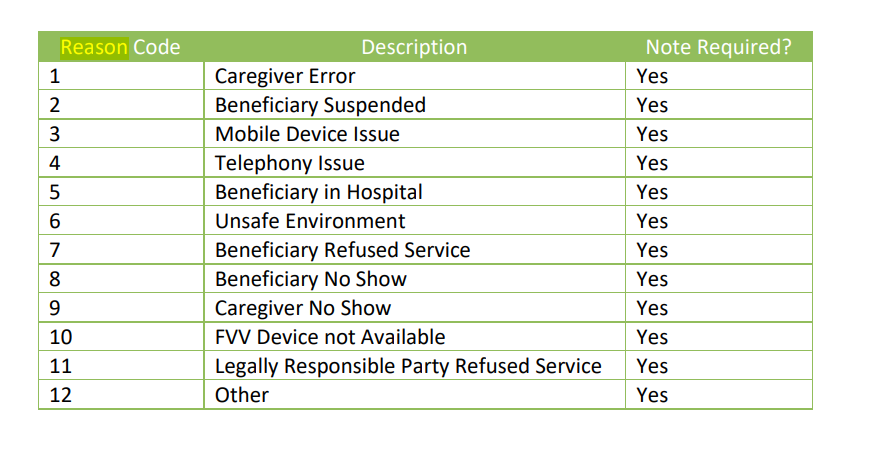

- Calculate Billing
- Review the Billing Report (Client) and complete invoices
Data is exported when the visit passes screening OR when the visit is approved. (On hold and Needs Action visits are not sent over.)
Use the Approval Assistant to simplify the visit corrections process. Note: only use the Duration adjustments section if there are known, strict limitations on the allowed work duration for the selected visit type.
CareBridge Billing
TBD.
HHAX Billing
- Bill per standard processes in Ankota.
- Data will export upon billing.
- In HHA:
- Calendar visits should show billed "Y" to confirm they were billable and an invoice has been generated (summarized).
- Per HHAeXchange: "Billed: Y indicates that an invoice was generated. To determine if invoices were exported to the payer, the provider is required to do an invoice search and review if Export = Y. They can also review the E-Billing Batches under invoice search to determine what has been exported."
Imported Response Files
Sandata File Management
After connection with Sandata, Ankota provides decoded, easy-to-read response files. For more information, see:
- Sandata Response Files (Overview)
- Accessing Sandata Response Files
- Reviewing Sandata Response Files
Correcting Visits
To correct all rejected visits after making the error correction in Ankota:
- Review Sandata Response Files
- Correct visits as needed
- Bill through the state as usual
When correcting errors identified in the imported response files, the errors generally fall into one of a few categories, each managed differently.
For Reason Code Errors:
- Pull the imported response file
- Review the errors
- Search the Visit Approval Dashboard for the visit IDs reported as having errors
- Correct the reason code and Save
- Click the Export button to re-send this individual visit
For missing Clients or Caregivers:
- Pull the imported response file
- Review the errors and correct them (such as missing FCSR ID, missing Medicaid ID, etc.)
- If a client's profile is missing, notify Ankota Support which client was not successfully delivered; Ankota will re-send the file
- If a caregiver profile is missing, re-send the caregiver
- Then re-send the visits
For wrong visit types, client, caregiver, dates, or times:
- Pull the imported response file
- Review the errors
- Go to the Billing report page
- Filter for the visit with the error
- Cancel the associated invoice
- Unapprove the visit
- Make the changes
- Reapprove the visit
- Re-run billing
For failed claims (denied "stuck" claims - rare):
- Archive the visit in Sandata
- Use the add to visit ID function
- Export the visit
For other errors, reach out to Ankota Support for guidance.
Remittance Advice Management (835s)
Remittance advice files, or 835s, may be provided in response to filing Medicaid claims. These function as state receipts of payments. If provided, they can be uploaded to Ankota for an automatic application of payments in the A/R records. For more on this process, see:
- Process Remittance Advice (Upload 835 "receipts" received from MMIS into Ankota)
- Post Manual Payments
- Review Billing Reports
- Also: Collections Report, Exceptions Report
If receiving PDF claim remittance, contact NCTRACKS provider support at 800-688-6696 for claim rejection guidance.
Corrected Claims
Generally, claims corrections are handled one of two ways:
- Update the claims in Ankota and re-send
- Update the claims in the location where it was sent
NOTE: Sandata will only accept EVV data from an alt EVV vendor. Billing status cannot be changed in Sandata directly, only in Ankota.
Further Details
These additional resources may also be of use:
- The Ankota Training Overview, including videos
- Daily Adjustments
- Manual Visit Entry
- Private Pay Workflow