Caregiver Training›Online Timesheets (Use Only If Directed)

Online Timesheets (Use Only If Directed)

Overview

Some organizations, typically in Missouri, provide the option of an online timesheet for cases when telephony, the mobile app, and the backup browser mobile app (ankota.net/employee) could not be used. Because the mobile app works even offline, it should be rare that all three electronic visit verification (EVV) systems are unavailable.

Use this option only if directed. Many organizations do not allow it, and some states (such as Virginia) require a different form.

To use this timesheet, the caregiver must be approved to work with a client and must log in to ankota.net (ideally on a desktop or tablet) with their mobile app User ID and password.

Caregiver Log-in

This is not an option for all organizations. No electronic timesheet option will be available unless the organization has specifically enabled it.

Log in to ankota.net using the mobile app User ID, password, and organization name. Ideally use a desktop computer or tablet.
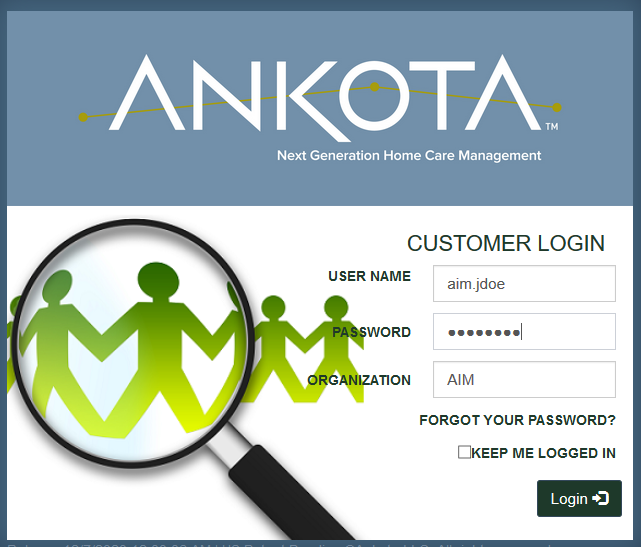
The ANKOTA customer login page displays fields for User Name (showing "aim.jdoe"), Password (masked), and Organization (showing "AIM"), along with a "Keep me logged in" checkbox, "Forgot your password?" link, and a green "Login" button.

Click Clients in the Main Menu on the left. Search for the client, then click the client's name. (Fewer options may appear on the left than shown, depending on what the organization has made available.)
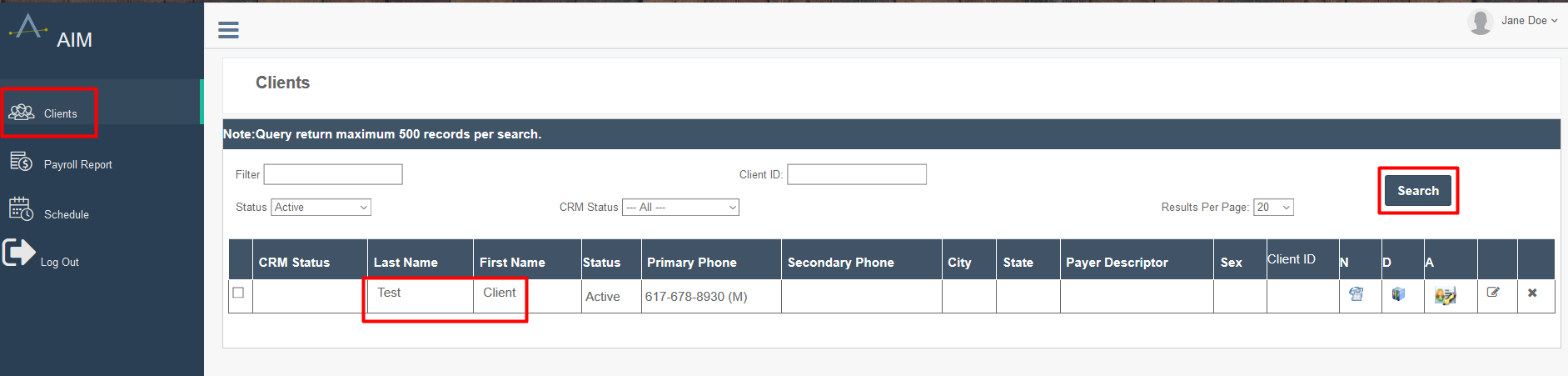
The Clients page in AIM displays a searchable table of client records with filter options for Status and CRM Status, along with columns for Last Name, First Name, Status, Primary Phone, Secondary Phone, City, State, Payer Descriptor, Sex, and Client ID. A note at the top indicates that queries return a maximum of 500 records per search, and the Search button is highlighted in the top right corner.

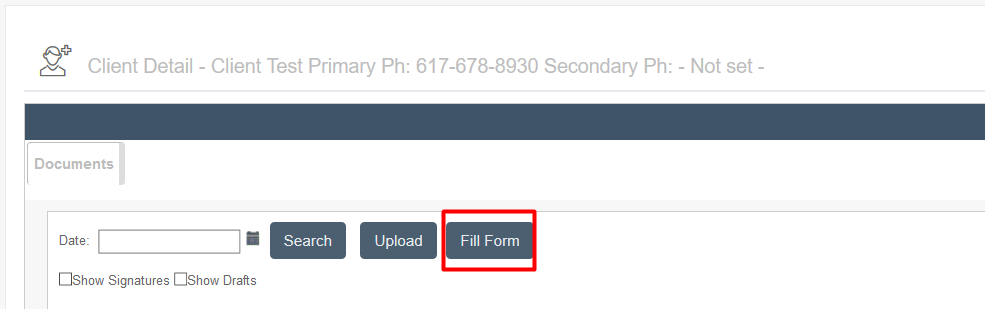
Click Fill Form.

Client Detail page showing client information with primary phone 617-678-8930 and secondary phone not set; Documents section displays a Date field with Search, Upload, and Fill Form buttons (Fill Form highlighted in red), plus checkboxes for Show Signatures and Show Drafts options.

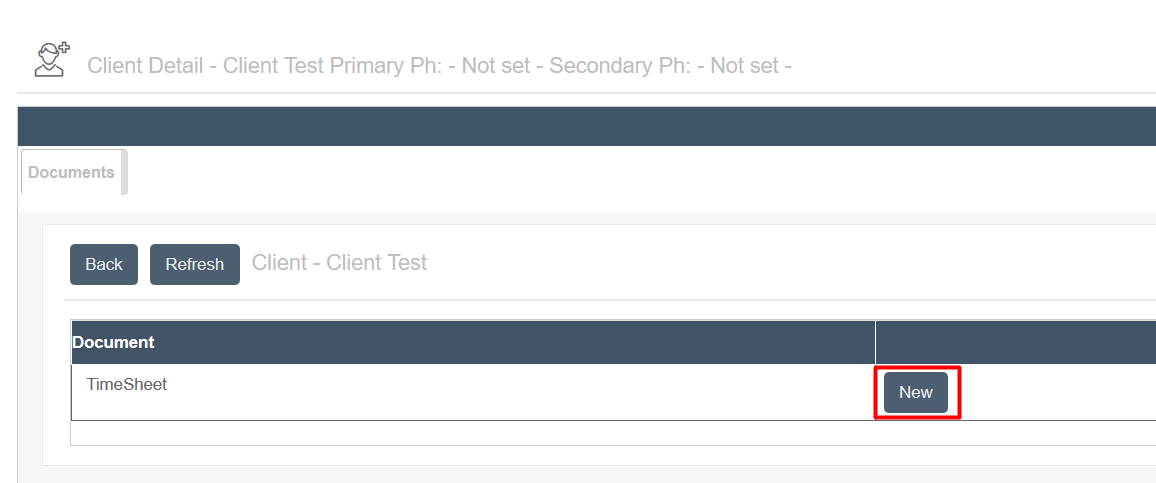
Click New next to Timesheet.

The Client Detail page displays document management for a client named "Client Test" with primary and secondary phone numbers marked as "Not set". A Documents tab shows a table with a TimeSheet entry and a "New" button to add additional documents.

A new timesheet will open. Fill out the form and save it.
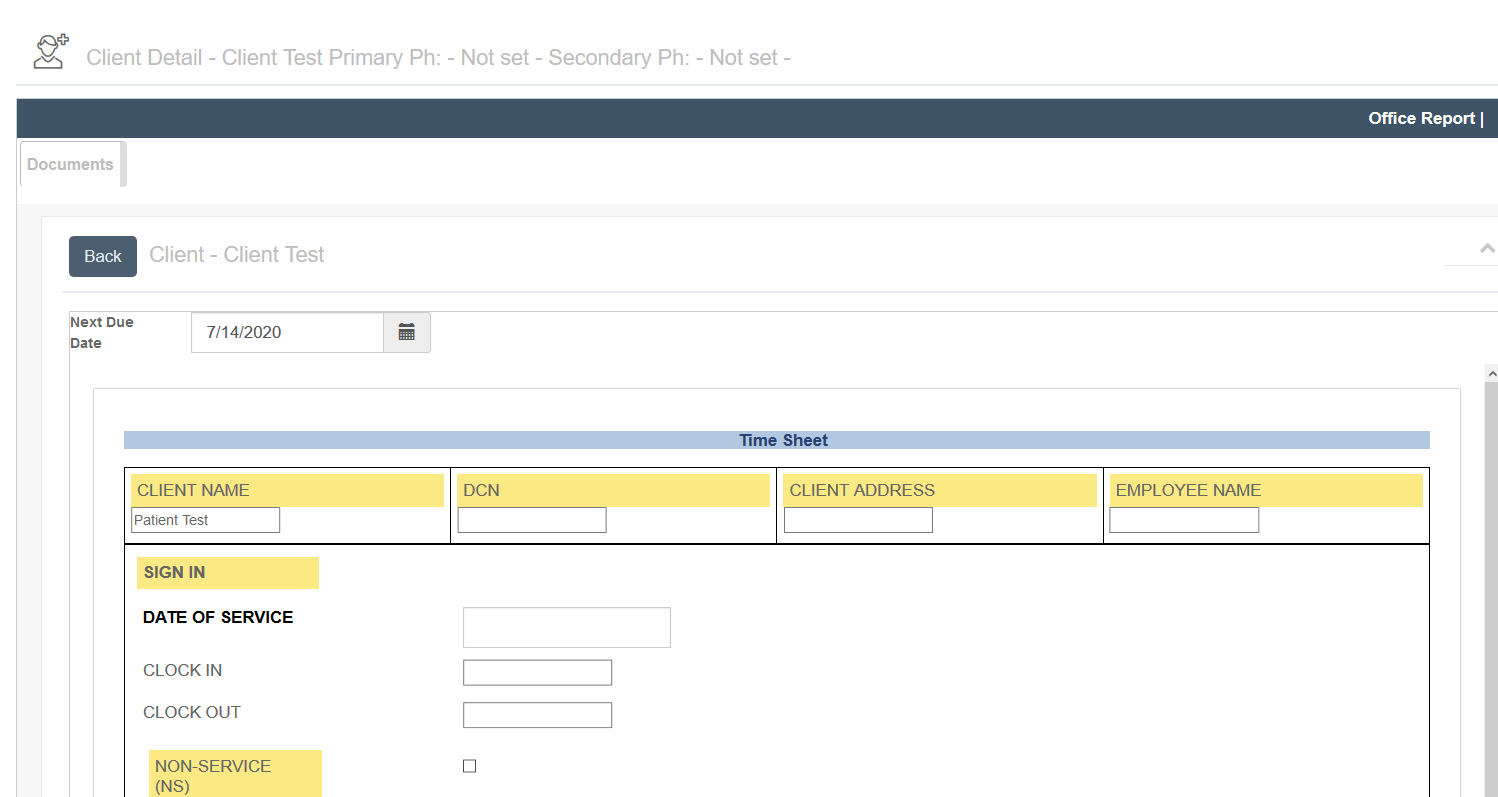
Client Detail page showing a timesheet form for "Patient Test" with fields for client information (name, DCN, address, employee name), sign-in details (date of service, clock in/out times), and a non-service checkbox, with a Next Due Date of 7/14/2020 displayed at the top.

Finally, inform the supervisor that the online timesheet has been completed.

Was this article helpful?
On this page