Overpayments in Ankota
Overview
Some agencies regularly deal with overpayments. In that case, you will want to make use of our overpayments feature, which must be turned on by an Ankota specialist. Please note, Medicaid clients do not have this function typically turned on. It is not Medicaid practice to overbill/overpay.
The overall process of overpayments in Ankota is simple.
- Overpayments functionality is turned on in Ankota. (You must request this.)
- Create an overpayment by overpaying any invoice.
- The overpayment is saved as an adjustment.
- The adjustment is applied to the next invoice, and will show as a line item noting "Advance Payment."
See below for further information on the processing of creating and applying overpayments in Ankota.
Creating Overpayments
To create an overpayment, simply overpay any invoice. Once this overpayment occurs, the overpayment will automatically be saved in the form of an adjustment.
Applying Overpayments
Applying overpayments can be done automatically if desired. Speak to your Ankota specialist if you wish for your overpayments to be applied automatically.
To apply an overpayment manually, go to Billing/Payroll, then click Adjustments. Filter for all adjustments in the time period you are looking for.
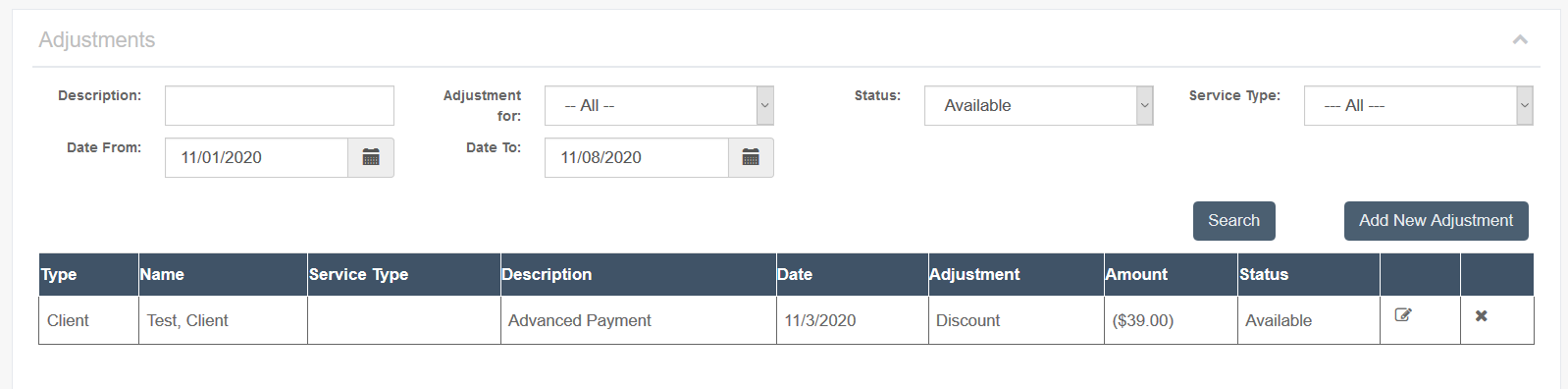
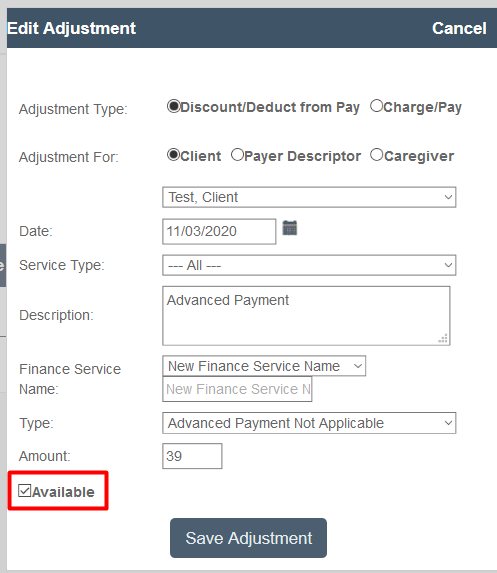
Open the desired adjustment, then check the box next to "Available" to ensure it is applied to the next invoice, then click Save Adjustment.
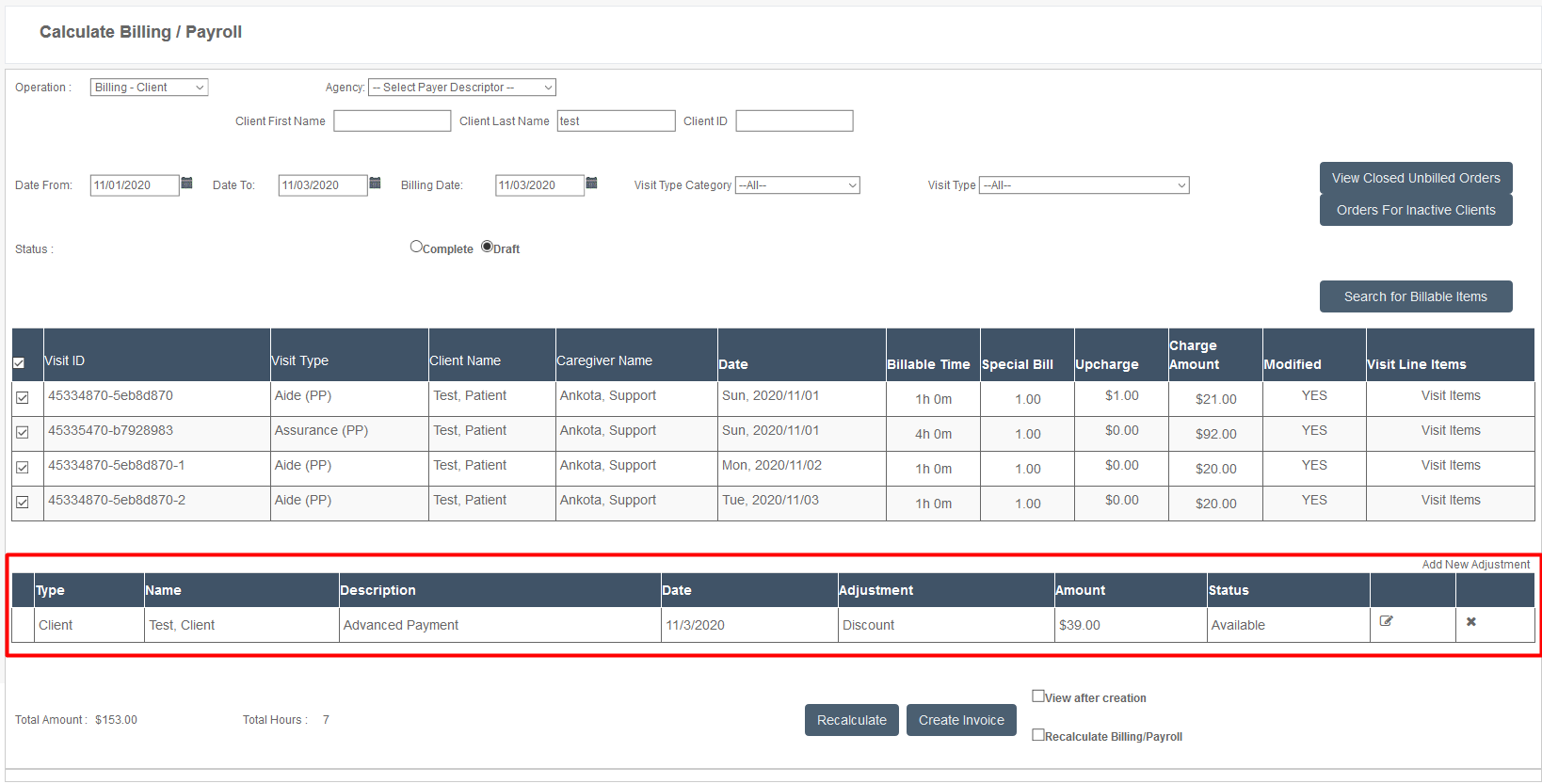
The next time you run Calculate Billing, the adjustment will be listed on the page and be applied when you create an invoice.
Viewing Overpayments
Applied adjustments (advance overpayments) show on the client's invoice as Advance Payment.

Once the invoice is completed, this billing update (including the adjusted amount) will be visible on your AR screen as a regular balance.