The Ankota Loop
Overview
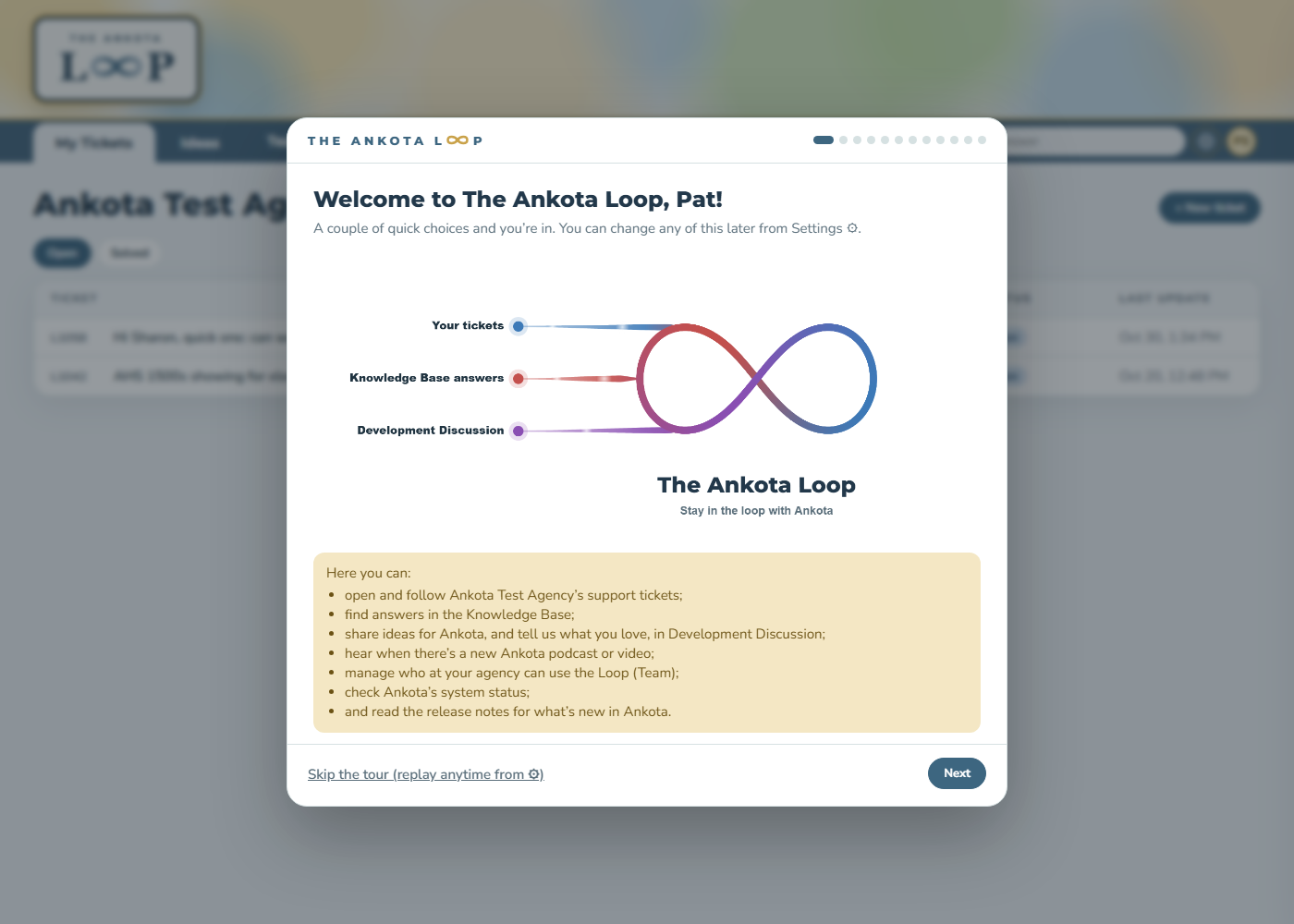
The Ankota Loop is Ankota’s support portal where you’ll open support tickets, follow them from start to finish, find answers from the Knowledge Base, and share ideas with us, all in one place.
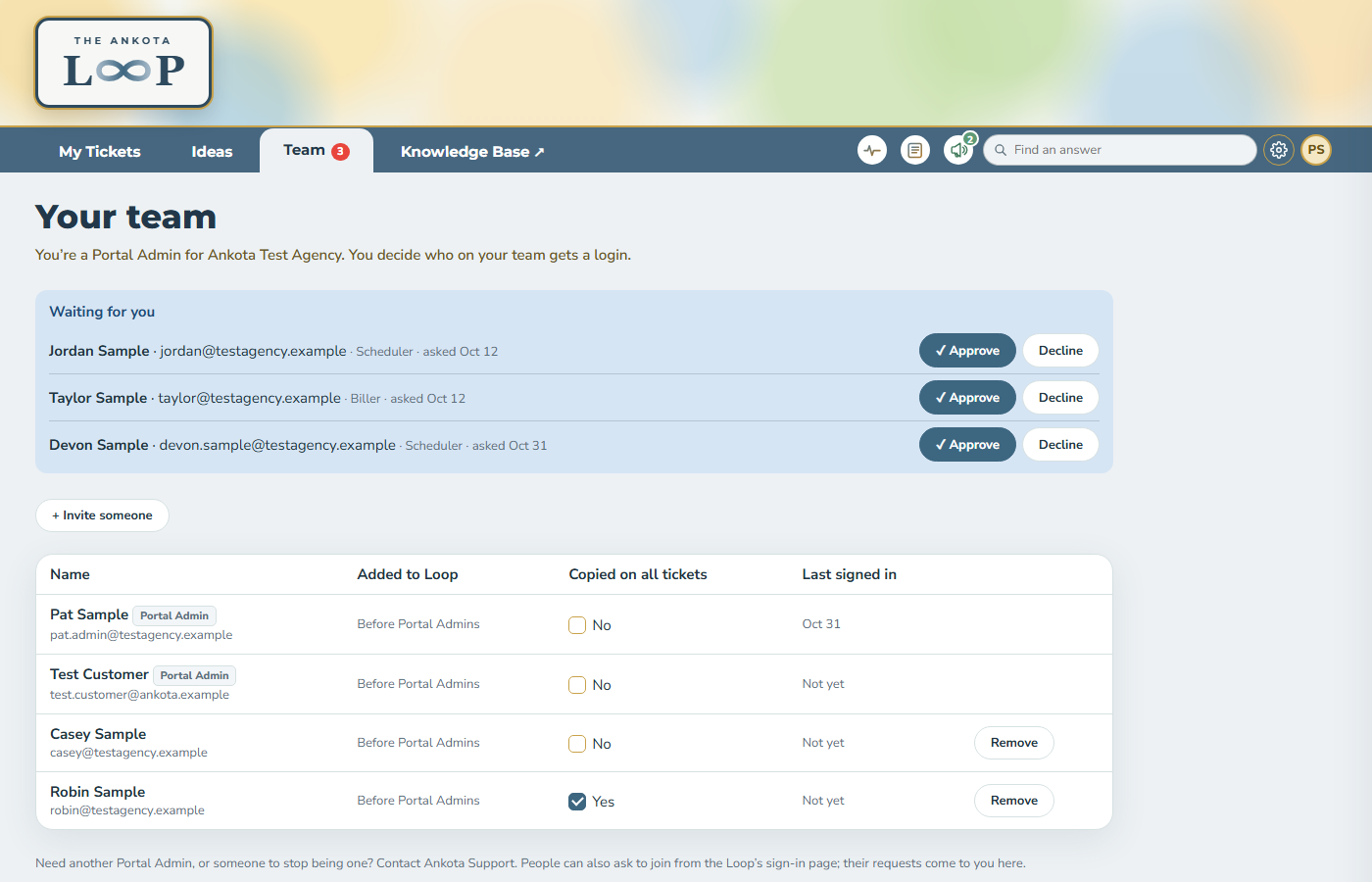
Signing in - Admin
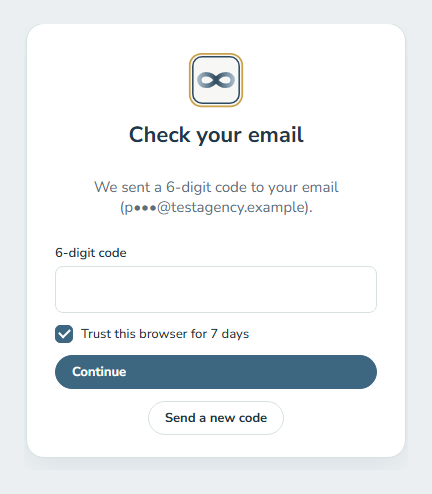
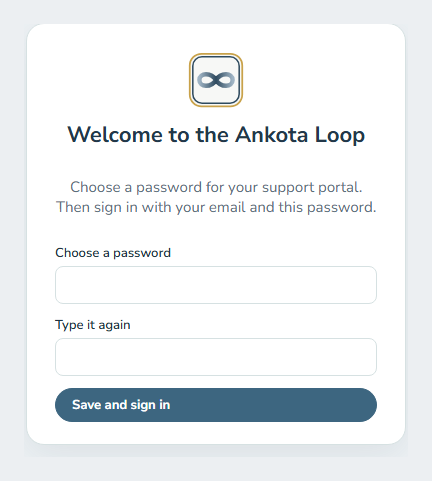
Look for an email from loop@ankota.com titled "Your Ankota support portal is ready," and click the link to choose your password (it works for 7 days). Sign in at loop.ankota.net with your email and new password, then enter the 6-digit code we send you; tick "Trust this browser" to skip the code for 7 days. Click the Team tab to approve or decline the people waiting to join, invite coworkers, and choose who's copied on every ticket. Need a fresh link or a hand? Write to support@ankota.com or call 844-4-ANKOTA.
Signing in - Staff
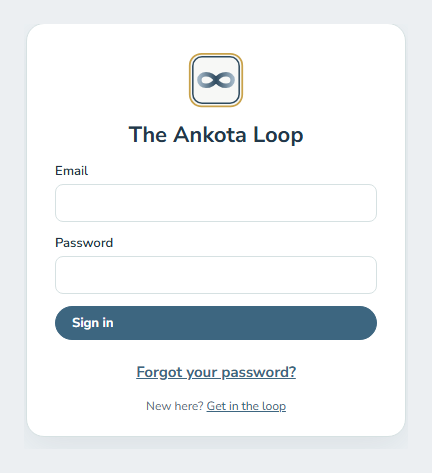
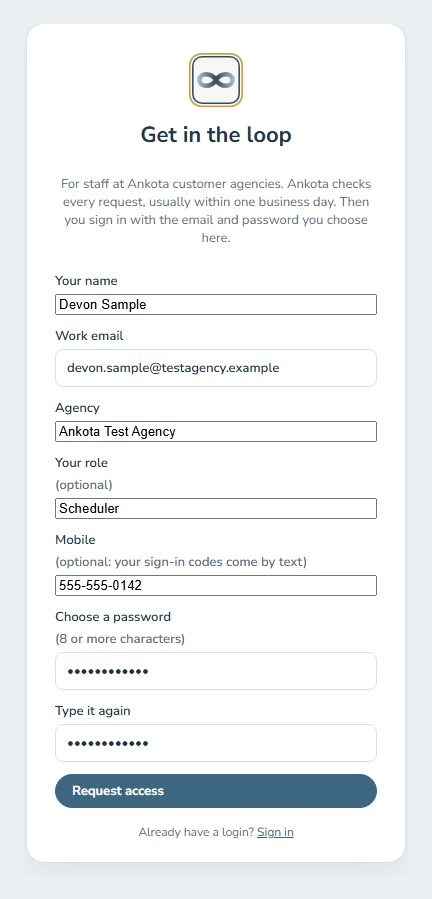
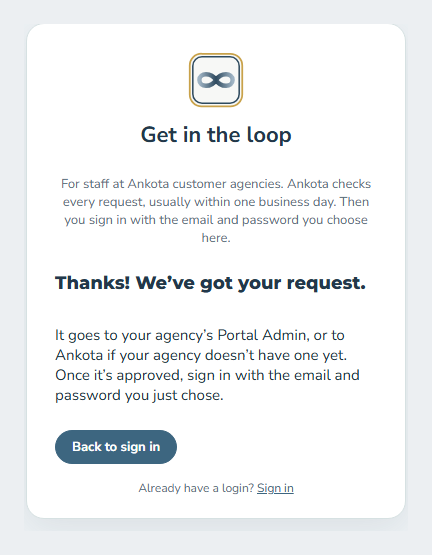
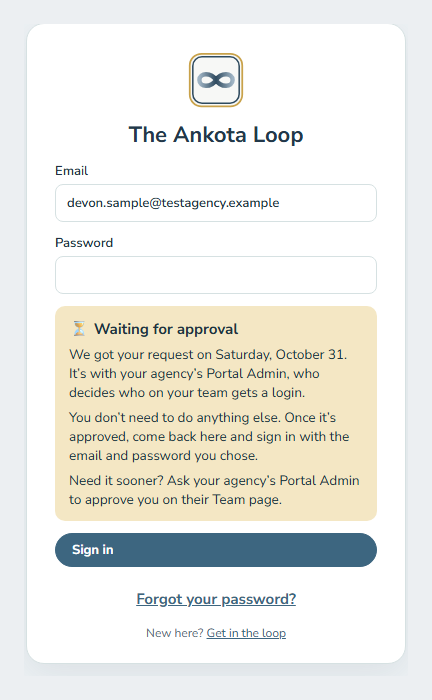
Go to loop.ankota.net. Sign in with your email and password, then enter the 6-digit code we text or email you. Tick Trust this browser to skip the code for 7 days. For your clients’ privacy, the Loop signs you out after 30 minutes without activity, and after 12 hours at most. New here? Click Get in the loop to ask your agency’s Portal Admin for a login.
My Tickets
Your agency’s tickets, newest first, each with its status: Open, Waiting on you, In development, or Solved. A yellow note at the top tells you when we’re waiting on a reply from you.
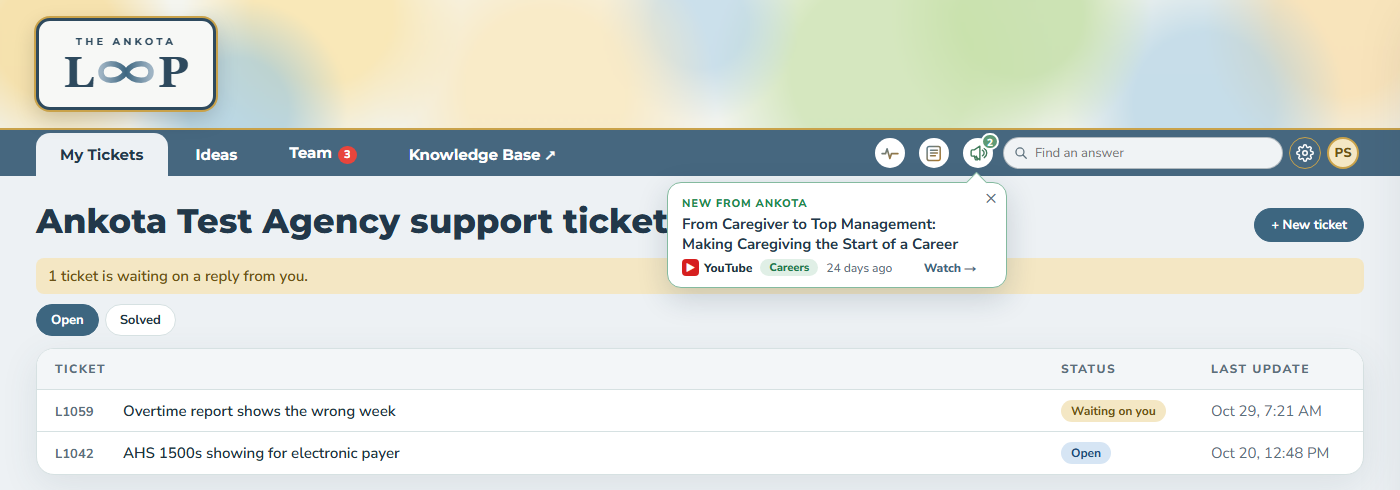
Opening a ticket
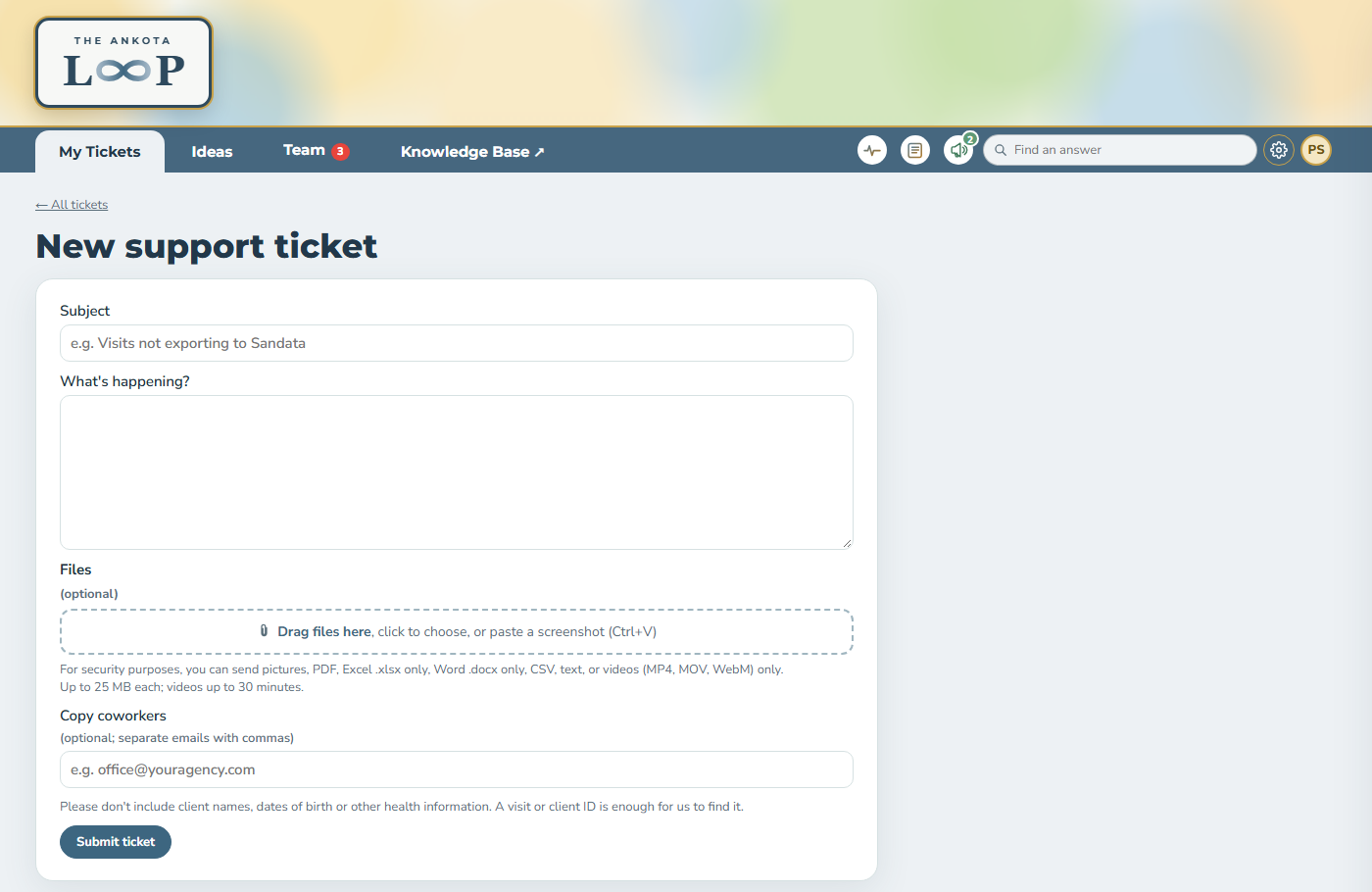
Click + New ticket. Give it a short subject and tell us what’s happening. As you type, the Loop suggests Knowledge Base articles that may answer it right away. Drag in files or paste a screenshot (Ctrl+V). For security purposes, you can send pictures, PDF, Excel .xlsx only, Word .docx only, CSV, text, or videos (MP4, MOV, WebM) only. Add coworkers to copy, then click Submit ticket.
Please don’t include client names, dates of birth, or other health information. A visit or client ID is enough for us to find it.
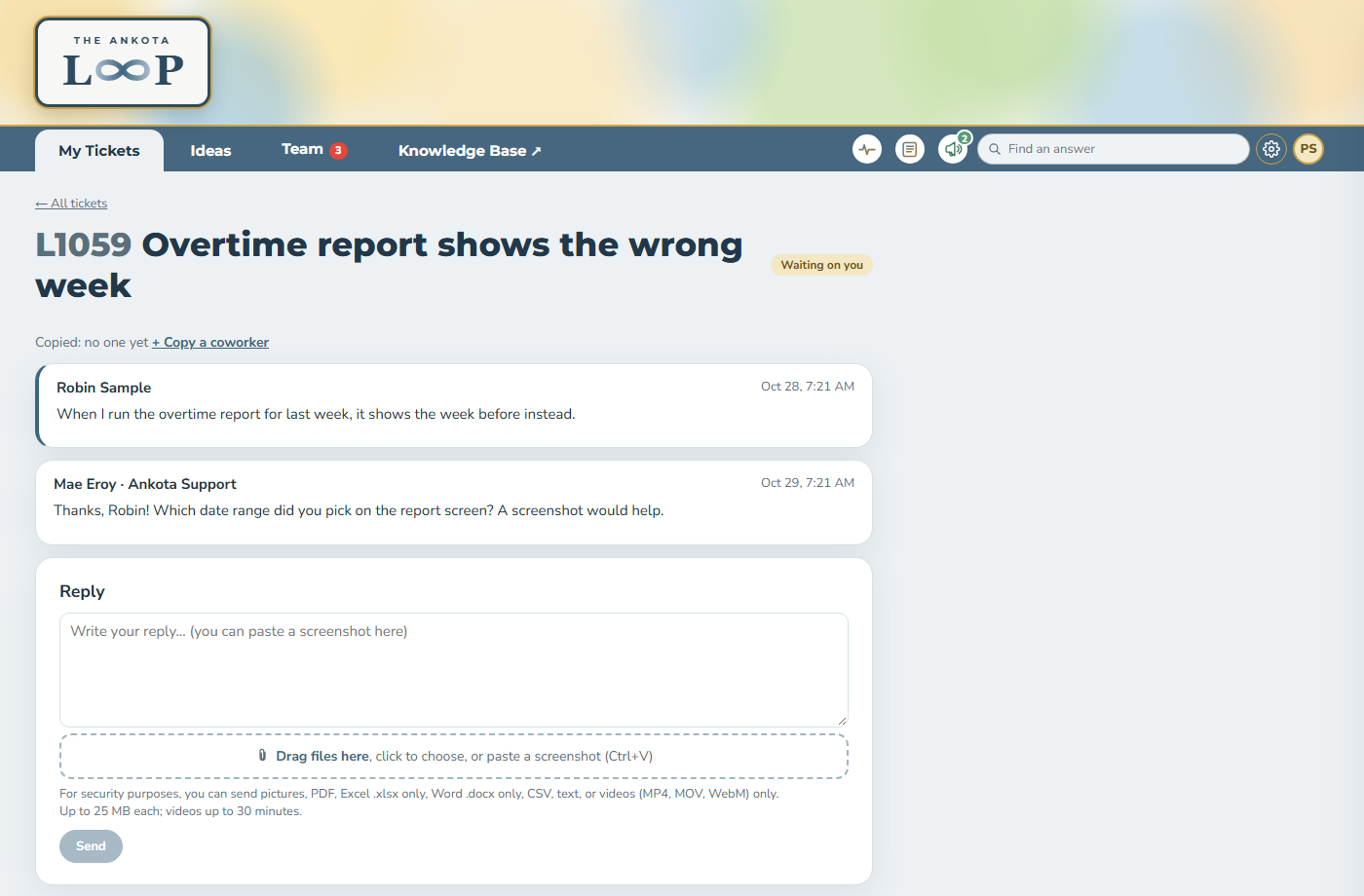
Following a ticket
Open any ticket to see the whole conversation. Write your reply at the bottom, add files the same way, and click Send. + Copy a coworker keeps someone else in the loop on that ticket.
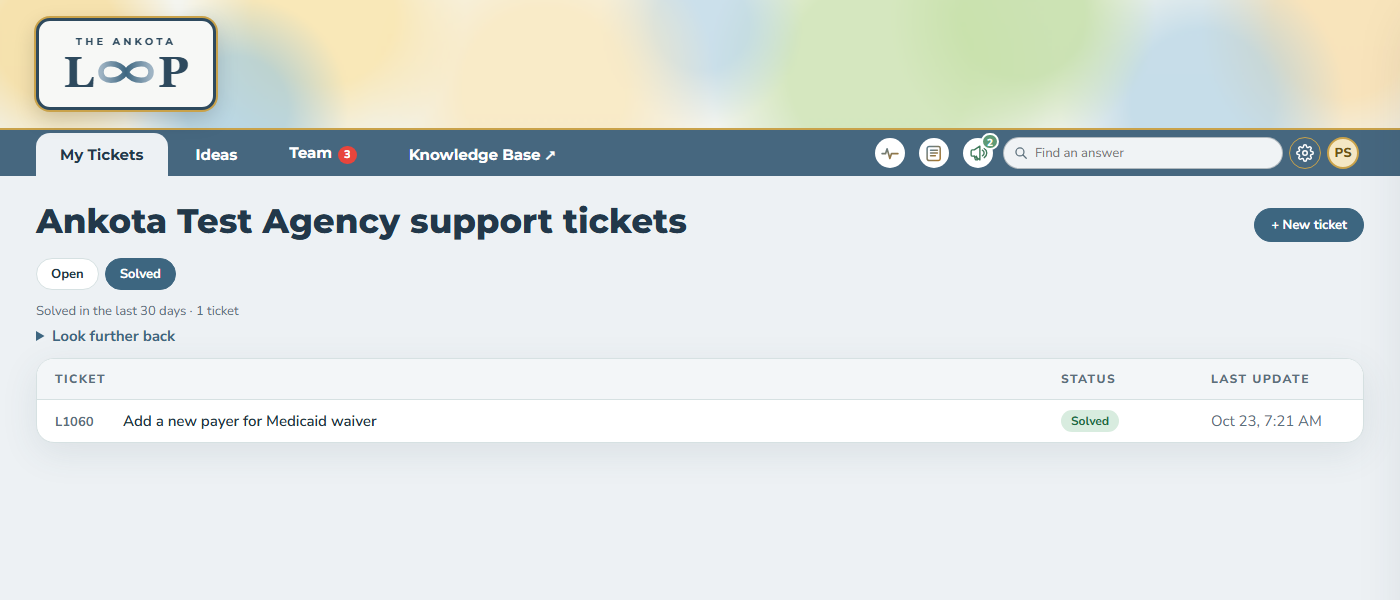
Solved tickets
Click Solved to see tickets solved in the last 30 days. Look further back finds older ones by subject, ticket number, or date.
Development Discussion: Ideas
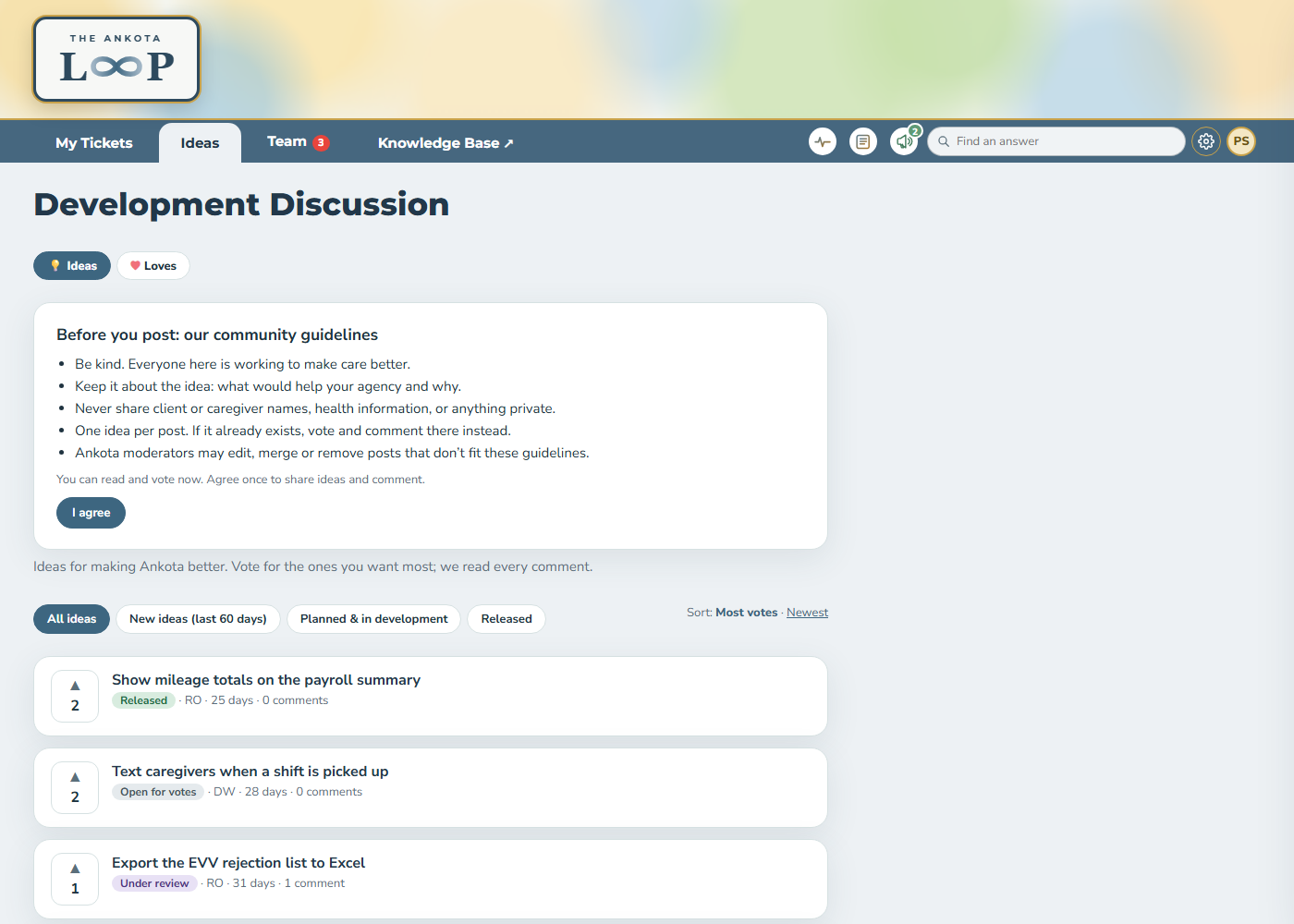
Click Ideas to share ideas for Ankota and vote on the ones you want most. Filter by new ideas, planned and in development, or released. The first time, read our short community guidelines and click I agree.
Development Discussion: Loves
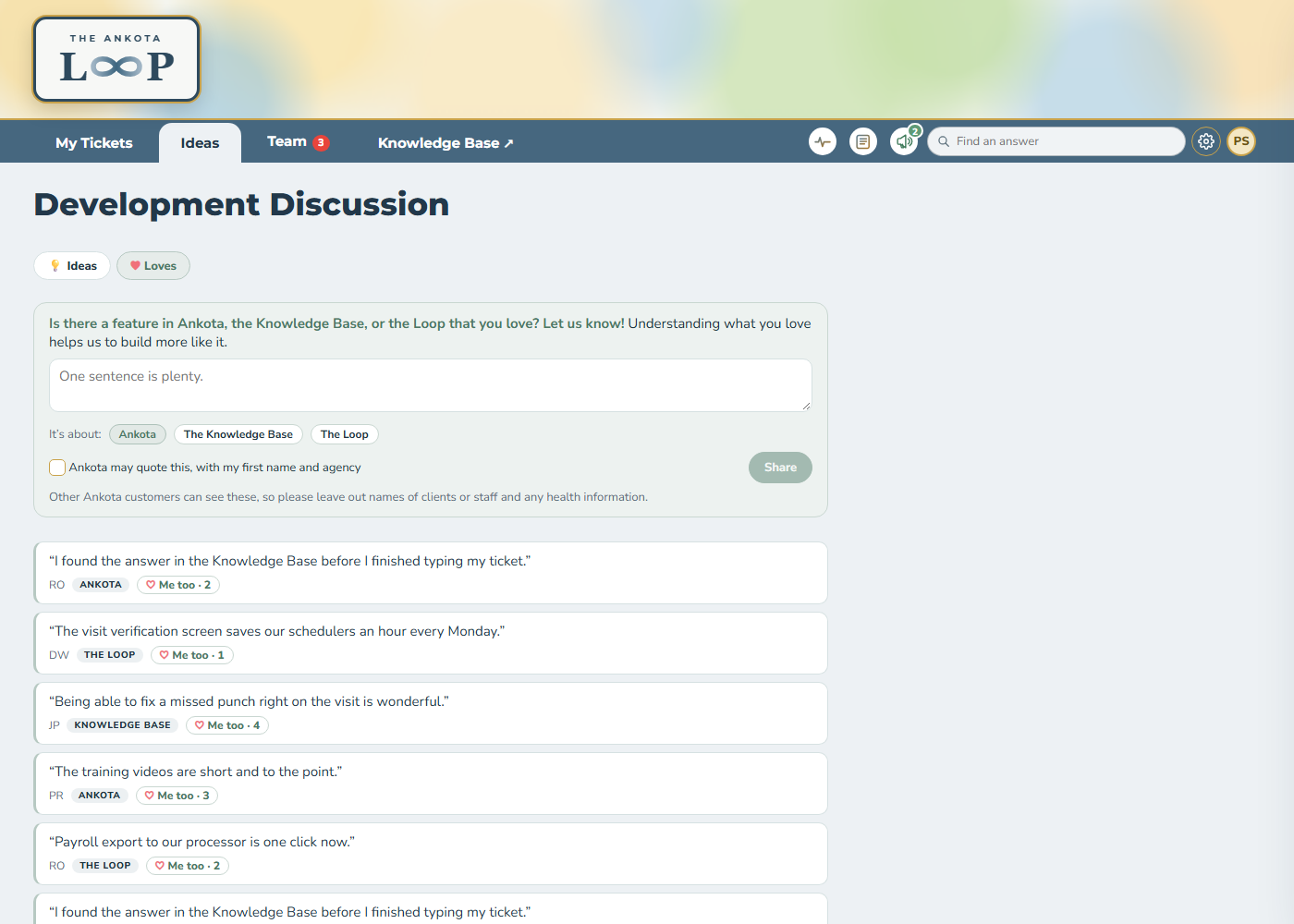
Is there something in Ankota, the Knowledge Base, or the Loop that you love? Tell us under Loves. One sentence is plenty, and you can add a Me too to what others love.
Your team (Portal Admins)
If you are your agency’s Portal Admin, the Team tab is where you approve or decline people who ask to join, invite coworkers, choose who is copied on all tickets, and remove people who leave.
The top bar
-
Knowledge Base ↗ opens our help articles, and Find an answer searches them from any page.
-
The pulse icon shows Ankota’s system status.
-
The page icon shows release notes: what’s new in Ankota.
-
The megaphone shows Ankota news, like new podcasts and videos.

Settings
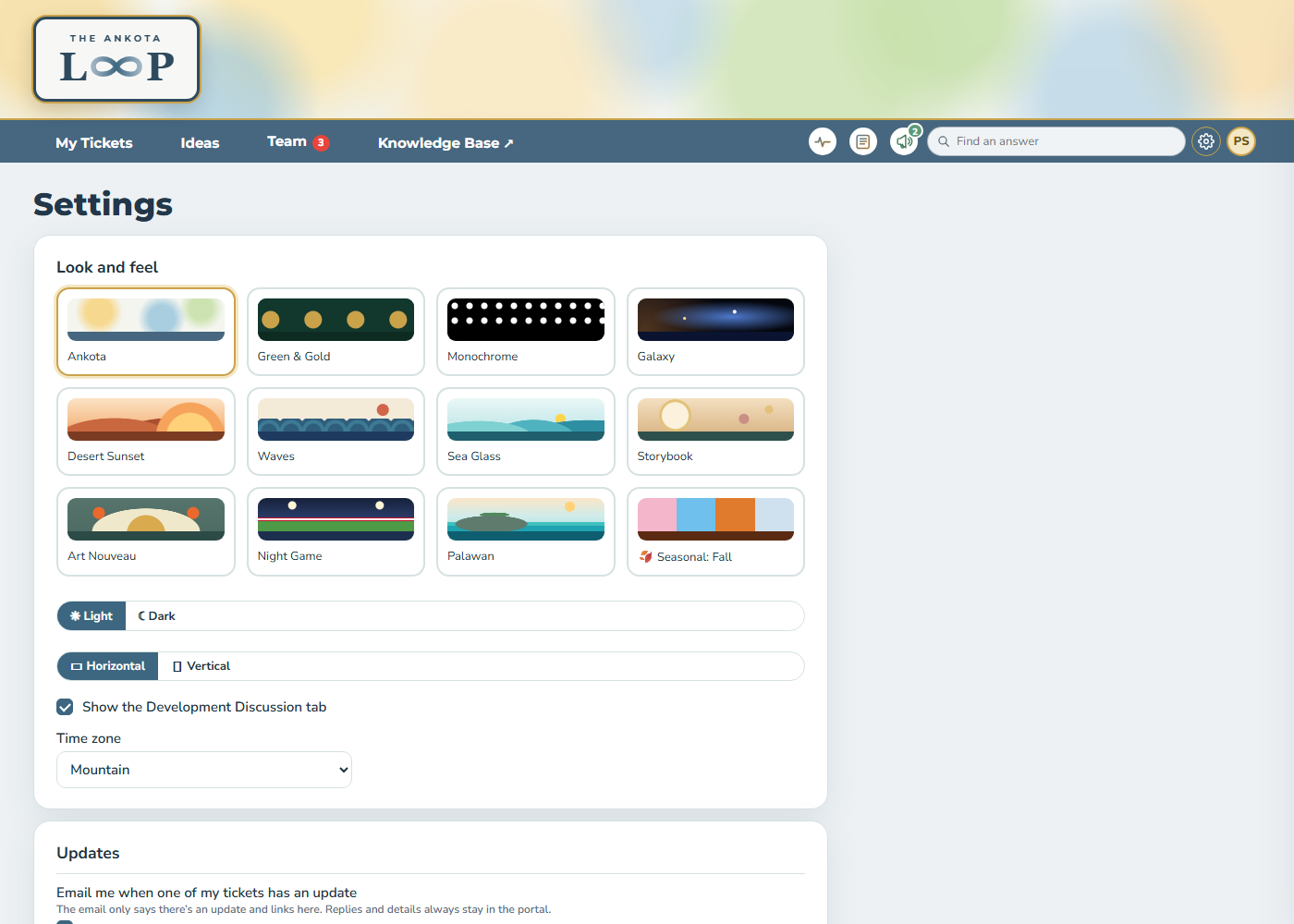
Click ⚙ to choose your theme, light or dark, a horizontal or vertical layout, your time zone, and whether we email you when a ticket has an update. You can also replay the welcome tour from there.
Questions? Write to support@ankota.com or call 844-4-ANKOTA.