Three-Part Confirmations of Visits in the Mobile App and IVR/Telephony
Overview
In some states, a three-part confirmation is required during the clock-out process. In this case, the caregiver is asked first if the client is available. Next, the client is asked to confirm the visit type and times of service. Finally, the client signs with either a voice or written signature. This three-part confirmation (visit type, times, and signature) is built into both the IVR/telephony option and the mobile app. It will be enabled for organizations in states with these requirements.
Three-Part Confirmation in IVR/Telephony
When calling in to report arrival, clock in as usual. When calling in to clock out, the process is as follows:
Report departure, including care plan items, via telephony from the client's phone number (example call below):
- Please enter your user ID followed by # sign.
- Please enter your PIN followed by # sign.
- To select departure, press 1. Press 99 to hear your schedule for tomorrow.
- Departure time is X pm.
- Please report the value or status of the following items:
- [Item] is complete, press 1; if not needed today, press 2; if client refused, press 3. Repeat as needed.
- If care plan item status is acceptable, press 1; to re-enter care plan item status, press 2.
- Are there any concerns you'd like to share with the office about the patient's condition? Press 1 for yes or 2 for no.
THREE-PART CONFIRMATION
- Please ask your client to say that the visit was completed. Press 2 if client is available. If client is not available, press 1. If you press 1, the call will proceed to departure.
- Please confirm that you received your [visit type] service today. Press 1 for yes. Press 2 for no.
- Please confirm that your visit times were from [time] to [time]. Press 1 to confirm. Press 2 if you do not agree with the times.
- Please say your name and today's date after the beep to confirm that you received your services for today. Press the # sign when finished.
- [Record confirmation, press #]
- Message uploaded successfully. Your message is: [plays recording]. Press 1 to continue or 2 to record.
- Your departure has been successfully reported. Thank you.
Depart the client visit location (do not leave until departure is reported).
Note: an organization may have a slightly different call-out script depending on state, service type, and organizational preferences.
Three-Part Confirmation in Mobile App
When logging in to the mobile app to report arrival, clock in as usual. When logging in to clock out, the process is as follows:
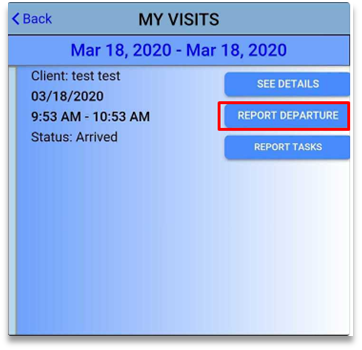
To clock out, click on "Visits" and then "Report Departure".
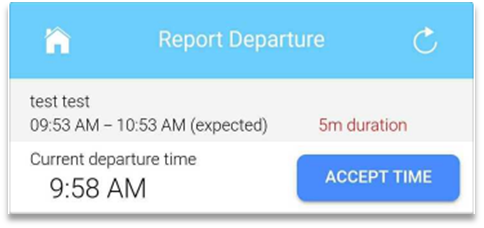
Once Report Departure is selected, accept the time.
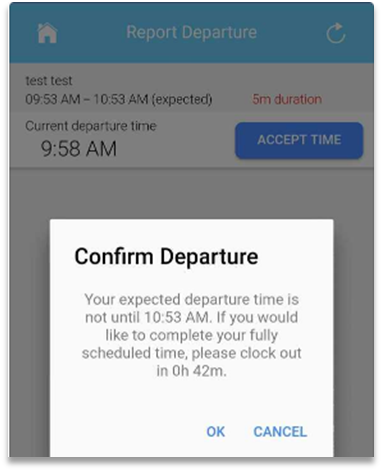
A message will confirm arrival and display the expected departure time.
Report care plan items as needed.
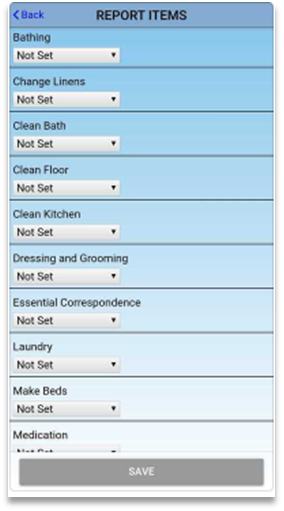
Then proceed with the three-part confirmation:
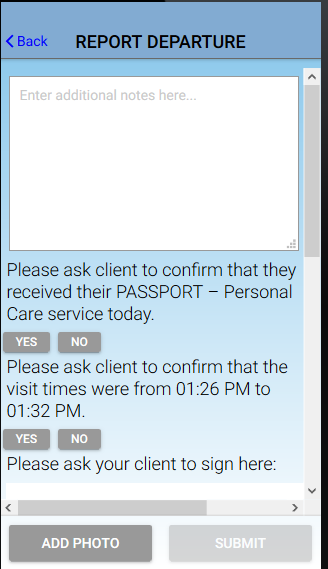
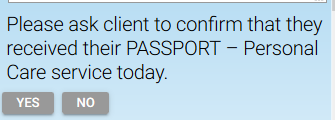
First, ask the client to confirm their visit type. They should click YES if the visit type is right, and NO if the visit type is wrong. If the client is not available, click the CLIENT NOT AVAILABLE button.
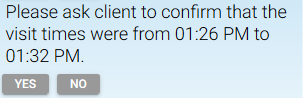
Next, ask the client to confirm the visit times. They should click YES if the visit times are right, and NO if the visit times are wrong. If the client is not available, click the CLIENT NOT AVAILABLE button.
Next, ask the client to sign. They should provide a written signature if possible. If not, use the voice signature option. If the client is not available, click the CLIENT NOT AVAILABLE button.
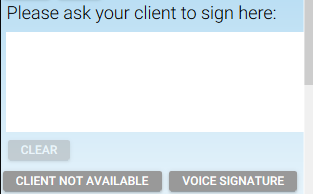
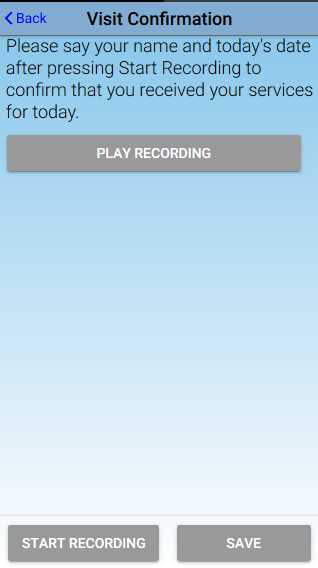
If using the voice signature option, the client needs to click Start Recording to begin the recording, Stop Recording to end the recording, and Save to upload the recording. The client can also click Play Recording to review what they recorded.
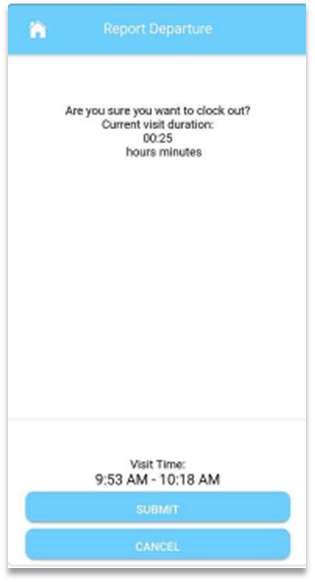
A prompt will ask to confirm reporting departure at this time. Click "Submit" to continue with clock out.
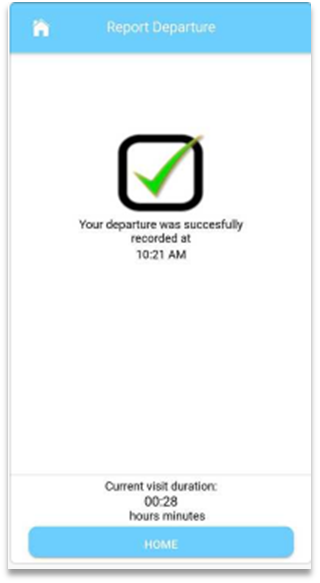
Once the success message appears, navigate back to the home page.