Closing "On Hold" Visits
Overview
The majority of customers use the On Hold Caregiver manual closure feature. When caregivers forget to clock out, the visit goes On Hold and the caregiver is required to manually close out the visit before being allowed to clock into their next visit. Normally there is no need to manage these On Hold visits, as they will be managed by caregivers in the normal course of business, then flagged for administrative review upon completion.
However, some customers prefer to use the legacy On Hold management process. See below for a walkthrough of legacy On Hold management.
Legacy On Hold Management Overview
Visits are placed on hold for many reasons. The most common reason is that a caregiver clocked in, but not out. In that case, the system will put those visits on hold. If you have identified visits that have been placed on hold (on a scheduling board or via the Visit Approval Dashboard), you can close those visits by following the directions below.
NOTE: Only visits that end yesterday will be placed on hold. This way, overnight visits are excluded from that night's On Hold transition.
If the visit is still in the status of Scheduled, rather than On Hold, you can still use one of the processes described below to close out the visit. Just remember you must first close the visit on the Visits page, as visits will not show up in the Visit Approval Dashboard unless they are in the status of On Hold or Closed.
Although you can change a visit to the status of Closed through any Calendar, care plan items will still have to be reported either through Visits or on the Visit Approval Dashboard.
NOTE: For organizations that allow their caregivers to close their on-hold visits in the mobile app (resulting in a "manual" departure), they may wish to leave their On Hold visits unmodified so that caregivers can complete them as they are able.
Sections in this article:
- Closing Visits on the Visit Approval Dashboard
- Closing Visits on the Visits Page
Closing Visits on the Visit Approval Dashboard
Ankota allows you to close visits that are on hold from the Visit Approval Dashboard (also known as the Visit Closure Report). On hold visits are usually visits which were clocked into, but not out of. Your company may also automatically place other visits on hold.
Closing on hold visits on the Visit Approval Dashboard includes the following processes:
- Entering the Corrected End Time
- Closing the Visit by checking the box next to Close Visit and then clicking Save Visit Details
- Clicking the Care Plan items button and reporting all care plan items (recommended)
- Reviewing any broken rules
- Approving the visit
- Clicking the Visit ID link, then uploading the scanned paper timesheet into the visit (optional)
To begin, go to the Visit Approval Dashboard and filter the visit status to "On Hold" and then click View Report.

Next, click the edit icon next to a visit that is On Hold.

From here you will:
- Edit or confirm the corrected times are the actual times of the visit
- Check the box that says "Close Visits"
- Save Visit Details

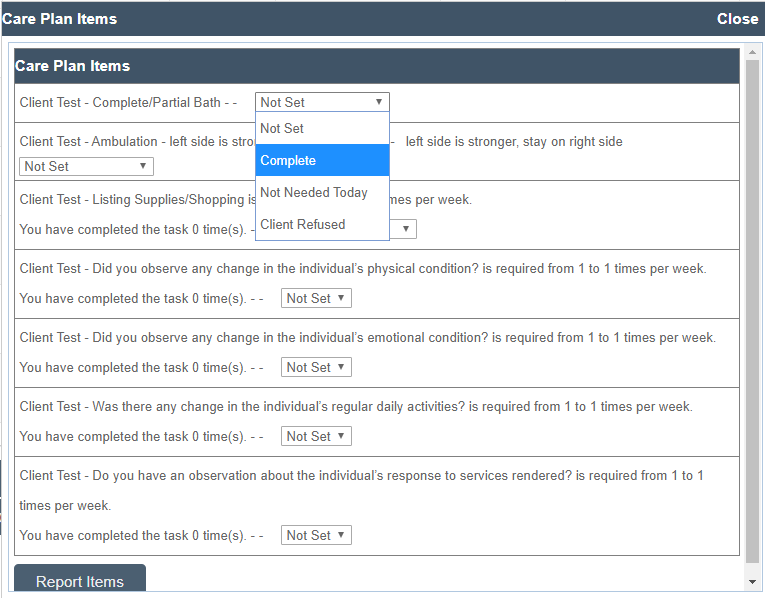
Click the Care Plan Items button.

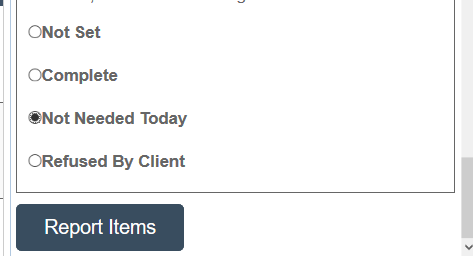
Report Care Plan Items as needed, then click the Report Items button at the bottom to save.
Approve the visit by clicking the Approve Visit button.
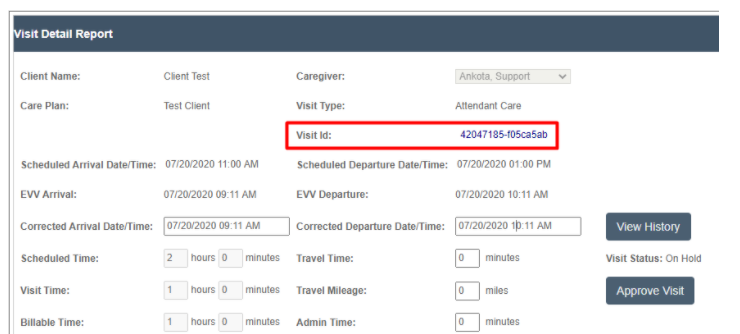
Optionally, click on the Visit ID link, which will open a new tab. On this tab, you can upload a scanned copy of the paper timesheet and attach it to the specific visit.
Closing Visits on the Visits Page
To begin, go to the Main Menu and click Visits.

Next, set the visit date or date range. Set the visit status to On Hold and click Search.

Click the check box for all visits you would like to close. For any visit you close, you will want a paper timesheet to verify the end times.

Scroll down the page. Click on the Report Visit Completion button to close the selected visits.
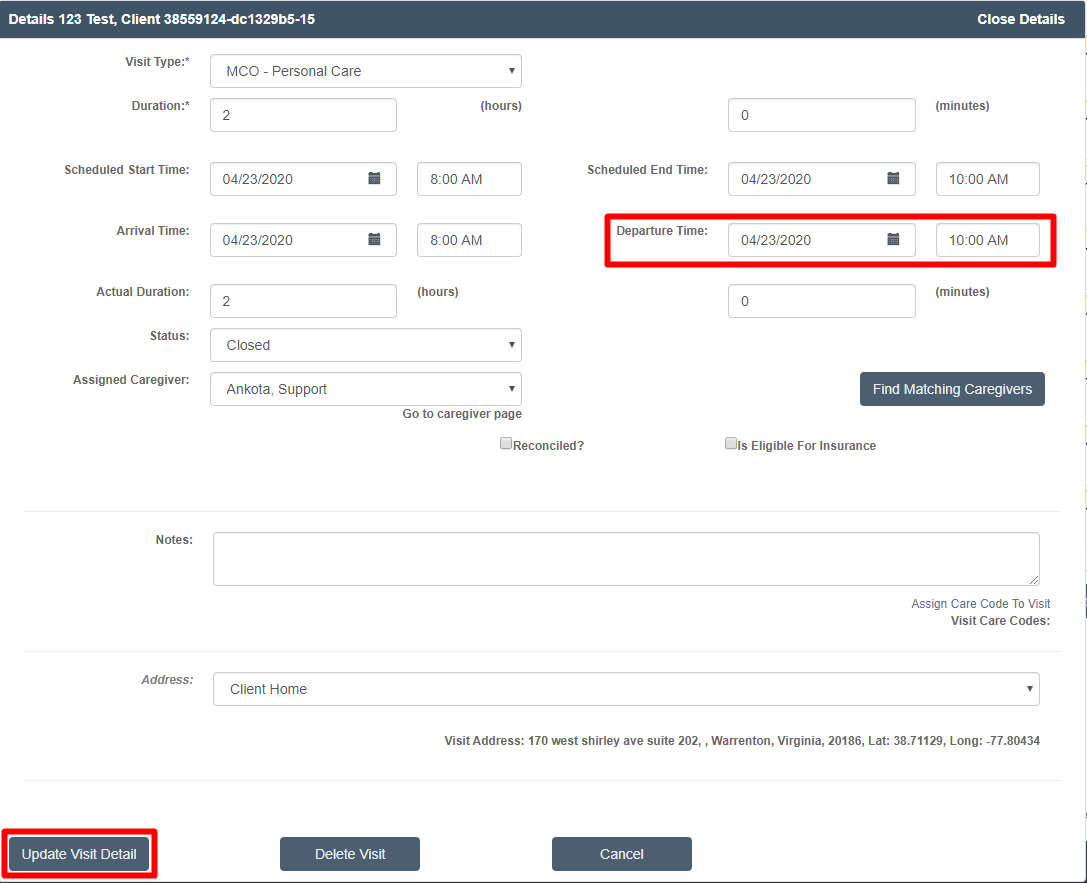
Alternately, open the visit details by clicking the edit icon and change the status to Closed.
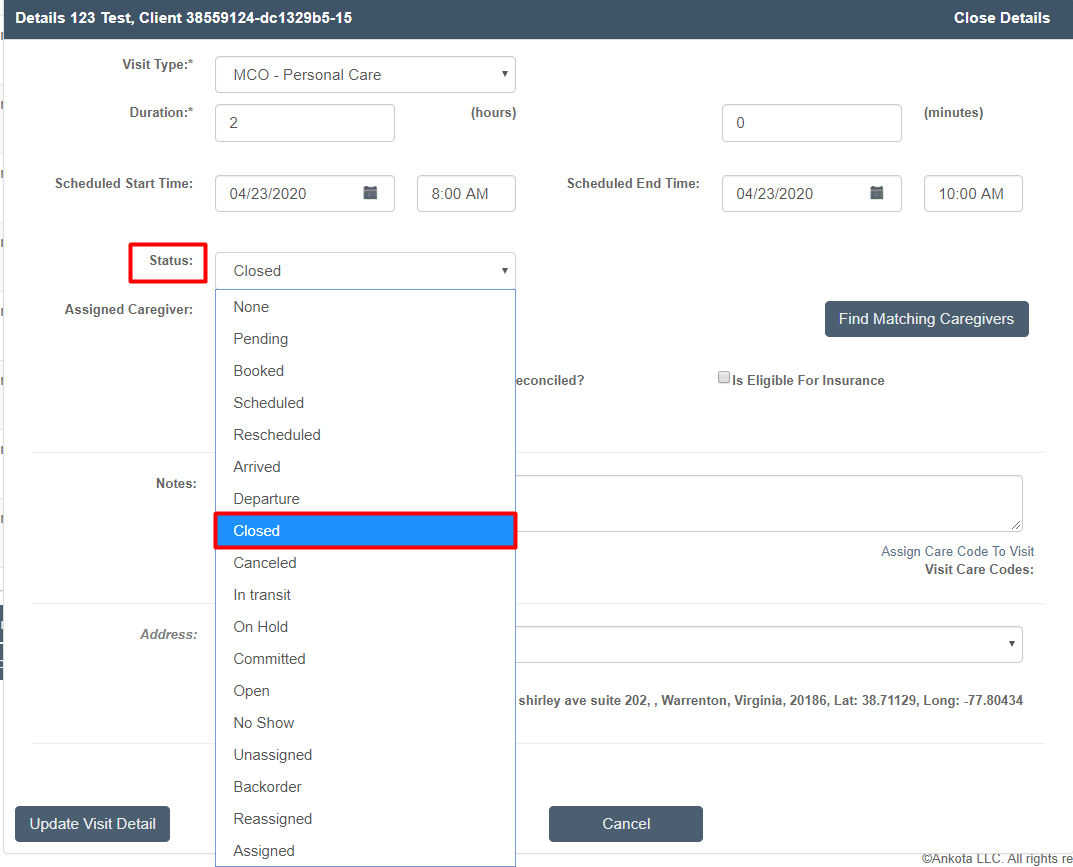
The clock-out time may also be adjusted if needed at this point before clicking Update Visit Detail.
Finally, click on the book icon at the end of the row. This will open a window with care plan items. Care plan status can be selected item by item. When finished, click Report Items.