Co-Payers & Co-Payments (Split Payments)
Overview
In order to make a client eligible to pay a co-payment prior to billing the standard payer, you will need to use the client contact feature so that you can assign a co-payment. See below for further details.
Setting a Co-pay Contact
To set the co-payer and co-payment,
- Log in to Ankota
- Click Clients & filter for the correct client
- Click the Client Contact tab
- Add the client as a contact, including the same name and address
- Check the box next to "Is Payer"
- Add the co-payer dollar amount, hours, or percentage
- Save
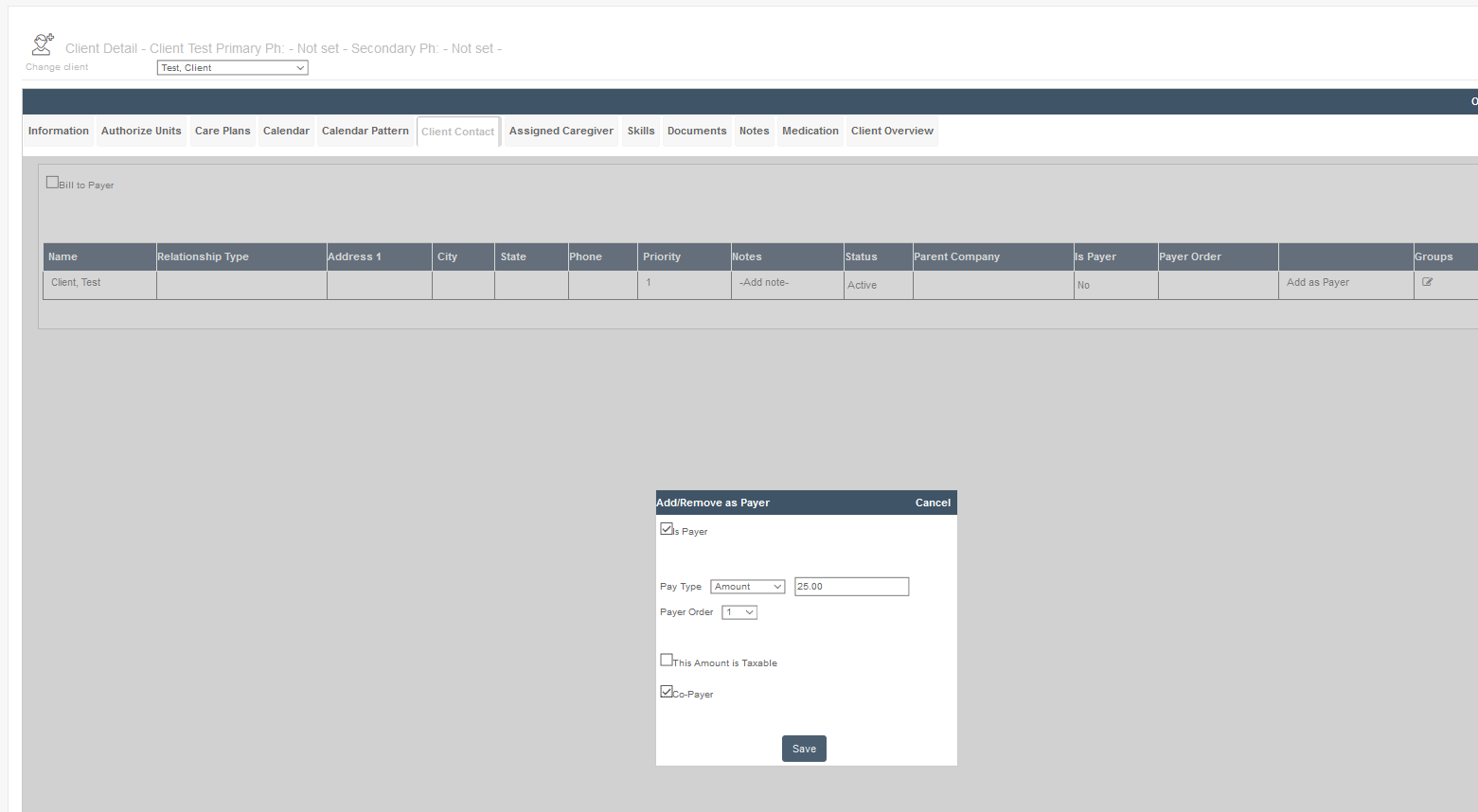
Bill to payer should only be checked if you wish to send the ENTIRE bill to another person.
Do not set a regular contact as a master contact unless you want this contact to be available to be assigned to other clients.
For more on setting a client contact, see Separating a Billing Address from a Service Address (Set Contact as Payer) | Ankota Help Center (helpsite.com)
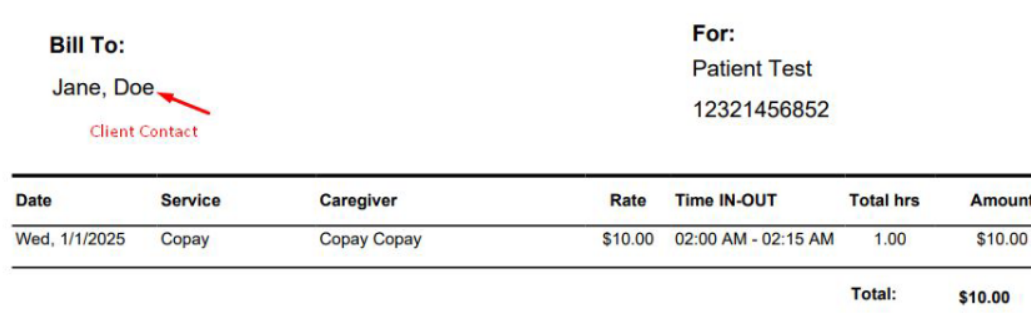
Invoice example:
Was this article helpful?