Daily Adjustments
Overview
With initial schedules in place through the end of authorizations, only small scheduling adjustments are generally needed. Just as with the original scheduling, adjustments can be made through calendar visit details, whether by opening the visits on a calendar or by opening visit details on the Visits page. Some actions can also be completed on Visits using buttons if preferred. See below for a more detailed outline of individual processes using the more common practice of calendar-based scheduling.
This article is aimed more at schedulers using calendar-based scheduling management practices. For more information on making changes to groups of visits or making special visit adjustments (such as changing visit type, payer descriptor, caregiver, and more) which can only be done on the Visits page, see Visit Management via Visits Page.
This article includes:
- Caregiver Changes
- Cancellations
- Manual Clock-ins & Clock-outs
- Deleting Visits
Caregiver Changes
Changing Caregivers on a Visit
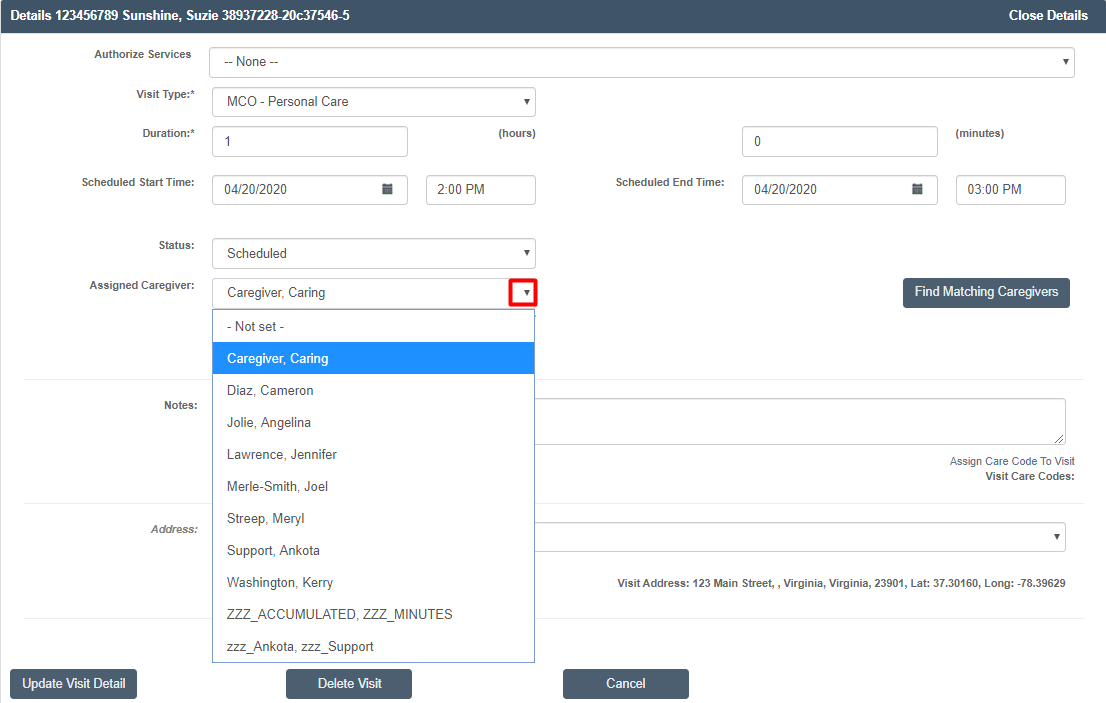
When a caregiver assignment changes, the process is simple. Open the visit details for the visit that requires adjustment, either through the edit icon on the Visits page or any calendar by clicking on the desired visit. Click the arrow next to the assigned caregiver. A drop-down list will appear. Any caregiver can be selected, including no caregiver ("Not Set"). Click Update Visit Detail to save. All calendars will automatically be updated.
Flagging a Visit as Unassigned (Color Flagging)
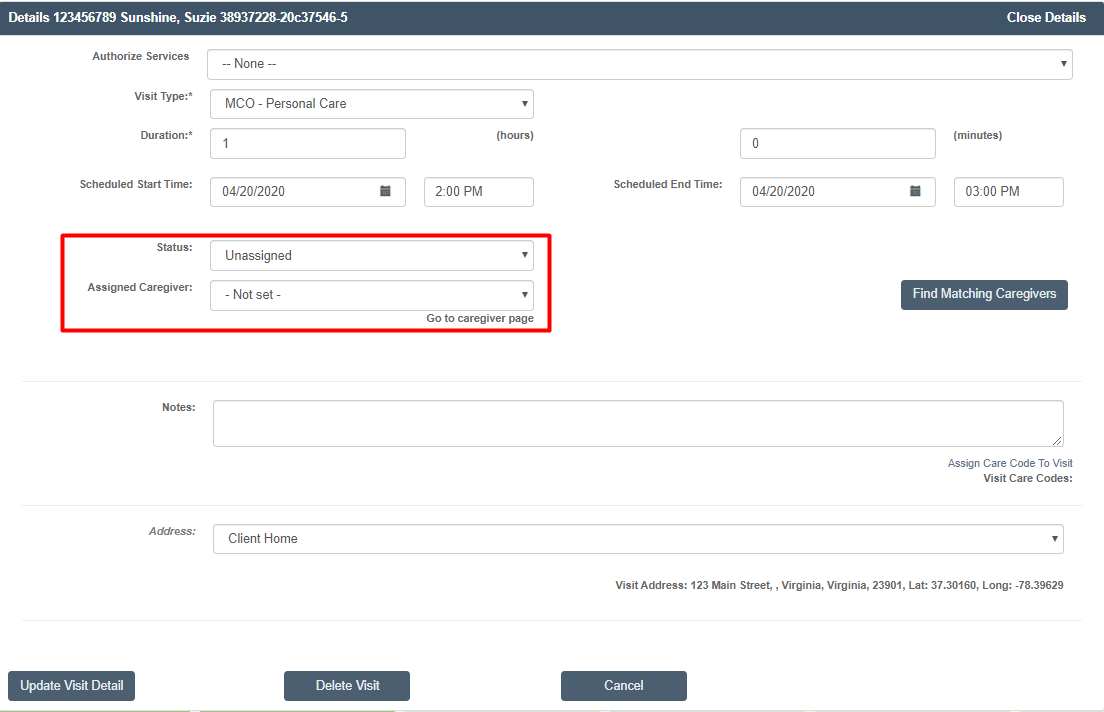
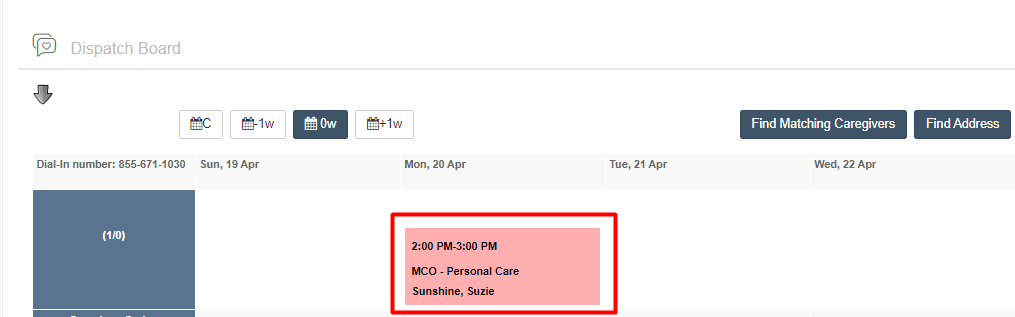
If you wish to unassign the caregiver by changing the assigned caregiver to Not Set, you may also want to change the Status to Unassigned. This will ensure the visit color is changed on all calendars (as visit coloration is based on the status).
NOTE: If you wish to use the Find Matching Caregivers feature, please first set the status to Scheduled and click Save Visit Details, then re-open.
Cancellations
When visits are cancelled by caregivers or clients, this can also be updated through the Visit Details.
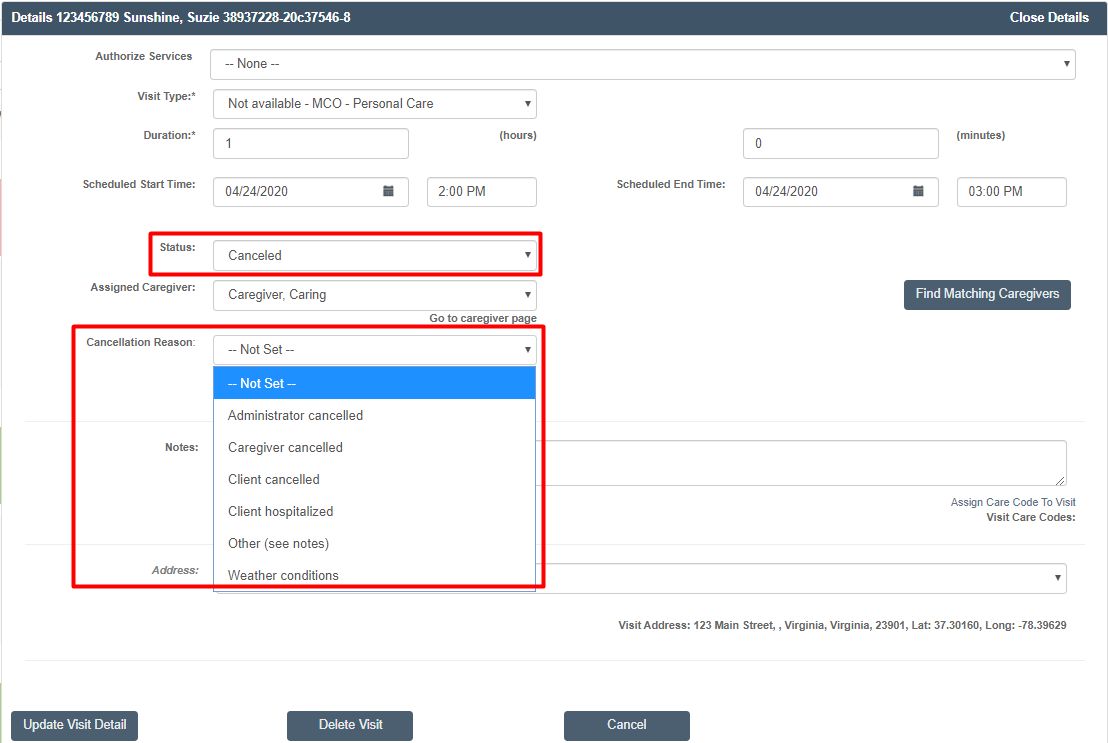
To change the status, click the arrow next to the Status. A drop-down list will appear. Change the status to Cancelled. A new selection option, Cancellation Reason, will appear. Choose the appropriate reason (the list will vary according to your organization's needs), then click Update Visit Detail to save. All calendars will automatically be updated. The calendar coloration will also be adjusted to reflect the status.
Manual Clock-ins & Clock-outs
When caregivers need assistance with clocking in or out, schedulers can assist them with manual clock-ins and clock-outs.
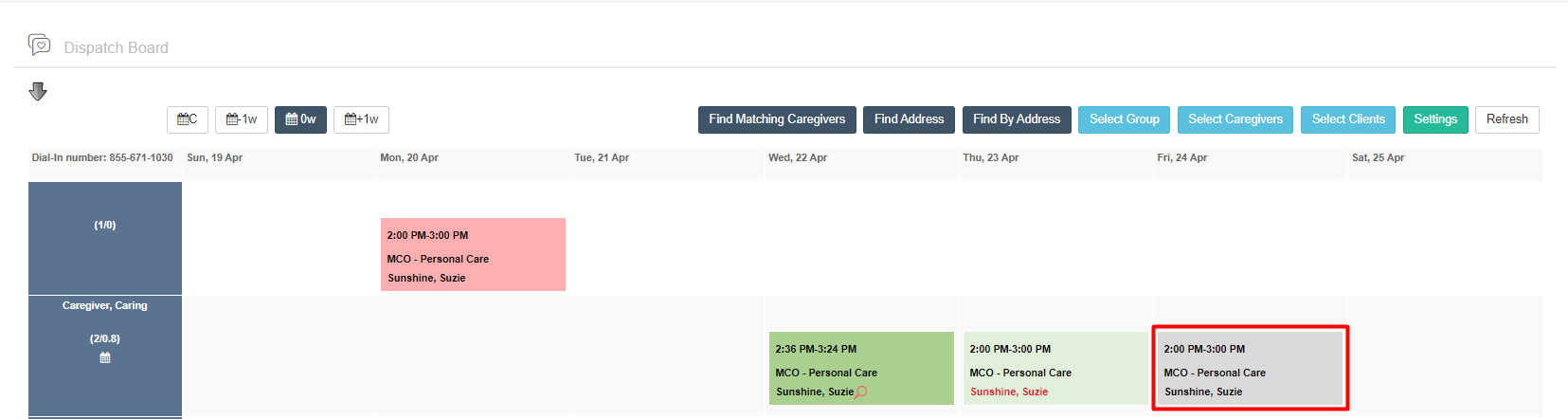
To make a manual adjustment, open the visit details for the visit that requires adjustment, either through the Visits page or any calendar. Then click the arrow next to the Status and adjust to the correct status.
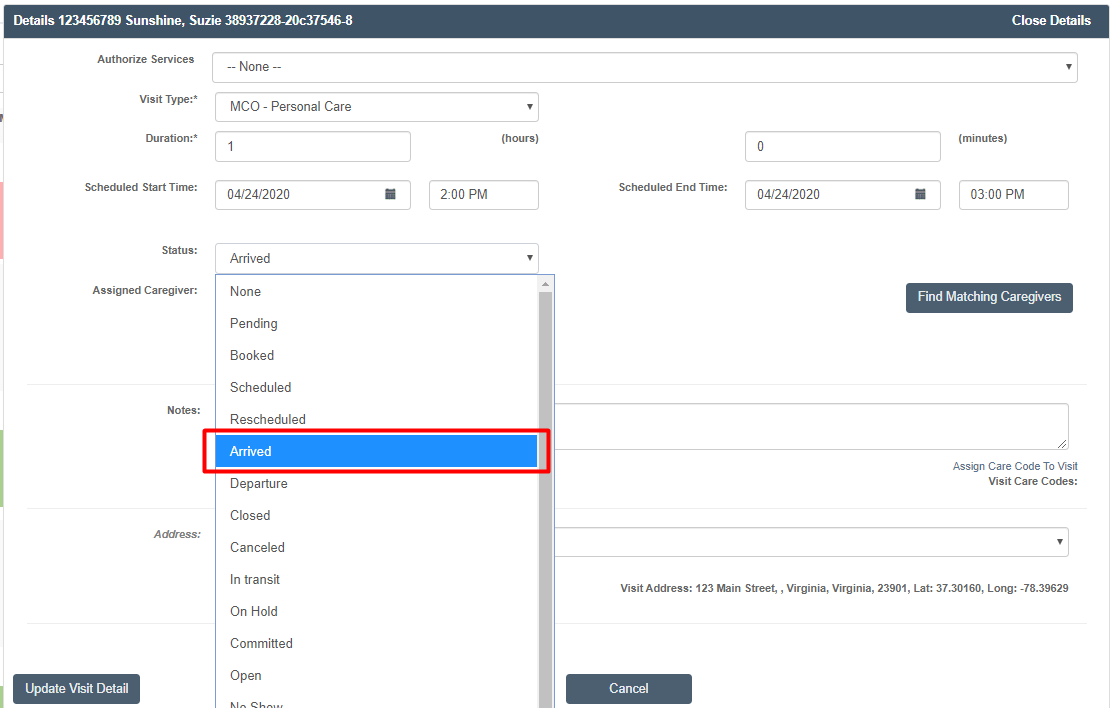
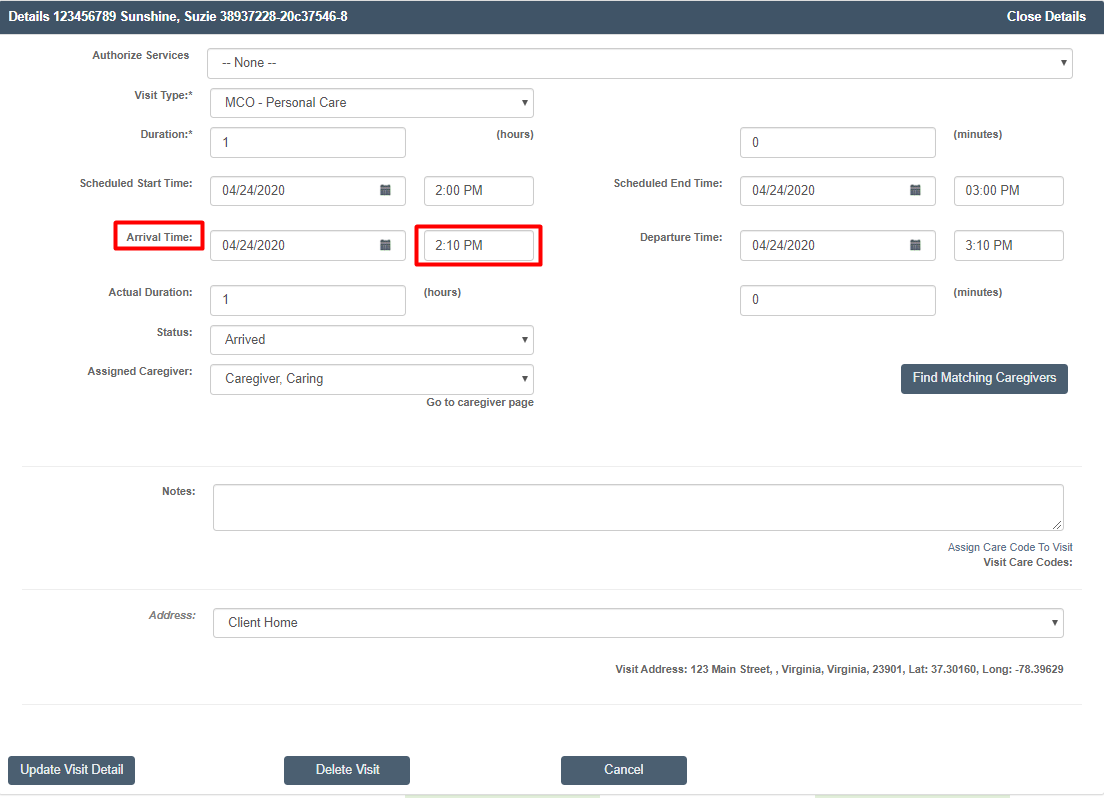
If the clock-in (or clock-out) time needs to be adjusted, this can also be done at the time of the status adjustment. Note that EVV data is not created with a manual clock-in or clock-out by a scheduler.
Deleting Visits
To delete any Scheduled visit via calendar-based scheduling, first click the Delete button at the bottom of any Visit Details window.
NOTE: If the visit is not in the status of Scheduled, you will first need to change the status to Scheduled, save, and then re-open. This is because Ankota will not allow you to delete any visit with recorded information in it. By changing the status to Scheduled, you are wiping out the data.
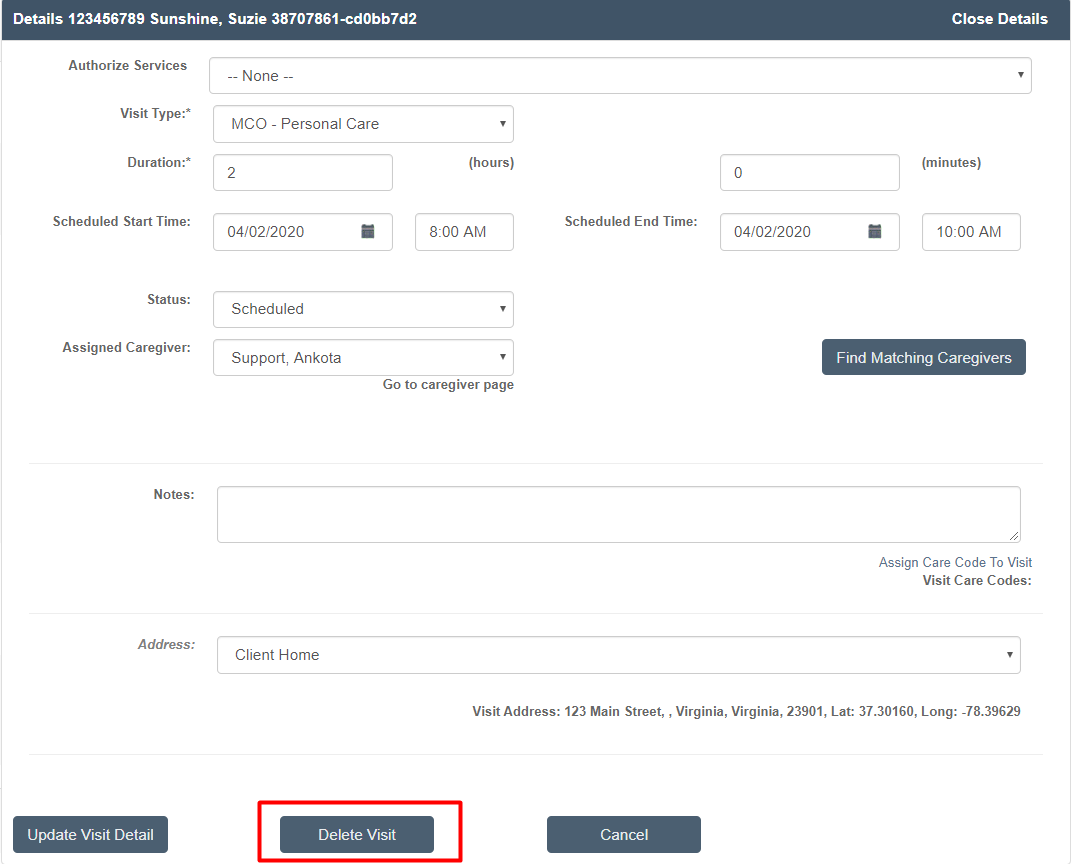
Once you click the Delete Visit button, you'll get a pop-up with several options:
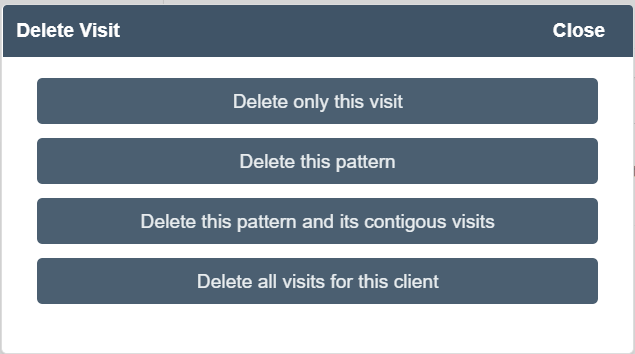
- Delete only this visit does what it says; if you click it, only this specific visit will be deleted.
- Delete this pattern is referring to the original repeating schedule; if you click it, the entire repeating pattern will be deleted going forward. (Past visits will never be deleted.)
- Delete this pattern and its contiguous visits is referring to the original repeating schedule AND any visit that consistently immediately follows the initial visits; if you click it, the entire repeating pattern AND the following visit will be deleted going forward. (Past visits will never be deleted.)
- Delete all visits for this client is referring to all future visits for a client; if you click it, the entire repeating pattern will be deleted going forward. (Past visits will never be deleted.) This is a great option when you have a client who will no longer receive services from your company.