Exporting Ankota Notes
Overview
Notes are a critical part of management. This article covers several ways to export notes from Ankota:
- Client Notes/Action Export
- Caregiver Notes/Action Export
- Visit Notes Export Options
- EVV Audit Report
- Individual Care Plan Item Notes Report
- Client Detail Printout
Client Notes/Action Export
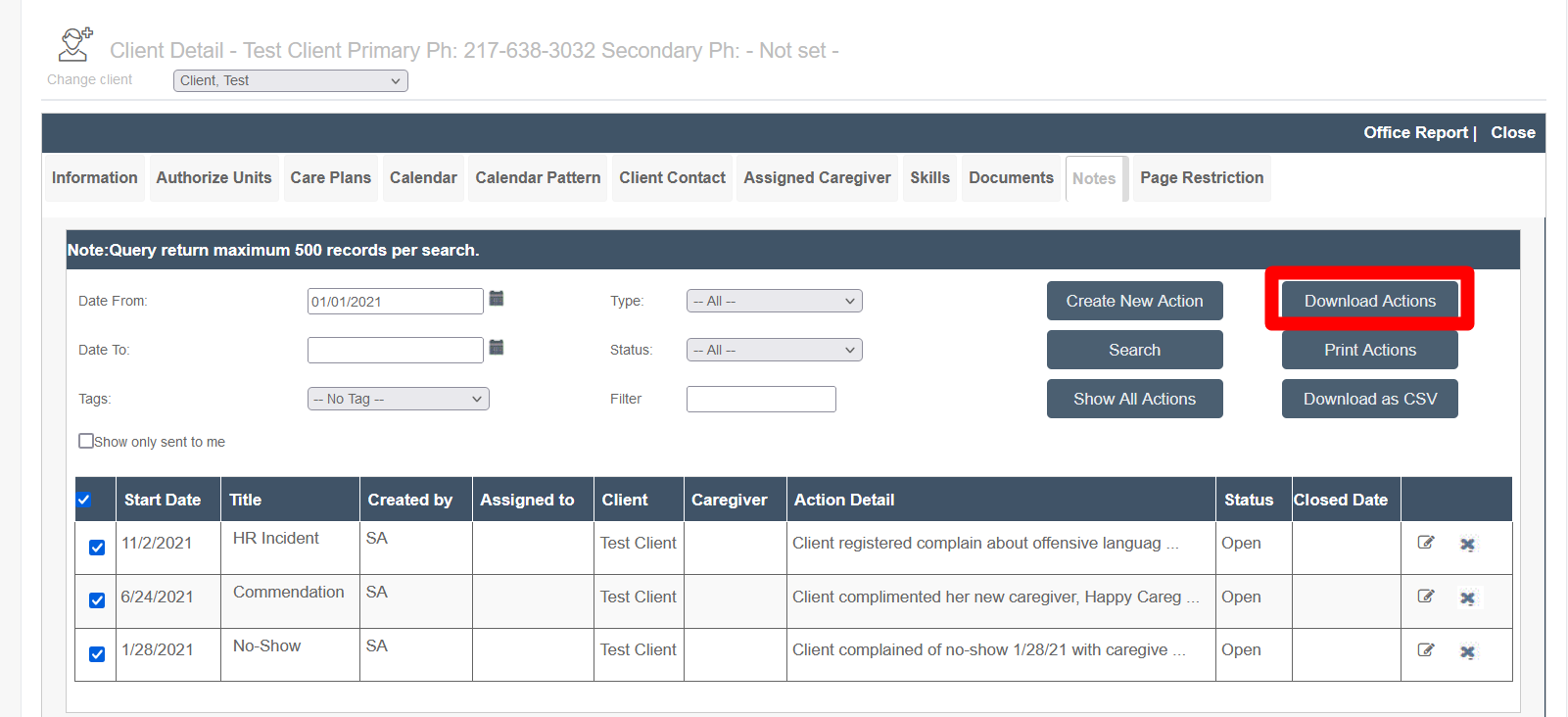
Individual client notes (or "Actions" which are sent for review, and if necessary, action) are listed in the client's portfolio. These notes typically refer to complaints, compliments, or concerns, and can be easily exported as follows.
- Click Clients
- Filter for the client
- Click the Notes tab
- Filter as needed
- Select as needed
- Click Download Actions
Sample PDF: ActionsPrintout_Sample.pdf
Caregiver Notes/Action Export
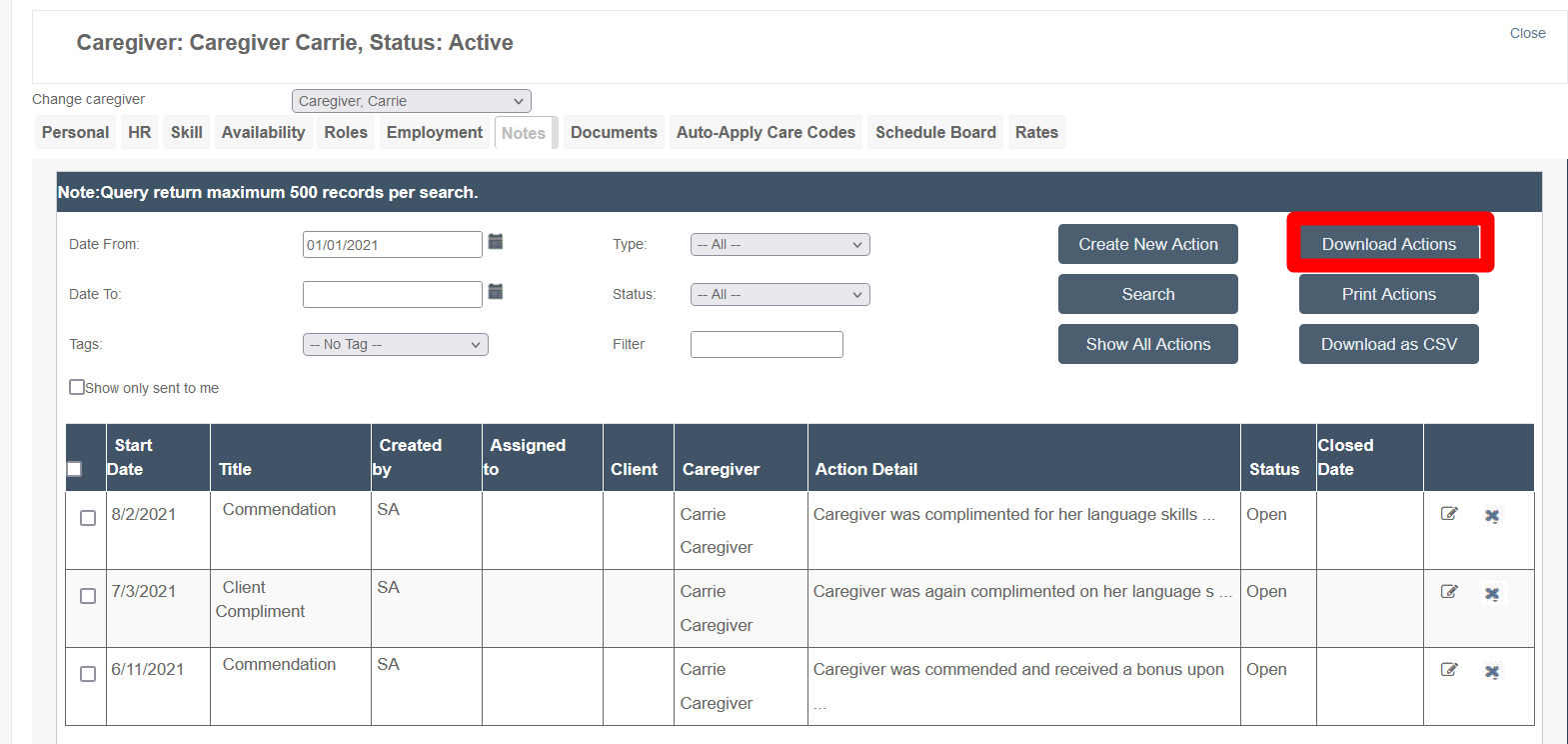
Individual caregiver notes (or "Actions" which are sent for review, and if necessary, action) are listed in the caregiver's portfolio. These notes typically refer to complaints, compliments, or concerns, and can be easily exported as follows.
- Click Caregivers
- Filter for the caregiver
- Click the Notes tab
- Filter as needed
- Select as needed
- Click Download Actions
Sample PDF: ActionsPrintout_Sample2.pdf
Visit Notes Export Options
Visit notes can be critical to organizational management. Several export options are available.
EVV Audit Report
For an Excel spreadsheet of EVV data including visit notes, the EVV Audit Report is usually best.
To pull this report:
- Click Reporting
- Click Service Detail
- Click EVV Audit Report
- Filter as needed
- Click Refresh
- Export in Excel format
Individual Care Plan Item Notes Report
For an Excel spreadsheet of care plan item notes (such as for nurses, for notes on individual tasks), the Care Plan Items Status/Notes Export report is usually best.
To pull this report:
- Click Reporting
- Click Care Plan Items Status/Notes Export
- Filter as needed
- Export in Excel format
If this report is not available in your organization, you may request this addition from Support.
Client Detail Printout
For a standard page-based client detail printout of care plan items, notes, and other information, the Client Detail Printout is usually best.
To pull this report:
- Click Settings
- Click Service Detail
- Click Client Detail Printout
- Filter as needed (a client must be selected)
- To include notes, check the Include visit notes option
- Click Search
- Save