GPS Management and GPS Re-Sets
Overview
GPS is a critical piece to Medicaid home management. GPS management usually works as follows:
- GPS Fence: A GPS "fence" is set which allows caregivers to clock in without warnings so long as they are within a certain range from the expected location. These visits have red warnings if the caregiver clocks in/out in the wrong location, but the clock-in or out is still allowed.
- Temporary Block: Some agencies opt to temporarily block caregivers 3 times if they are in the wrong location, but will still allow clock-in if they keep trying. This can be useful if you want caregivers to be "reminded" but locations frequently change, and you ultimately want them to be able to clock in even if they are at an unexpected location.
- Full Lockdown: Some agencies completely block caregivers from clocking in outside the GPS fence or in the case of failed GPS, so the visit can not be started or ended.
- Options: There are also options to add corrected or clarified GPS locations to addresses that lack a good GPS. This is usually the case with newly built housing OR with apartments/condos/suites where only the office has an indexed GPS location.
This article includes:
- GPS Options in the Mobile App
- GPS Warning
- GPS Lockdown
- Suggested GPS Lockdown Transition
- GPS Troubleshooting
- GPS Re-Set Process
- GPS Address Localization
GPS Options in the Mobile App
GPS Warning (Default)
The standard default GPS warning only notifies administrators in the Visit Approval Dashboard when a caregiver clocks in or out of a visit outside the permitted distance from a registered client service location. The default distance is 0.1 miles, or 528 feet. This is normally enough so that caregivers can clock in anywhere in a large home or on the street, but not so much that they can clock in while driving to work.
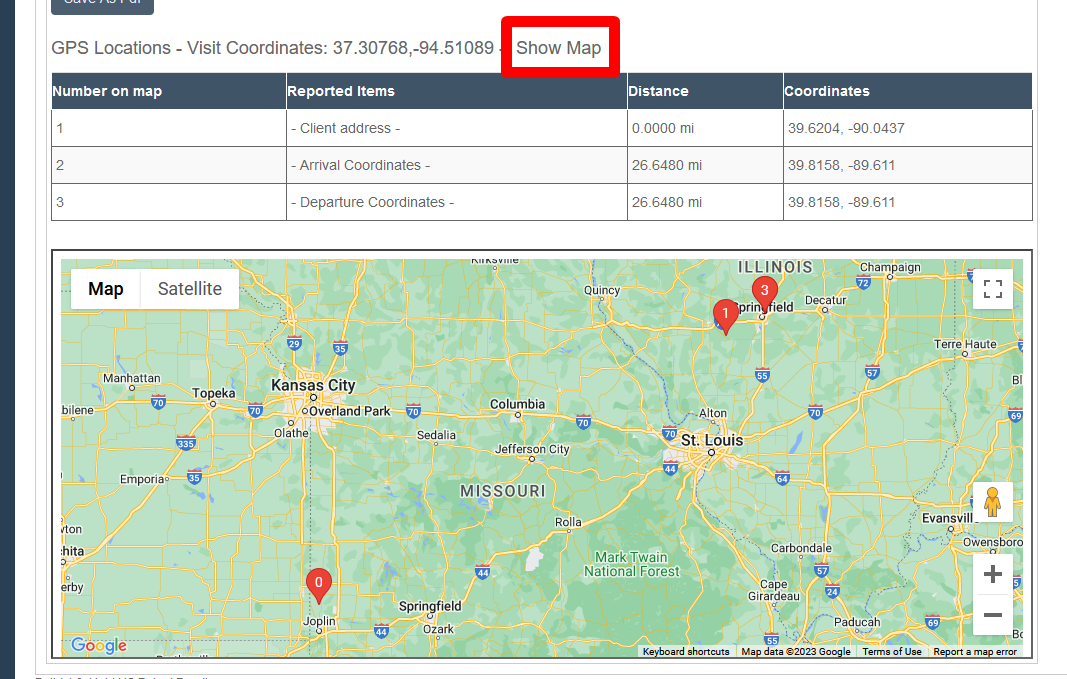
The warning appears like this in the Visit Approval Dashboard:

Scrolling to the map and then clicking "Show Map" will open the map to give a clear visual the caregiver's expected location (1), actual clock-in (2), and actual clock-out location (3).
GPS Lockdown
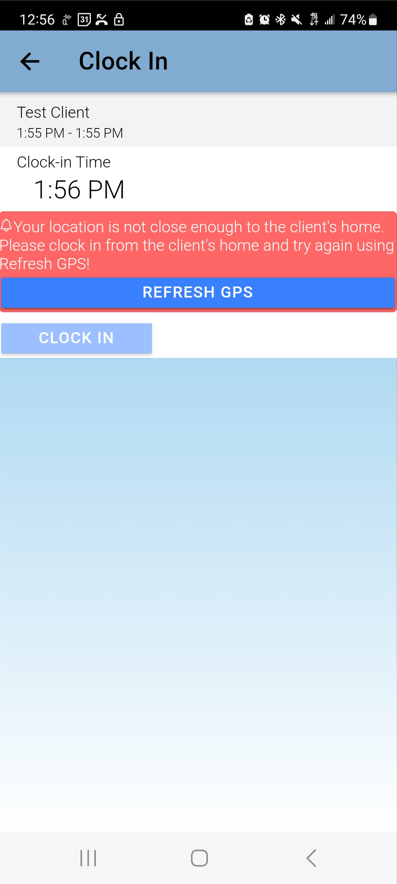
The GPS lockdown prevents caregivers from clocking in OR out unless they are within the allowed distance from a registered client service location. The mobile app warning will look like this:
GPS Lockdown with Exception
For companies that want their caregivers to be more aware of their failure to clock in within an acceptable distance, a GPS lockdown can be turned on, but an additional setting can be made that allows caregivers to clock in or out after multiple clocking failures. This can increase caregiver awareness, but still allow caregivers to ultimately clock in. This can also be used as part of a tiered process towards a more strict GPS management policy.
Suggested GPS Lockdown Transition
For organizations that want a stricter GPS policy, a recommended pathway is:
- (Three Weeks) Begin by using the Send Message function and texting a notification to caregivers that clock-ins and clock-outs will be more tightly limited to the client location going forward.
- (Two Weeks) If the GPS distance allowance has been very high, tighten it slightly.
- (One Week) Turn on the GPS lockdown with exception. Around this time caregivers will start reporting clock-in concerns. It will help identify caregivers who need GPS re-sets or updated addresses.
- (Final stage) Tighten the GPS distance to the final goal, typically about 0.1 miles. If desired, also remove the exception so that caregivers can only clock in or out if they are within the clock-in/out range.
GPS Troubleshooting
GPS Re-Set Process
Sometimes, a GPS re-set is necessary. Typically, this is because the place of service is at a condo or apartment. Because only the office location is usually marked on Google, that means the actual apartment might be a full 0.2 miles (or more) away from the "expected" location of the office. This results in Visit Approval Dashboard Warnings that the caregiver is too far away from the caregiver's location, even when the caregiver is clocking in precisely at the client's front door.
To correct this issue, the location can be specially approved for service using a GPS re-set. If the GPS re-set visit type is not available, contact Support to request one be added to the system.
To correct the GPS location:
- Reach out to Support to request a GPS Re-set visit type (if not already available).
- Schedule a GPS Re-set visit with a trusted party, such as a supervisor.
- At the client's appropriate place of service, they will clock in and out from the exact same spot.
- The GPS for this client's location will be re-set.
GPS Address Localization
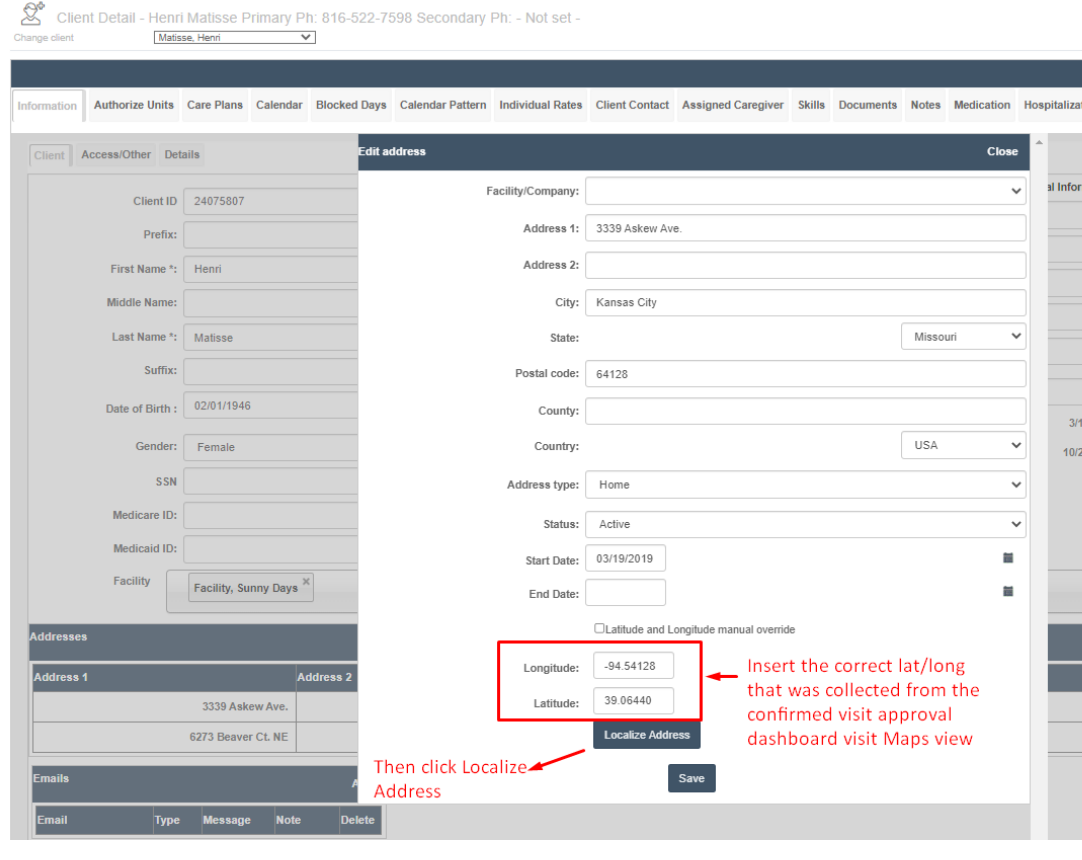
Alternately, if the map location (which will have a listed latitude/longitude) in the Visit Approval Dashboard is verified as correct, that GPS latitude and longitude can be assigned to the client's address, then click Localize Address. One of the best ways to do this is to send a staff member to the home address, clock in and out at the correct location, and then take the lat/long from this test visit.
GPS "Location not provided" Issues & Solutions
Sometimes, GPS entirely fails to pick up, typically resulting in a manual visit. See below for common causes and recommended solutions.
GPS Failures: Common Causes
Caregiver Device Settings or Choices
Certain caregiver phone settings can interfere with GPS pickup, including:
- Airplane mode
- Extreme battery saver or low power mode (which may disable location services)
GPS / Signal Limitations
GPS itself is reliable, because it is satellite-based and not internet-based.
However, modern mobile GPS systems (including Ankota) commonly use Assisted GPS ("A-GPS"), which may also rely on:
- Cellular triangulation
- Wi-Fi positioning
- Recent known locations
This improves pinpointing accuracy, but also means certain conditions can interfere with location pickup, including:
- Poor cellular service
- Weak Wi-Fi
- Metal roofs/buildings
- Basement or interior locations
- Moving too quickly during clock-in/out
NOTE: Even without cell service, GPS can often function, especially if the device recently obtained a strong GPS reading.
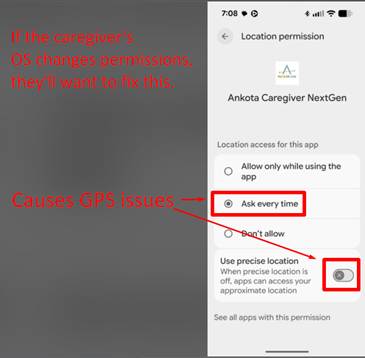
iPhone / Android Permission Changes
Recent iOS and Android updates increasingly:
- Downgrade permissions from "Always Allow" to "While Using" or "Ask Every Time"
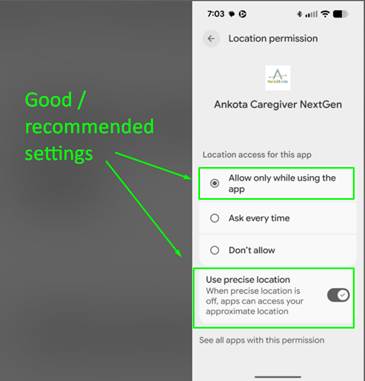
- Disable "Precise Location"
- Require caregivers to re-confirm permissions after updates
As a result, caregivers may believe location services are enabled when:
- Only approximate location is allowed
- Or the Ankota app has limited GPS permissions
GPS Failure Prevention & Solutions
To reduce GPS failures:
- Do NOT use airplane mode while clocking in/out
- Avoid extreme battery saver modes that disable location services
- Ensure the Ankota app has full GPS permissions enabled
- Confirm "Precise Location" is turned on
- Select the most flexible location permission available ("Always Allow" if available)
- Make sure caregivers fully complete clock-in and clock-out before exiting the app
- Pay attention to app warnings regarding GPS difficulty
If the app reports trouble pinpointing GPS:
- Move closer to a window
- Clock in/out outside the building if possible
- Stand still briefly during clock-in/out
Optional Compliance Settings
To increase GPS success, organizations may choose to block caregivers from clocking in/out without GPS and also block clocking in/out with GPS outside the allowed area.
If a caregiver is unable to obtain GPS:
- Administrators may manually clock caregivers in/out if appropriate
- Administrators may also add a new approved service location to the client profile at the time of service