Multiple Care Plan Management
Overview
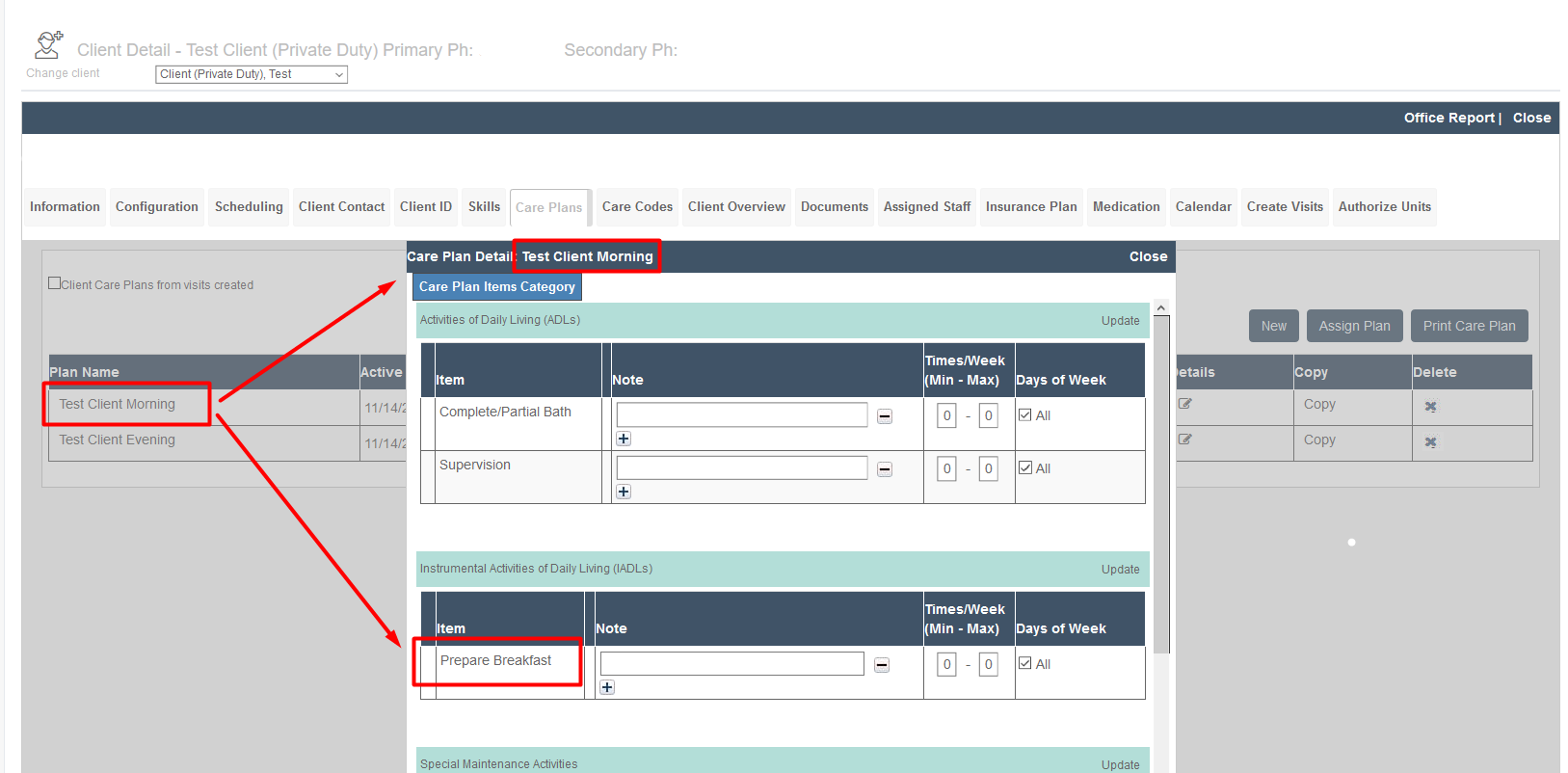
Generally, there should be only one care plan, and this should cover all categories. In some rare instances, where there are specific items that can only be done in the morning or only be done in the evening, multiple care plans may be needed. If you do not have time-specific care plan items (like a morning Breakfast item and an evening Dinner care plan item), there is no need for more than one care plan. See below for the creation and management of multiple care plans.
Create Visits Page
If a second care plan is needed due to differing services in the morning and evening, either schedule using the historic Create Visits function, or adjust the Calendar Pattern after scheduling the visits in calendar-based scheduling.
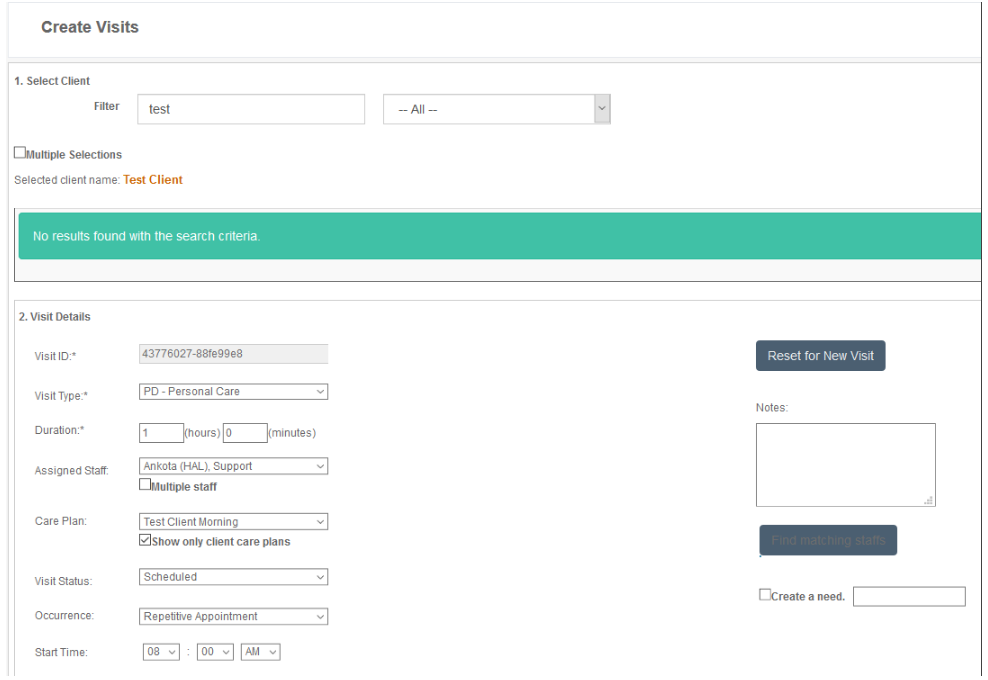
To schedule with Create Visits via the Create Visits page:
- Click Scheduling
- Click Create Visits
- Select the Client
- Select the Visit Type
- Enter the Duration
- Select the Caregiver
- Select the Care Plan
- Leave the Visit Status as Scheduled
- Enter the Visit Start Date
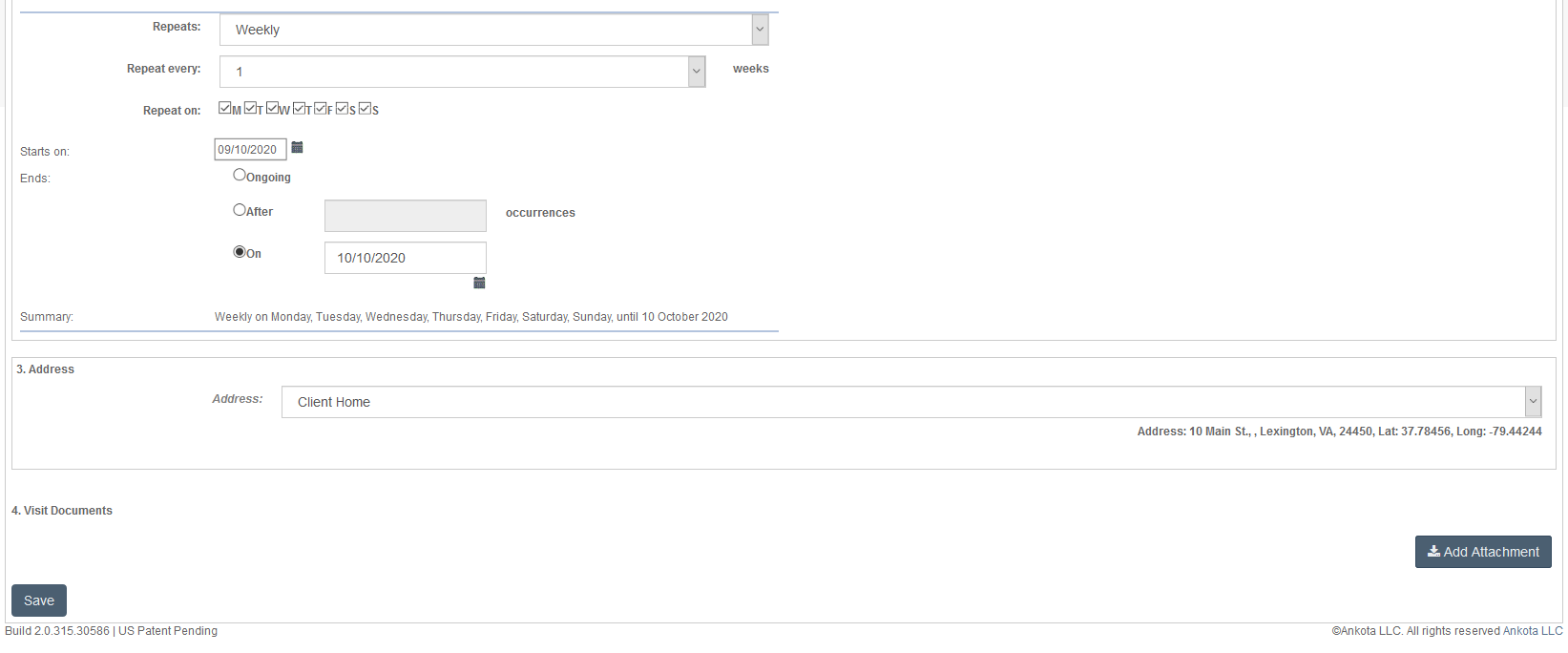
- Select Occurrence or Repeating Visits as needed. If Repeating is selected, enter the appropriate recurrence, most likely weekly, with days selected, ending on the last day of the authorization
- Enter the Start Time
- Save
Create Visits / Calendar Pattern Tab
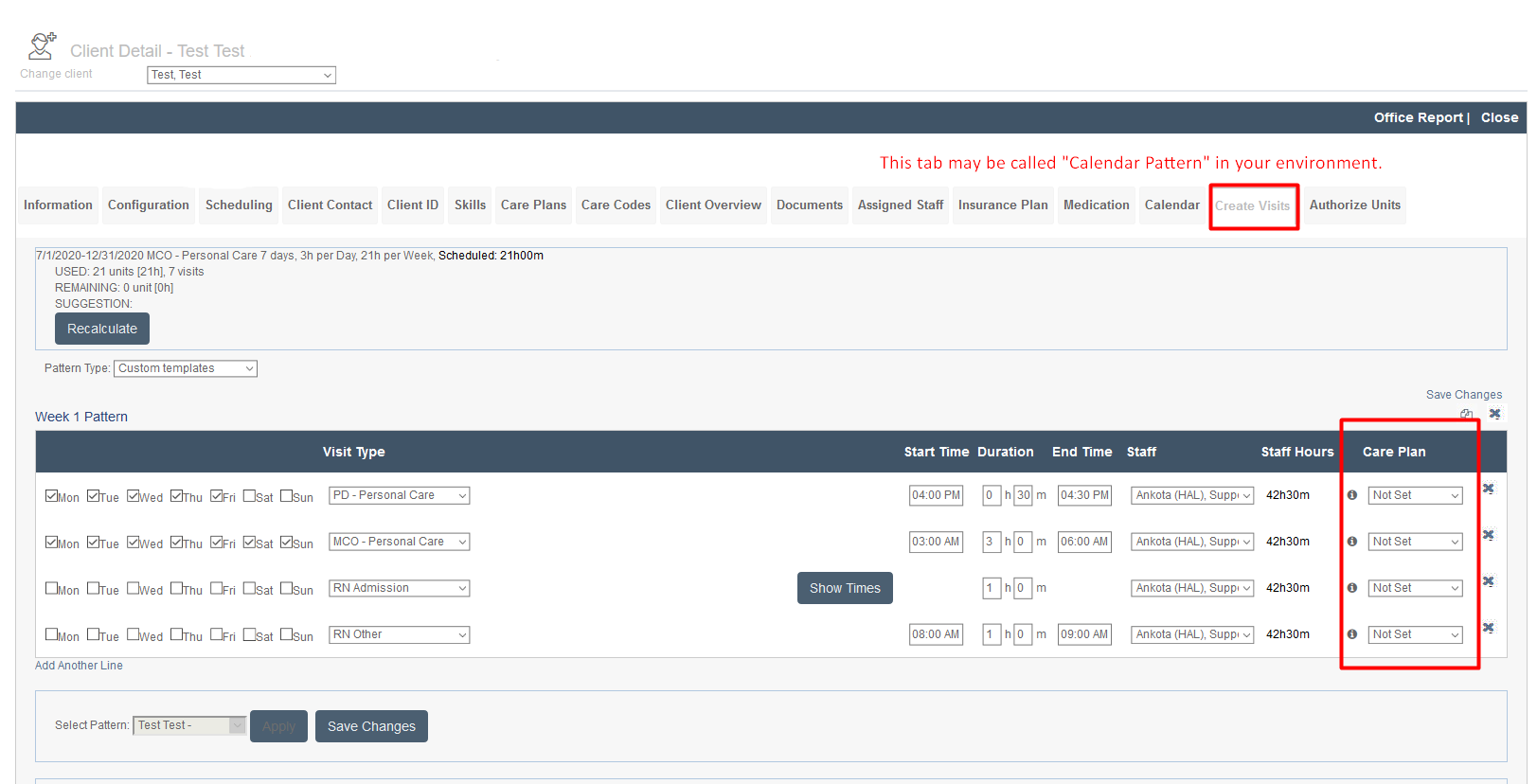
Alternately, visits can be scheduled via calendar-based scheduling, and the care plan assigned using the Create Visits/Calendar Pattern tab in the client's profile.
To edit the calendar pattern and assign a care plan to a calendar pattern:
- Click Clients
- Filter for the client and click on the client's name
- Click the Create Visits/Calendar Pattern tab
- Click Edit
- Select the Care Plan associated with each pattern
- Save
Managing Default Care Plans for Multiple Care Plan Clients
For clients with multiple care plans, it may be preferable to delete the default care plan created by the DMAS97AB and build two new ones to ensure clear titling.
For example, if Jane Doe's DMAS97AB requires breakfast and dinner in her care plan, and the breakfast item should only be asked during the morning while the dinner item should only be asked in the evening, delete the automatically built care plan and create two separate care plans, "Jane Doe Morning Care Plan" and "Jane Doe Evening Care Plan," with breakfast on the Morning Care Plan and dinner on the Evening Care Plan. Include all other care plan items as normal.