Unique Functions of Visit Management via the Visits Page
Overview
Although scheduling is typically managed on calendars via calendar-based scheduling, the Visits page offers unique functions that cannot be found elsewhere, as well as the ability to carefully filter for a specific group of visits and then take action on them.
Below is a base outline of this process, along with a rundown of each button's functionality. Some buttons may be hidden based on organization preferences and the viewer's permission level. For assistance with Payer Descriptor changes, see "Correcting Payers and Visit Types."
Visit Management via the Visits Page
One of the most useful aspects of the Visits page is its ability to tightly filter for a range of visits. By searching for an exact group of visits, the "check all" box can be used to select all filtered visits on the page, and then a button at the bottom of the page can be clicked to apply the desired function.
For example, to delete all visits for a departing client starting next Monday (because the client is moving to an assisted living facility), filter for the start date, enter the client's name, and click Search. Once the visits appear, check the "check all" box at the top of the Visits List.
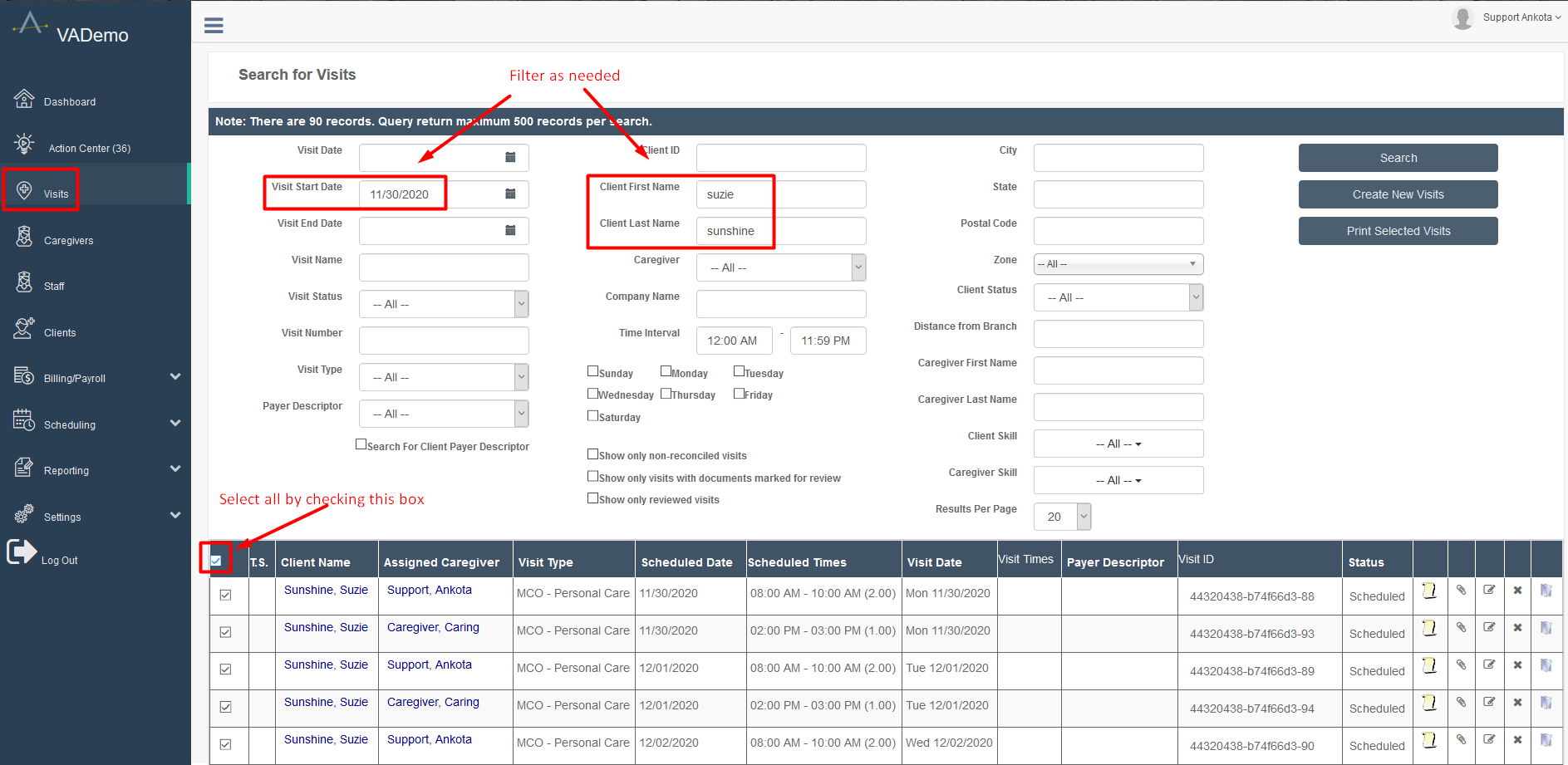
Once the visits are selected, scroll to the bottom of the page and click the button with the desired functionality. In this case, click Delete Visits.

Button Functionality
Each button has a unique functionality, outlined below. Some buttons may be hidden based on organization preferences and viewer permission level. If an organization needs a button that is not visible, contact Ankota to have it configured.
| Button | Use |
|---|---|
| Change Type | This button will allow you to change the visit's type, such as from Personal Care to Homemaker. |
| Cancel Visits | This button will allow you to cancel the visit itself. "Canceled" is a status and will not remove the visit from the system. The visit will remain for recordkeeping in the status of Canceled. |
| Delete Visits | This button will allow you to delete the visit. "Delete" means to remove the visit entirely from your system. It is NOT a status. |
| Cancel Assignments | This button will allow you to cancel the assignment of the caregiver to the visit. The visit itself will remain in the status of Scheduled. |
| Report Visit Completion | This button will allow you to close out a visit, including adjusting times. This can be useful if you are manually closing a large number of visits, typically by referring to paper timesheets. |
| Assign to another caregiver* | This button will allow you to assign the visit(s) to another caregiver. |
| Set Scheduled Date/Times | This button will allow you to change the scheduled dates and/or times of visits. |
| Find Matching Caregivers | This button will allow you to use the Find Matching Caregivers functionality for multiple visits. Please note there are limitations to this functionality, and can only be used on multiple visits within specific parameters (same patient, same visit type/contiguous visits). |
| Map Visits | This button will allow you to review a caregiver's visits on a single day for travel purposes, you can select the visits for the caregiver and then click Map Visits. |
| Add Notes | This button will allow you to add the same note to a group of visits. |
| Change Status | This button will allow you to change the status of the visit, such as from Scheduled to Arrived. |
| Set Address | This button will allow you to set the address on a specific visit or visit(s). This is particularly useful when an address was initially entered incorrectly, resulting in the visits being assigned to the wrong address. The address update can be made to these visits using this button. |
| Process Documents | This button will allow you to process documents on any visits that were closed with completed mobile forms. |
| Calculate Travel Time | This button will allow you to calculate travel times between visits with the same caregiver on the same day. |
| Change Visit Payer Descriptor* | This button will allow you to change the payer descriptor assigned to a visit. |
| Visit Care Codes | This button will allow you to adjust care codes assigned to a visit. |
Terminology Note
Key terms such as "caregiver" and "payer descriptor" are organization-specific and may display differently in a given environment. For example, caregiver may appear as aide, staff, assistant, or another term selected by the organization. Similarly, Payer Descriptor may appear as Payer or Agency.